

Stuttering on a high-end gaming laptop shows up as random frame drops, micro-freezes, or sluggishness during gameplay. The issue can stem from multiple sources, including thermal throttling, incorrect GPU switching, power-saving features kicking in, and other bloatware that comes bundled with your laptop.
While there could be other serious causes, such as a malfunctioning power IC in the laptop or a blown VRM phase that causes the device to throttle, the following are a few possible causes that are within your reach and fixes worth trying that might resolve the problem entirely.
Note: Some parts of this article are subjective and reflect the writer’s opinion.
Possible fixes for game stuttering on your laptop
The stuttering issue is often software-oriented or highly thermal-specific, but can also occur due to either of the following causes:
- Thermal throttling
- Hybrid graphics (Optimus/MUX) switching failures
- Aggressive power saving modes
- Background bloatware and overlays
That said, here are a few things you can try to smooth out your gameplay and properly enjoy the laptop you paid for:
- Check temperatures and airflow
- Force a dedicated GPU
- Switch to “Best performance” power plan
- Disable game overlays
- Update laptop BIOS/firmware
Below, we have explained each of these fixes in detail.
Check temperatures and airflow
The first step is to fix thermal throttling. You can do this by installing a monitoring tool like HWMonitor or MSI Afterburner. If your CPU reaches 95°C+ or your GPU goes over 86°C, your laptop will slow down to protect itself. Ensure your laptop’s cooling vents aren’t blocked. If you are comfortable, clean the fans or use a cooling pad, then run the game and see how it performs.
Read more: All phones confirmed to get ColorOS 16
Force a dedicated GPU
In many cases, the laptop’s integrated graphics are prioritized when running a game, causing the frame rate to drop significantly. Even with laptops equipped with a dedicated MUX switch, the hardware sometimes fails to switch automatically.
The best way to force the dedicated GPU is to open Windows Settings, then Apps, locate the game, and set it to use the laptop’s dedicated graphics. Another option is to use the laptop’s built-in software, assign the app to the GPU, or enable discrete graphics mode, then restart the laptop.
After restarting, try playing the game. In most cases, this will reduce stuttering and input lag-related sluggishness caused by the display signal round-trip.
Note: By round trip, we mean that the Game’s 3D logic is rendered by your discrete GPU, but the output is rendered incorrectly by the integrated graphics within your laptop’s CPU, resulting in an additional performance overhead and causing sluggishness within your system while running the game.
Read more: Is it worth buying the iPhone 13 in 2026?
Switch to “Best Performance” power plan
Many laptop vendors ship with power plans that aggressively enforce power states, which interfere with system performance even when the device is plugged in. The best way to resolve this issue is to select “Best Performance” or “High Performance” in Windows power settings, and then run your desired game.
If it works, you will notice the change, but temperatures will spike significantly because Windows alters the base and maximum turbo TDPs of both the CPU and GPU and sets them to the maximum allowed by the BIOS. A high-quality cooling pad is recommended if you plan to use the High Performance plan in Windows.
Read more: The Xiaomi 18 Pro and Pro Max are tipped to sport dual 200MP cameras
Disable game overlays
In-game overlays such as Discord, the GeForce app, Overwolf, and Windows Game Bar consume significant RAM and CPU resources. If you are using a 16 GB RAM gaming laptop in 2026, you should disable these overlays, as running out of RAM may cause your games to stutter.
Once the overlays are disabled, restart the game and check whether the stuttering has been resolved. Furthermore, de-bloating Windows also works, as it cleans out a lot of pre-installed apps and services that would otherwise consume RAM.
Update laptop BIOS/firmware
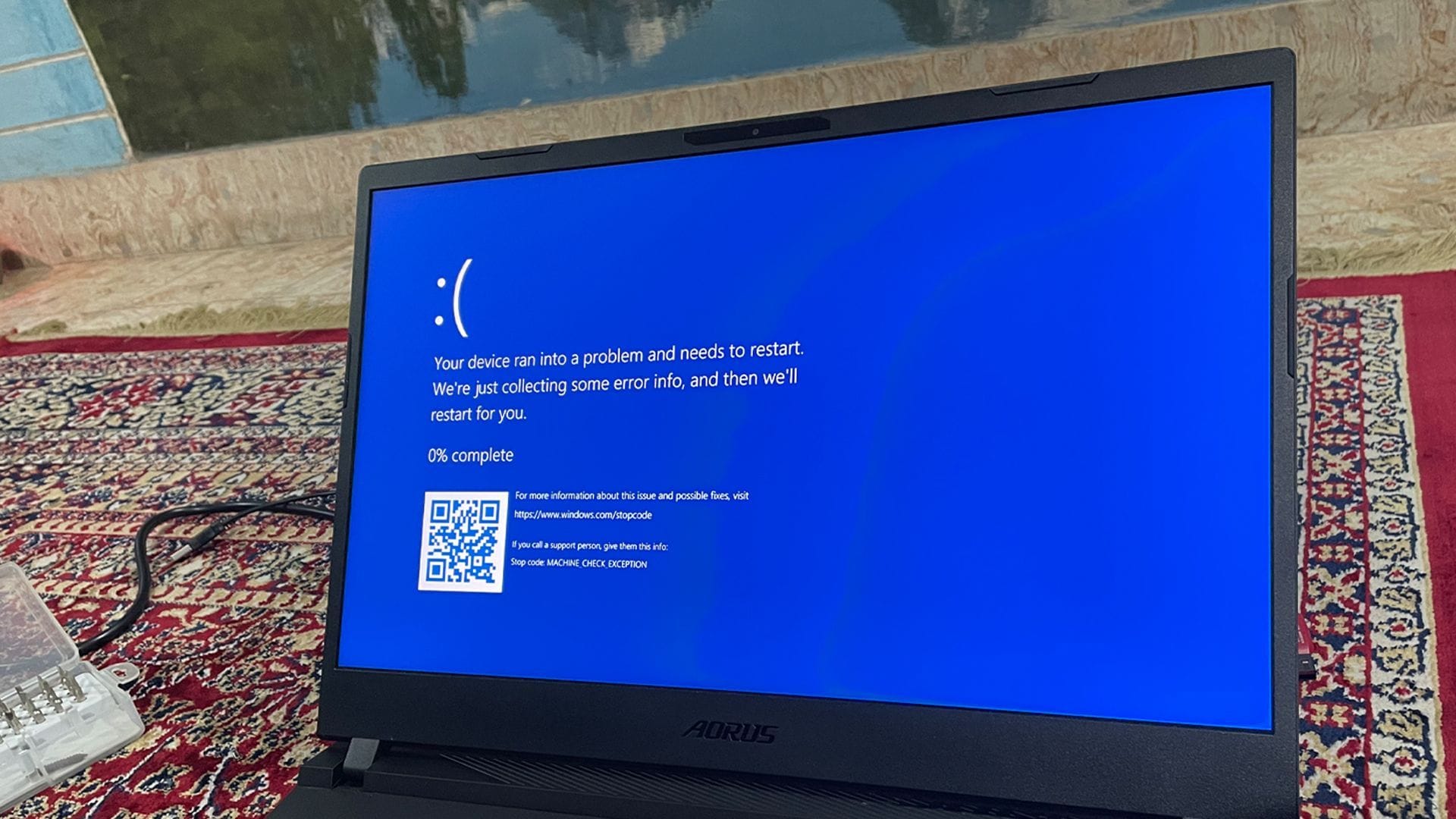
If none of these steps resolve the stuttering, you may need to take a last-ditch measure: updating your laptop’s BIOS. On a side note, if the stutters lead to errors like WHEA_UNCORRECTABLE, MACHINE CHECK EXCEPTION, this may indicate an unstable power delivery or a deeper hardware-related issue.
A BIOS update can alter the microcode, boost behavior, or voltage response, and if the system is already hardware-unstable, these changes may expose the fault and prevent it from booting.
While you can watch YouTube guides to update your laptop’s BIOS, we strongly recommend consulting a qualified technician first. Explain the stuttering issue in detail, show them what is going wrong using tools like MSI Afterburner stats, and let them properly diagnose the system. Only then will you truly understand why you were not receiving the performance you paid for.
Read more: Apple M5 MacBook Pro vs Lenovo ThinkPad X9 14 AE: Which laptop is better for productivity?
Edited by Niladri Roy