
You can play classic computer games from the comfort of your couch by using RetroArch with the Apple TV. Here’s how to get retro gaming on Apple’s streaming box.
Retro gaming on Apple’s ecosystem enjoyed a revival in 2024, as Apple updated its App Store Review Guidelines to allow emulators into the App Store. The change led to a gold rush of emulators arriving in the digital storefront, providing ways to play classic titles on your iPhone or iPad.
The change also made it possible to do the same on the Apple TV. The set-top box in the living room seems like the perfect bit of kit to play retro games on, being connected to a large TV and in the comfiest chairs of the home.
This does sound ideal, but while the Apple TV has its issues, it can be done with emulators such as RetroArch.
A warning
Emulators are used to play old games, and emulation is legal. What gets murky is the BIOS needed and the ROM files for games.
Emulators use ROMs, the original files that contain the actual game, which are often downloaded from various unofficial sources online. That is, without the permission of the rightful owner.
It is considered legal if the person doing the emulation has the original hardware, and dumps their own BIOS and game data. In many cases, said BIOS and ROMs are acquired and used without this in mind.
AppleInsider strongly recommends potential players check out local laws to determine their particular legal requirements. While this article discusses the emulator element of the equation, we won’t get into ROM or BIOS acquisition at all, nor will we allow links in our forums.
RetroArch
RetroArch is one of the most popular emulators on the App Store market, and we have previously discussed how it works on iPhone, iPad, and iPod Touch. However, it also works on Apple TV.
It’s a free and open source emulator that supports ROMs for a vast number of classic devices. This includes consoles such as the Sega Genesis and Nintendo Entertainment System, to disc-based platforms like the original Sony Playstation, to handheld items like the Nintendo Game Boy Advance and Nintendo DS.
As a platform, it also has quite a few useful features, including support for MFi controllers, netplay, AI translations, key remapping, shaders and custom overlays, and cheats.
It is also a cross-platform emulator. When set up right, the game states can be synchronized between all your Apple devices, so you can save your game on an iPhone and pick up on an iPad, for example.
As far as emulators go, it’s one that is robust and with considerable range, making it one of the better options for Apple users to use.
Apple TV and Persistent Storage
While you can use the Apple TV to play your retro games, it will take some effort to get going. More so than if you’d play on an iPhone or iPad, because of the way the Apple TV functions.
The problem isn’t getting ROMs installed into RetroArch, but in keeping them on there.
Periodically, especially if a lot of storage is used up or if there are a lot of files, tvOS will analyze the installed files and delete those it deems unneeded anymore. That can include the ROM files you load onto the Apple TV, as well as save files.
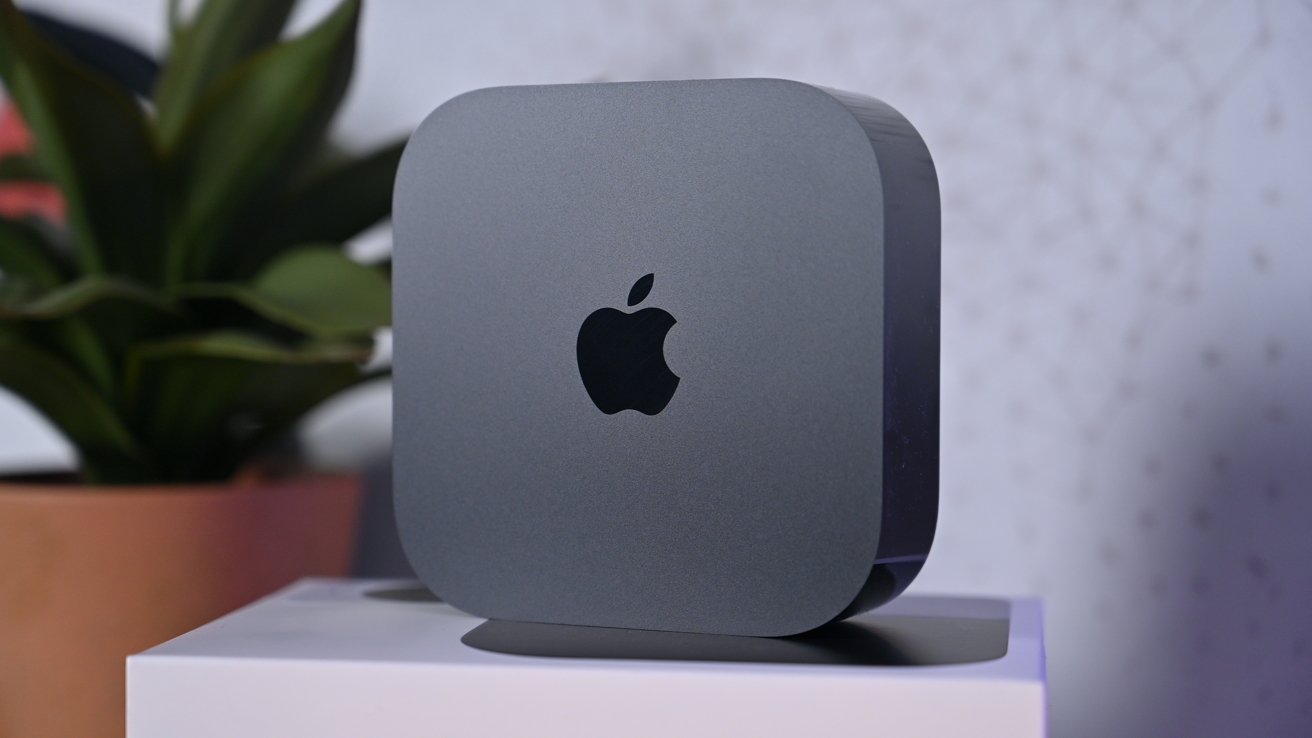
Use iCloud to get around Apple TV’s persistent storage problem.
Having your games deleted seemingly at random is a problem, but only on Apple TV. If you use RetroArch on any other platform, this problem doesn’t exist.
With this in mind, it is worth considering simply reusing an old Mac for the same job. Even an Intel-based Mac mini is more than enough to handle game emulation duties, and they don’t take up much more space than the Apple TV either.
That’s before you consider the Apple TV 4K has a maximum of 128GB of storage, which isn’t a huge amount to work with. Another plus for the full-scale Mac experience.
Be aware that, for the Apple TV, there are workarounds that will address the persistence problem, but you need not go down this path to begin with.
Install a controller
If you’re playing a retro game, you will want to do so with an actual game controller.
You could go down the route of using a game controller from an Xbox or PlayStation with the Apple TV, or you can pick up one of the many Made For iPhone Bluetooth controllers on the market.
The process of connecting them to the Apple TV is pretty much the same across the board.
First, you set your controller into pairing mode. This will vary between devices, so consult the manual.
Next, press and hold the TV logo on the Apple TV remote to open Control Center, then select the game controller icon, followed by the game controller on the list.
Setting up RetroArch
Using tvOS, open the App Store and search for RetroArch. It’s a sizable download, as it will include the various cores required to render the games.
When you open the app for the first time, it will display a pop-up Welcome box that tells you URLs you can enter into a browser to manage your RetroArch Apple TV installation. Make a note of these and then on a Mac, open a browser to either location.
This will bring up a view of the Apple TV’s RetroArch folder, where you can upload files to the Apple TV itself.
While the temptation is to set up a ROM folder, this is not advisable, due to the persistent storage problem mentioned previously.
RetroArch does have a cloud component, as it can be set up to synchronize with a user’s iCloud storage. This would save some files, but under RetroArch, this only applies to configuration and save files, not the actual ROM files.
One workaround is to put the ROMs inside of the configuration folder. They will still be readable and playable, but they will be able to use the cloud function too.
As a neat byproduct, if you have RetroArch on other platforms that also sync with iCloud, those embedded ROM files will sync with that hardware too.
Within the web interface, open the Config folder, then click Create Folder, and give it a name like “ROM” or “ROMs,” or add an underscore so it appears at the top of the folder list.
Open that new folder, and create a new folder for the platform of the ROM you want to add. For example, if you’re planning to play a Sega Genesis game, then create the folder “genesis” and open it up.
At this point, you can drag and drop a folder of ROMs or selected ROM files into that browser-based folder to transfer them over the network to the Apple TV.
Again, be aware of the types of ROM that you are planning to play. Some disc-based game ROMs can be quite large and quickly consume the space on the limited Apple TV’s drive.
While you’re in the Config folder, you should create a second folder within it called BIOS. Some consoles require BIOS files to work properly, and you should place them here.
RetroArch configuration
With the files in place, the next step is to configure RetroArch itself on the Apple TV. Open the app and dismiss the initial Welcome notification.
The main interface is usable but not polished, so you may want to change it for something else. Under the menu, select Settings then Drivers.
You should change the Menu drive to xmb, which mimics the XrossMediaBar by Sony. Quit and restart the app using your Apple TV remote, double-tapping the Home button, then swiping the app up in the app view of tvOS.
Once back in, select Online Updater in the first column, then Update Controller Profiles. This will make sure your chosen controller is properly supported.
Go to the second column, Settings, then go to Inputs and then Hotkeys. Here, you can configure specific key combinations you can press on the controller to toggle various features, such as restarting the game, pausing, and rewinding.
Under the Saving section in Settings, go to the bottom and select Cloud Sync. Enable Cloud Sync, then under Cloud Sync Backend, select iCloud.
Lastly, under Settings, go to Directory, which is where we tell RetroArch which folders do what. Since we have saved the ROMs in a different folder than usual, we have to set that up.
For Start Directory, select the option to enter the RetroArch folder, then navigate to Config, then your ROM folder, then select Use This Directory. Do the same for System/BIOS and point it to the BIOS folder you set up.
Once you have finished configuring the app, go back to the first column and select Configuration File followed by Save Current Configuration.
You should see a message in the lower left saying Cloud Sync in progress. This is the Apple TV saving your new save games and configuration files, as well as the embedded ROM and BIOS folders, to iCloud.
We’re now at a point where we can create playlists for the games, namely telling RetroArch which cores to use with each system folder created in the ROMs folder. You can do this automatically, but we will do it manually for each platform.
In the first column, select Import Content, then Manual Scan. Under Content Directory, select the system folder within ROMs, then select Scan This Directory.
On the next page, use System Name and select the platform that those ROMs run under. This will tell RetroArch that all ROMs in that folder are meant for a specific console.
Under Default Core, select the platform and emulator core. Then scroll to the bottom and select Start Scan.
After the scans complete, you will see the platforms appearing with their lists of ROMs as playable games. If you want better icons for each, you can use the first main menu column and select Online Updater, then select Playlist Thumbnails Updater.
Select a playlist, and the thumbnails will update.
After setting everything up, you can now select a playlist, select a game within the playlist, and select Run.
Going further
This guide covers the basics of getting started with RetroArch on an Apple TV, including mitigating the persistent storage problem. However, you can always go further.
There are many options available relating to how games appear onscreen.
This includes enabling shaders, which create visual effects that turn your new flat LCD TV into something approximating an old-fashioned CRT television. You can also fast-forward and rewind games, sign up for RetroArch achievements, and switch the core used for emulation.
If you’re seeking perfection in your retro gaming adventures, there are many elements you can explore and fine-tune to get things just right.