
At this point in the smartphone age, many of us have committed our loyalty to one phone brand—but is the default choice always the right one? Might there be a better mobile experience waiting for you on the other side of the Android vs iOS divide?
If you’re considering a switch, we can answer some of the questions you might have about jumping from Android devices to iPhones, or in the other direction. The main takeaway is that it’s not as hard as you might think to switch, but you do need to put some thought and some research into it ahead of time.
Check the apps you use
If you’re a heavy Google user, switching between Androids and iPhones is actually pretty straightforward. You’ll find apps like Gmail, Google Maps, Google Drive, Google Photos, Google Keep and Gemini ready and waiting for you on both platforms. And as soon as you sign in, all of your files are there waiting for you.
If you’re an iPhone user who relies a lot on Apple apps, switching to Android is trickier. It’s not impossible, but it’s more difficult: Apple Music and Apple TV are available on Android, but that’s about it. If you have a lot of data in apps like Apple Mail, Apple Photos, and Apple Notes, you’ll either have to export it into the Google equivalents or start afresh on Android.

How easy an export and import is depends on the app, though plenty of tools can help (see below). An iOS-to-Android switch is easier to do for those invested in the Apple ecosystem if you’ve still got an iPad or a Mac you’re hanging on to—you can still use all of your Apple apps on these devices, and won’t have to abandon or export your data.
As for third-party apps—from Snapchat to Spotify to Netflix—the vast majority of them are now on both iOS and Android, so there are no major problems there. You will find a few exceptions, including Overcast for iOS and Tasker for Android, so do an audit of all the apps you rely on to see how easy (or otherwise) it is to switch.
Check the location of your messages
Messaging apps are likely some of the most important apps on your phone. It’s inside these apps that you’ve got heartfelt messages, photo and video memories, and all sorts of important information (from the addresses of relatives to the time of your next team meeting at work).
With a few exceptions, you can jump between the same messaging apps on Android and iOS, including WhatsApp, Facebook Messenger, Slack, Signal, and Telegram. In addition, social media apps with messaging—Instagram, Snapchat, X—should work seamlessly across both iPhones and Android phones.
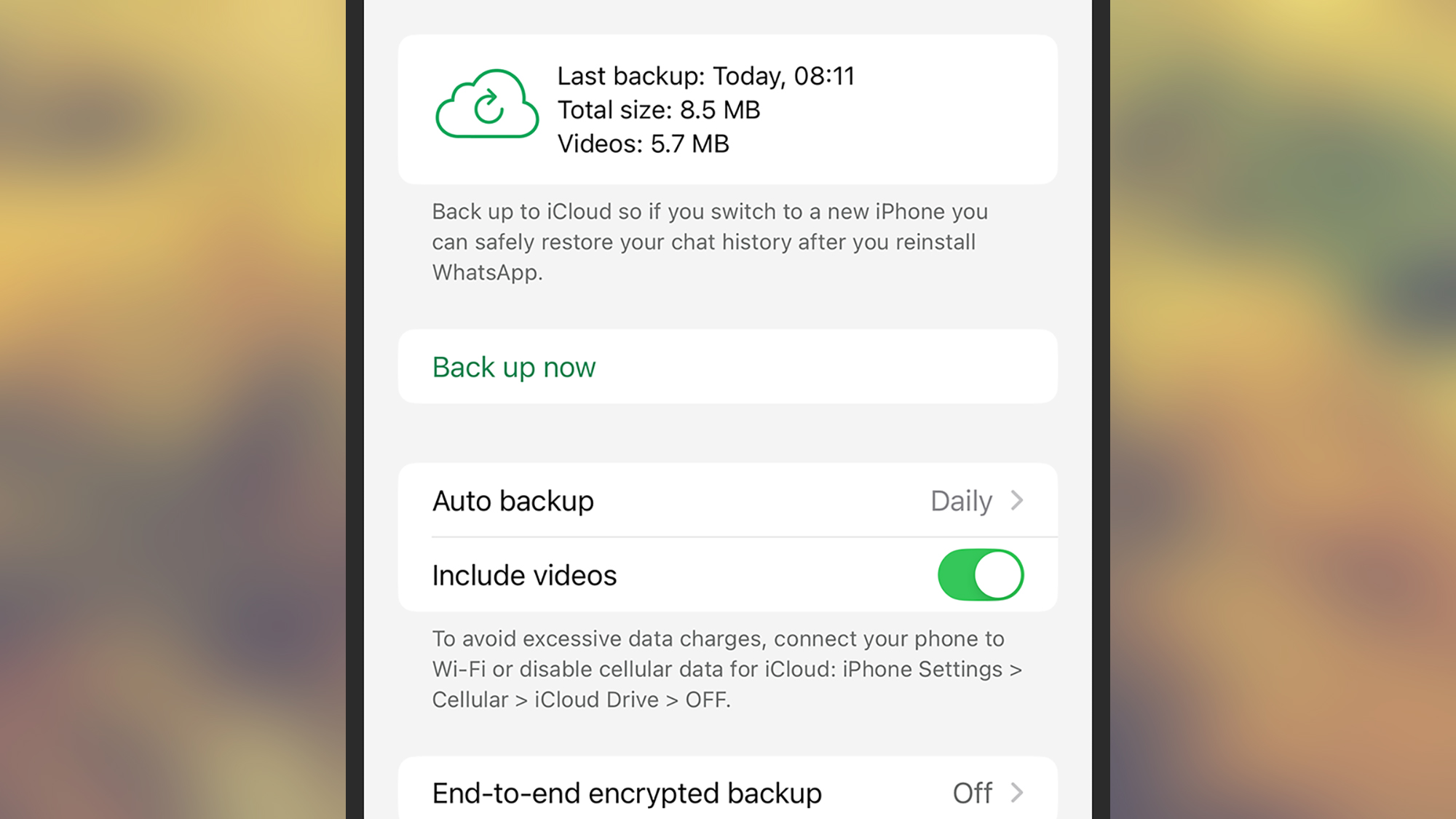
You should still check the exact switching procedures for your messaging apps of choice to make sure everything is backed up and transferred successfully. WhatsApp, for example, has specific guides for switching from Android to iPhone and from iPhone to Android, and taking all your conversations with you.
The trickiest switch to make is transferring all your SMS, RCS, and iMessage chats between platforms, but this is possible if you use the official tools from Apple and Google—which we’ve covered below. However, you can’t carry on using iMessage on Android, because Apple doesn’t offer an Android version of it, so you’ll have to switch to something else.
Check where your files are
So those are the apps sorted, what about your files? With the general trend of switching to cloud storage in recent years, getting at your data from any device is a lot easier than it used to be. You shouldn’t have to worry about moving hundreds of locally stored files from one device to another.
We’ve already mentioned Google Drive, which is available on Android and iOS. A lot of third-party cloud storage services are available across both Android devices and iPhones too, including Dropbox and Microsoft’s OneDrive. With these services, just sign in on your new device, and all your files are there.
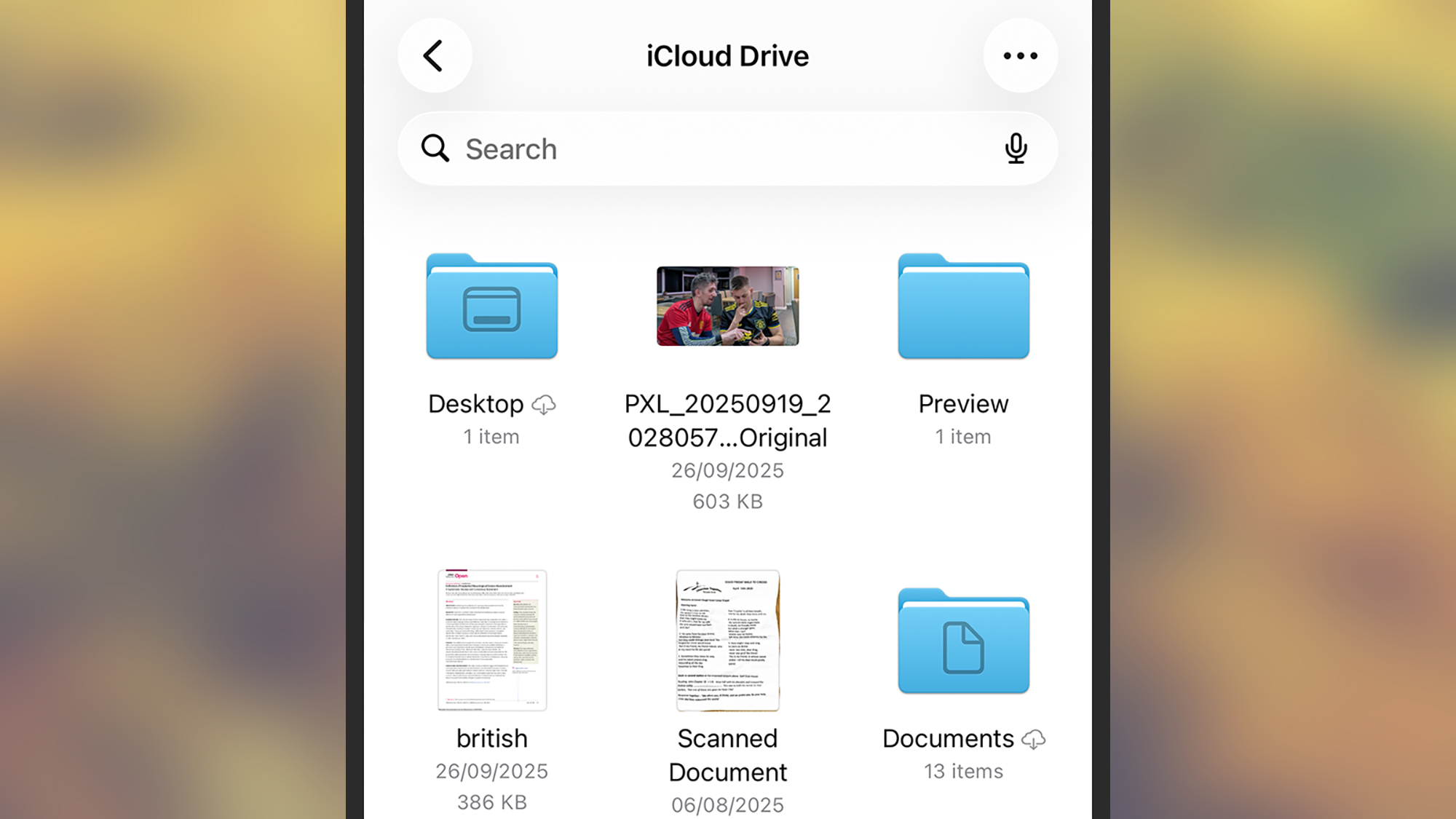
The scenario that will give you the most trouble is if you use an iPhone, have got everything in iCloud, and want to switch to Android. Your best bet here is using a Windows or macOS laptop to get all your files downloaded from Apple’s cloud storage and uploaded to Google Drive—it’s not particularly difficult, but it’s going to take a while.
For photos and videos specifically, both Apple and Google have partnered up to make switching between their two services relatively straightforward. Google has instructions for going from Apple Photos to Google Photos, and Apple has instructions for going in the other direction. Most of the file transferring is handled automatically.
We’ve already mentioned them briefly, but Apple and Google both have official switching tools to make the Android-to-iOS or iOS-to-Android switch as stress-free as possible. These tools will take care of a lot of what you need transferring, including files, contacts, messages, photos, and videos.
Android Switch is Google’s official iOS switching app for moving from an iPhone to an Android phone. It does work wirelessly, but if you have a cable you can connect the two handsets with, you can move more data over—including your conversations from iMessage and even your Apple Notes. Just follow the instructions in the app.
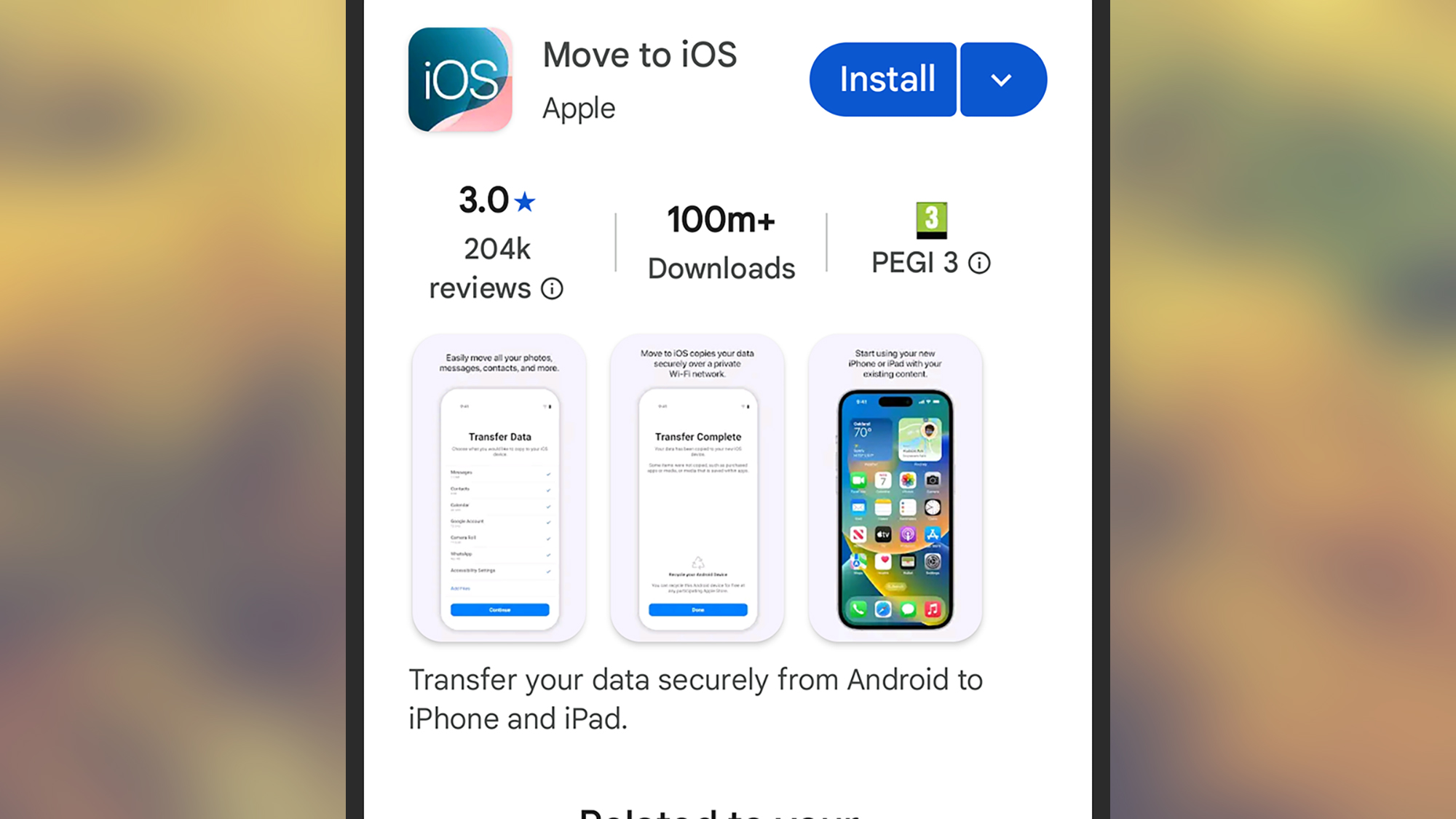
Not to be outdone, Apple has Move to iOS for Android, which will bring you over to an iPhone with the minimum amount of fuss possible. This app is able to handle data including contacts, photos and videos, and your messages, and you’re able to select the types of data you want moving over during the setup phase.
While you shouldn’t assume that switching between iOS and Android in either direction is going to go without a hitch, it’s certainly much easier than it used to be a few years ago, and you’ll be able to get a lot of your apps and data moved across pretty painlessly. And if you think you might want to swap again in the future, you’re best off sticking to an app and file ecosystem other than Apple’s.

2025 PopSci Best of What’s New