
Most people know that their smartphones collect some data, but only a few pay attention to how much information is quietly collected in the background. Your search activity, app usage, location history, and more can be stored automatically. I only noticed this when I opened my activity history just out of curiosity, and it had a detailed record of places I had visited earlier. No, nothing is malicious. These features are there to offer a personalized experience. But it was surprising to see how much information it had accumulated.
Thankfully, Android lets you control what gets tracked and stored. Once you know what features to look for, you can limit or even disable them entirely. I adjusted a few settings, and it helped me regain a bit more privacy.
What Android’s built-in tracker actually is
It’s not one tracker

It’s worth knowing that Android doesn’t have a single tracker. Instead, there are several features in your Google account that collect your activity data for different services. Here are the most common ones:
- First is location tracking that happens through Location History.
- Your search and app activity logging through Web & App Activity.
- App permissions allow apps to access your location and activity data.
These features are used for different services on your phone. For instance, they help Google Maps remember places you’ve visited or Google Assistant to offer you improved recommendations. Your location history can be used for location-based reminders and commute predictions. Whereas web and app activity provides personalized search results and suggestions across Google services.
Tracking isn’t spyware. It has become a part of how modern devices work. That being said, not everyone wants that level of data collection and personalization.
How to see what your phone has been tracking
Check what your phone already knows

Before you plan to turn anything off, I would recommend taking a moment to check what data has already been stored on your phone. When you see your activity history, it will make it easier for you to decide what features you actually want to turn off.
The easiest way to do this is to check the Google Maps Timeline. It shows the places you’ve visited, dates and times of your past trips, and even the routes you’ve taken. This feature looks cool, but it also stores all your information. Here’s how to check your timeline:
- Open Google Maps and tap on your profile icon.
- Here, select the Timeline option.
If you’ve enabled location history, it will show you a detailed record of your movements. You can also view broader activity data through your Google Account activity dashboard. This includes your app interactions, searches, and voice commands associated with your account.
When I checked mine for the first time, I realized how much and for how long my information had been stored.
Turn off location tracking
Stop your phone from saving your movements


If you don’t want your Android phone to have a record of where you have been, you must disable location tracking. Here’s how to do it:
- Open your Google Account and choose Manage your Google Account.
- Navigate to Data and privacy.
- Under History settings, tap Timeline or Location History and turn it off.
You can also go to Google Maps -> Your profile -> Your timeline and turn location tracking off.
When you do this, Google won’t build a long-term timeline of your movements. This won’t turn off the GPS on your phone entirely. Apps like navigation and food delivery can still access your location when you use them.
Disable web and app activity
Take control of how your activity is stored


Another major source of tracking on your Android phone is Web & App Activity. It records your interactions across Google services. This includes your Google searches, app usage data, interactions with Google apps, and commands you’ve sent to the voice assistant.
Here’s how to disable Web & App Activity on your phone:
- Open your Google Account -> Manage your Google Account and navigate to Data and Privacy.
- Find the Web & App Activity option under History settings and turn it off.
This will reduce the amount of data Google can store about your digital activities. You won’t see personalized recommendations and search suggestions like before. That being said, your phone will continue to work like before.
Other tracking settings that are worth checking
Perform additional checks
Now that you’ve adjusted the main tracking features, there are a few other privacy settings you may want to check as well.
App location permissions
Even if you’ve disabled location from Google’s activity systems, some apps can continue to track your location if you’ve allowed them to do so. You can go to Settings -> Security and privacy -> More privacy settings -> Permission Manager and review your app permissions. If an app doesn’t require constant location tracking, you can change it to “While using the app” or choose to disable location entirely.
Auto-delete activity data
If you don’t wish to turn off tracking entirely, you can set up Google to delete your stored activity automatically after a specific timeframe. For this, you have to go to Google Account -> Manage your Google Account -> Data and Privacy. Now, choose a category like Timeline or Web & App Activity and choose the auto-delete option. You can choose to wipe off activity older than 3 months, 18 months, or 36 months. This will keep your recent data while accumulating years of activity.
Ad personalization
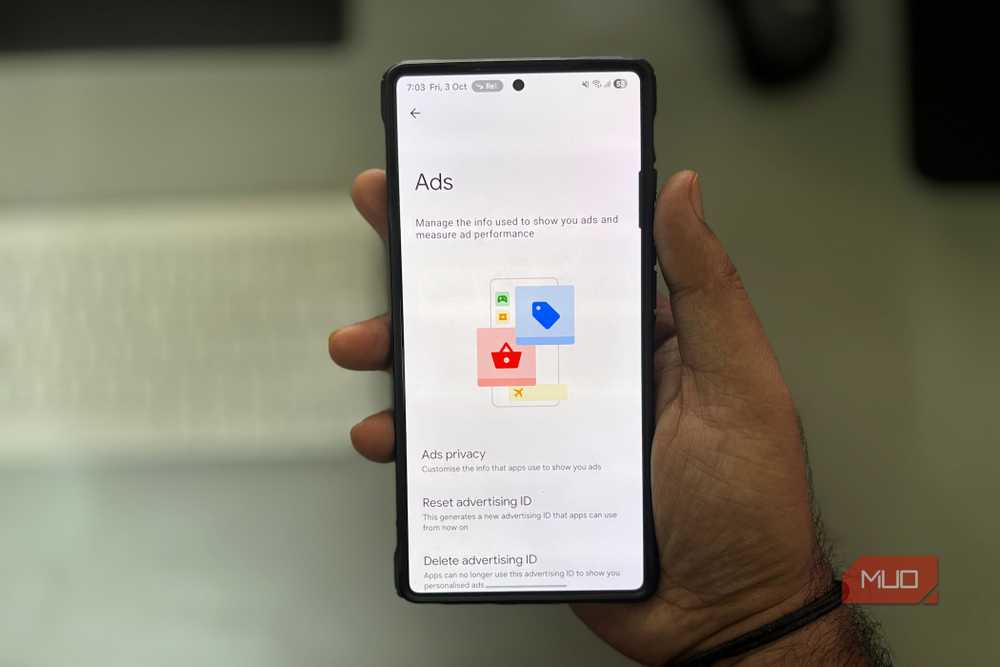
It’s an optional setting that allows Google to use your account data and deliver targeted ads. If you don’t want apps and websites to use your activity data for ads, you have to delete your advertising ID. For this, go to Settings -> Google -> All services -> Ads -> Delete advertising ID and hit the Delete advertising ID button to confirm your decision.

Change These Settings to Stop New Android Apps From Spying on You
Freshly-installed apps can do a lot more than you’d like, until you rein them in.
Android tracking isn’t hidden, it’s just easy to miss
Android doesn’t have any secret tools to spy on its users. The tracking features are mainly meant to improve recommendations and features powered by Google. Many users never review these settings. As a result, activity data quietly builds up over time. It just takes a few minutes to limit or disable tracking features on your smartphone.