
Bottom Line
The KTC H32P22P is a 32″ 4K 165Hz IPS gaming monitor with a high native contrast ratio and fast response times. However, it’s held back by subpar factory calibration and quality control, as well as a high price given the lack of features found on competing models. We can only recommend it if you catch it on sale for under $350 and don’t need features such as USB-C, KVM and HDR.
The KTC H32P22P is a 32″ 4K 165Hz IPS gaming monitor with a fast response time, wide color gamut, sRGB mode, a high contrast ratio, VRR, MBR and more!
Let’s see how it does in our tests.
10% OFF CODE: 10HHHPPP (~5.31 23:59)
Image Quality
The monitor is based on a 31.5″ fast IPS panel with a high specified contrast ratio of 3,000:1, a 300-nit peak brightness, 178° wide viewing angles, a 121% sRGB color gamut volume and dithered 10-bit color depth (8-bit + 2-bit FRC).
Initially, we thought it was a typo, seeing both IPS and 3000:1 contrast specs included on the same monitor, but we can confirm it’s correct.
We measured a 2840:1 contrast ratio out of the box, though it dropped to 2122:1 after calibration, while still retaining typical IPS strengths like consistent image quality with wide viewing angles and fast response times.
We’re not sure which manufacturer made the panel. The factory menu identifies it as K320WLB-HA300D8, while CRU (Custom Resolution Utility) reports it as SKG3242, which likely indicates either BOE or TCL CSOT.
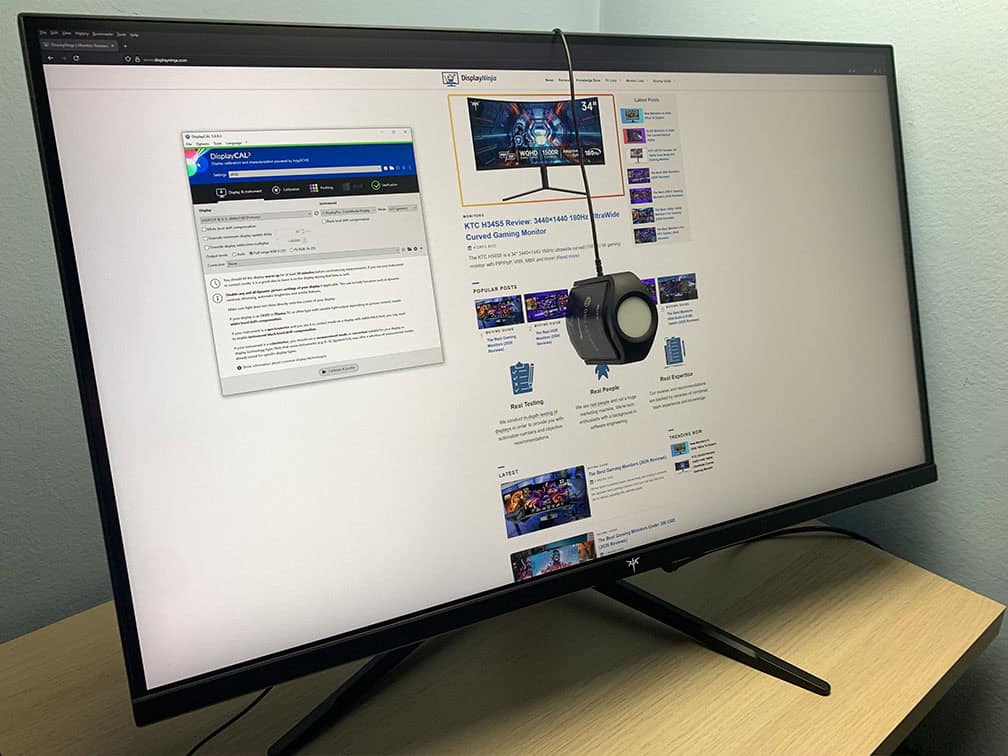
To test the display’s capabilities and accuracy, we’re using our Calibrite Display Pro HL colorimeter paired with DisplayCAL.
Note that we are testing the monitor with the USA-1.0.1 firmware version.
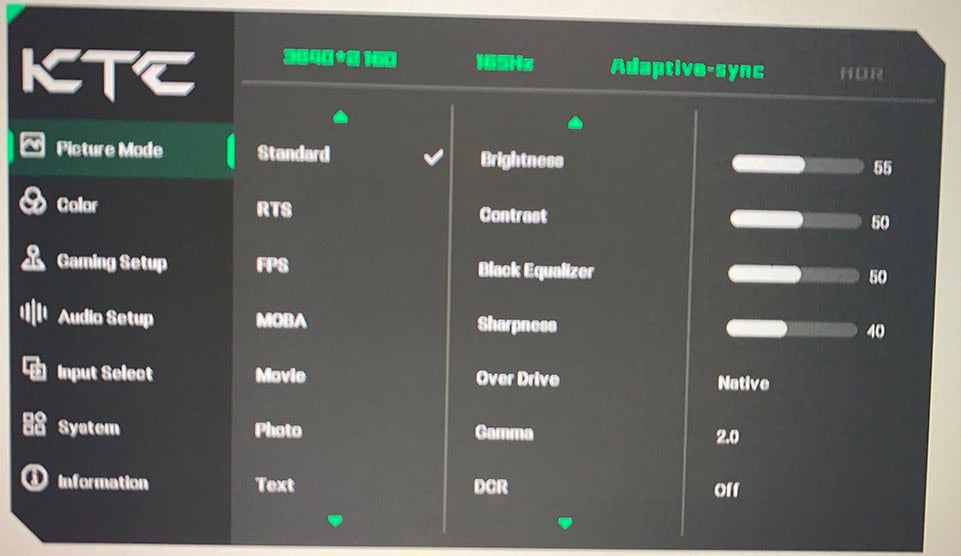
In the OSD (On-Screen Display) menu, under the ‘Picture Mode’ settings, you’ll find several preset options: Standard (Default), RTS, FPS, MOBA, Movie, Photo, Text, sRGB, Display HDR, HDR Game and HDR Cinema.
The default Standard mode allows for full customization, while the sRGB mode clamps the monitor’s wide color gamut to the sRGB color space for more accurate SDR colors. We don’t recommend using other modes.
Color Gamut
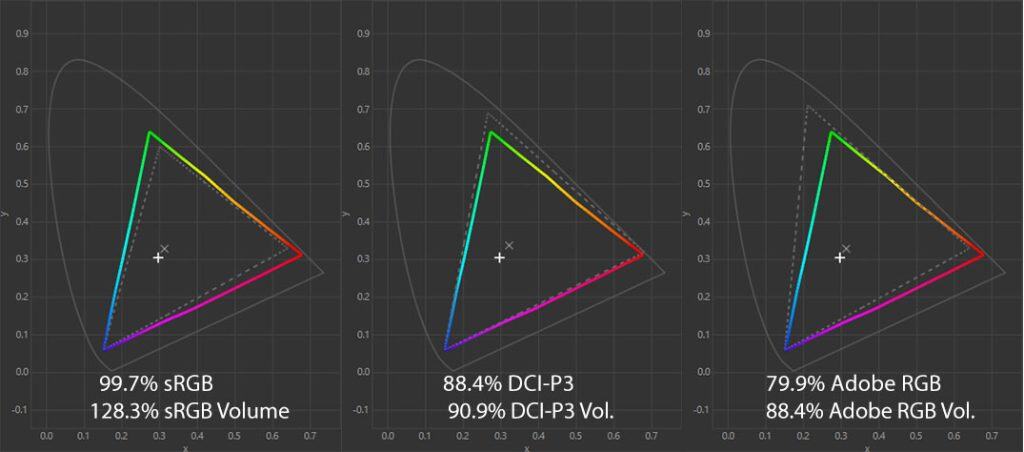
The KTC H32P22P monitor has a wide color gamut with a 128.3% sRGB volume in the ‘Native’ ‘Color Space’ mode, resulting in vibrant colors.
By default, Windows doesn’t do proper color management, which results in SDR colors being oversaturated. Some users might prefer this look, but if you want better accuracy, you should use the sRGB mode, which clamps the gamut down to 95.1% volume and a respectable 92.7% coverage.
You can activate the sRGB clamp either by using the ‘sRGB’ ‘Picture Mode’, or by setting the ‘Color Space’ setting under the ‘Color’ section of the OSD menu from ‘Native’ to ‘sRGB.’ There are also Adobe RGB and DCI-P3 modes, but due to their limited color coverage, they’re not very useful.
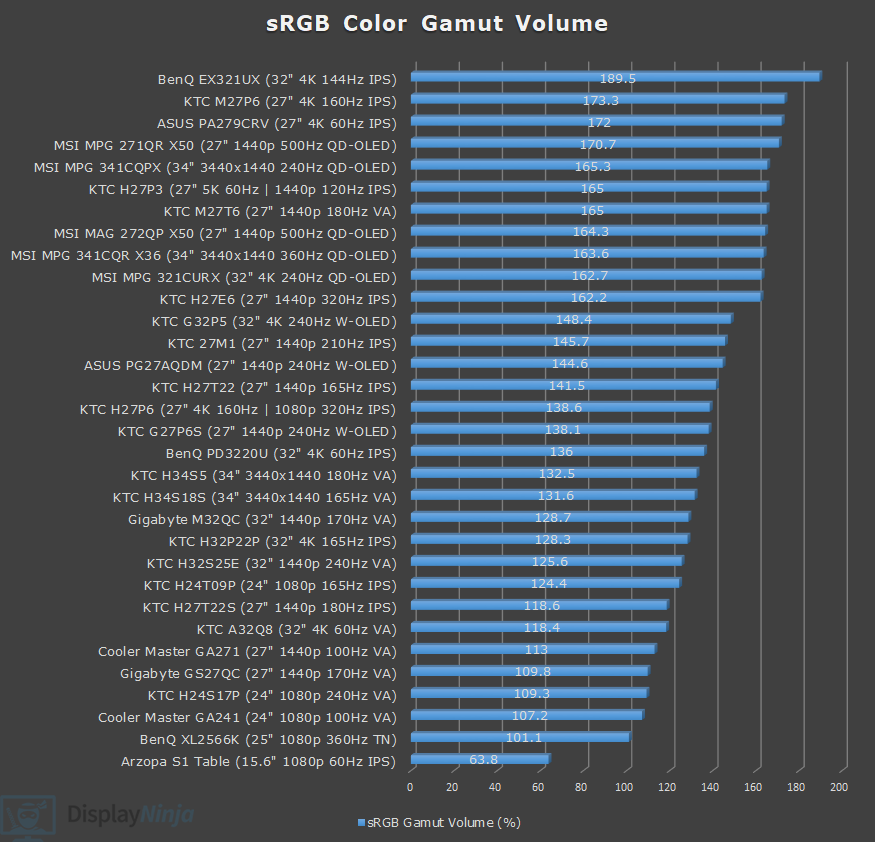
Image Accuracy
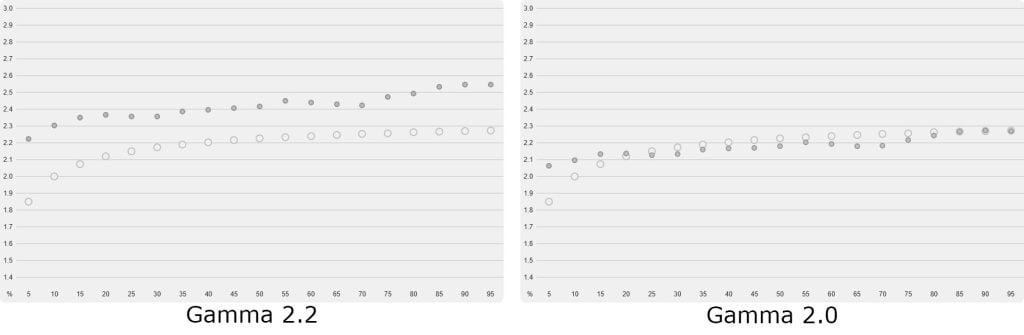
Out of the box, we measured a high gamma average of 2.41, which causes the entire image to be notably darker than intended (target is 2.2).
Luckily, the monitor has a few different gamma options (native, 1.8, 2.0, 2.2, 2.4 and 2.6). Changing it from 2.2 to 2.0 provides the most accurate results, now with a 2.18 average and only the near-black 5% being a bit darker than intended.
Next, by default, the Normal color temperature mode is too low, measured at 6067K (target is 6500K) and has a green tint to the whitepoint. We also measured the other modes: Warm (5332K), Cool (7294K) and User (7348K).
For the most accurate results, we used the User mode with the Low Blue Light filter set to ‘25‘, which provided us with 6875K and no noticeable tinting to the whitepoint.
Now, because Windows doesn’t do color management by default, you will have over-saturated colors in the Native color space mode, which is why we measured high Delta E of 2.75 average (color deviation from the target, less than 1.5 is considered good) and 5.68 maximum (target is less than 3).
Some users prefer this extra over-saturation as it makes the colors more vibrant and varied, but if you want more accurate colors, the sRGB mode will clamp the gamut down to 95.1% volume and 92.7% coverage.
In the sRGB mode, the accuracy isn’t ideal though. You cannot change the gamma, so you’re locked to 2.36 average, which is too high and makes the image darker than intended. For color temperature, you’ll have to choose between Normal (6492K) with a green tint and User with a warm/yellow 5601K tint.
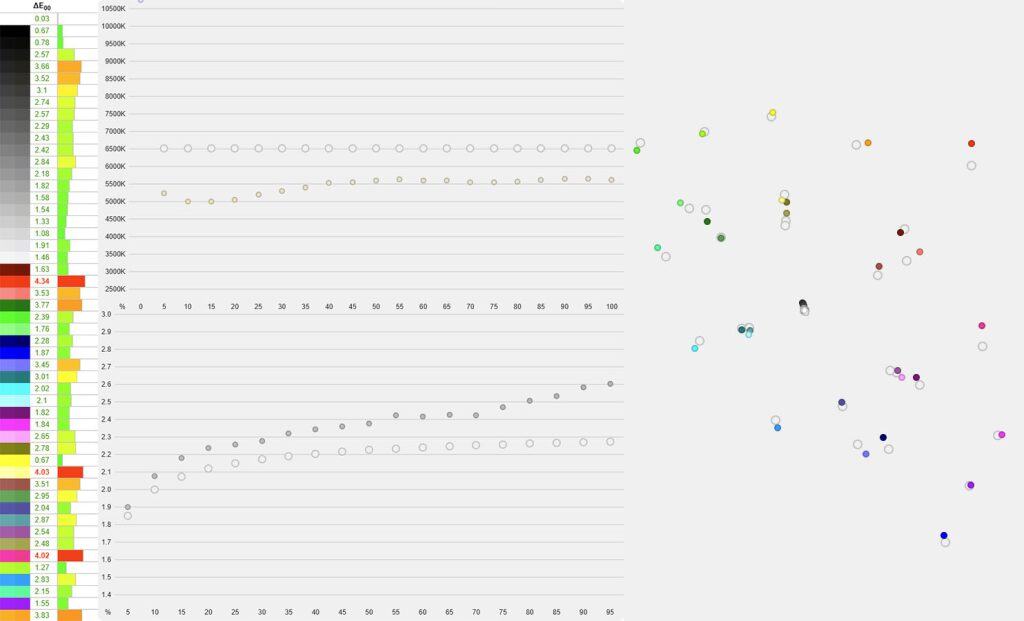
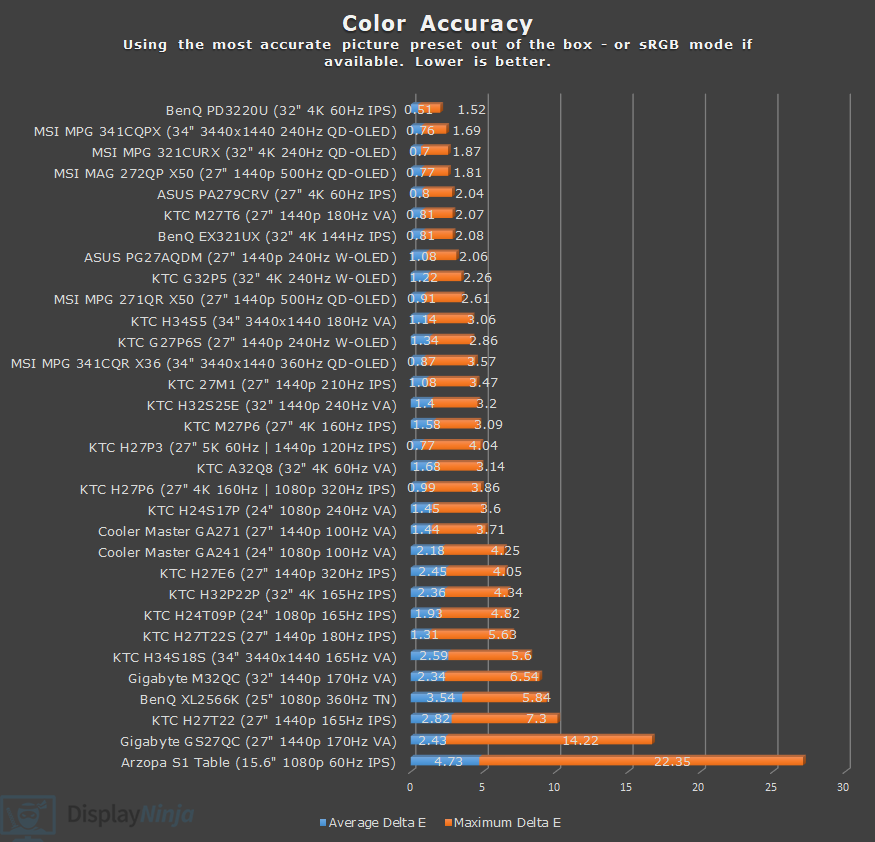
While there’s no over-saturation, color accuracy isn’t great with a 2.36 average and 4.34 maximum Delta E.
Windows 11 ACM (or AMD Custom Color and for NVIDIA, novideo_srgb tools) software clamping method isn’t any better either due to the monitor’s incorrect EDID data. We measured a 2.85 average and 6.5 maximum Delta E.
So, for the best image accuracy if you don’t have a colorimeter, we recommend using our ICC profile to create a 3D LUT. You can find a quick and easy guide on how to do this in the article linked below.
With this method, we managed to bring down Delta E to 0.92 average and 1.87 maximum, while the color temperature and gamma remain the same as that of the Native mode.
Finally, keep in mind that IPS monitors exhibit IPS glow, which can be characterized as a faint glow that’s sometimes visible in the corners of the screen when viewed from certain angles. Its intensity can vary from unit to unit, so some panels may show it more than others.
It’s most noticeable when viewing dark content in a dark room at higher brightness levels, but you can minimize it with a proper setup, for example, by lowering the brightness in dim environments and adding some ambient lighting behind the screen. Our KTC H32P22P unit didn’t show any excessive IPS glow or backlight bleed.
KTC H32P22P Best Image Settings
For saturated colors:
Gamma: 2.0
Color Temp: User
Blue Light Filter: 25
For more accurate colors:
Picture Mode: sRGB
Color Temp: Normal (6500K with green tint) or User (warm/yellow tint)
We recommend creating a 3D LUT from our ICC profile instead.
Calibration
For full calibration, we set the brightness to 44/100 for 122-nits, used the ‘Native’ color temperature mode, and ‘Custom’ color temperature with red, green and blue channels set to 46, 45 and 44, respectively, to get 6495K.
Delta E improved to 0.6 average and 1.42 maximum with accurate gamma tracking (2.18 average). You can download our ICC profile here.
Brightness & Contrast
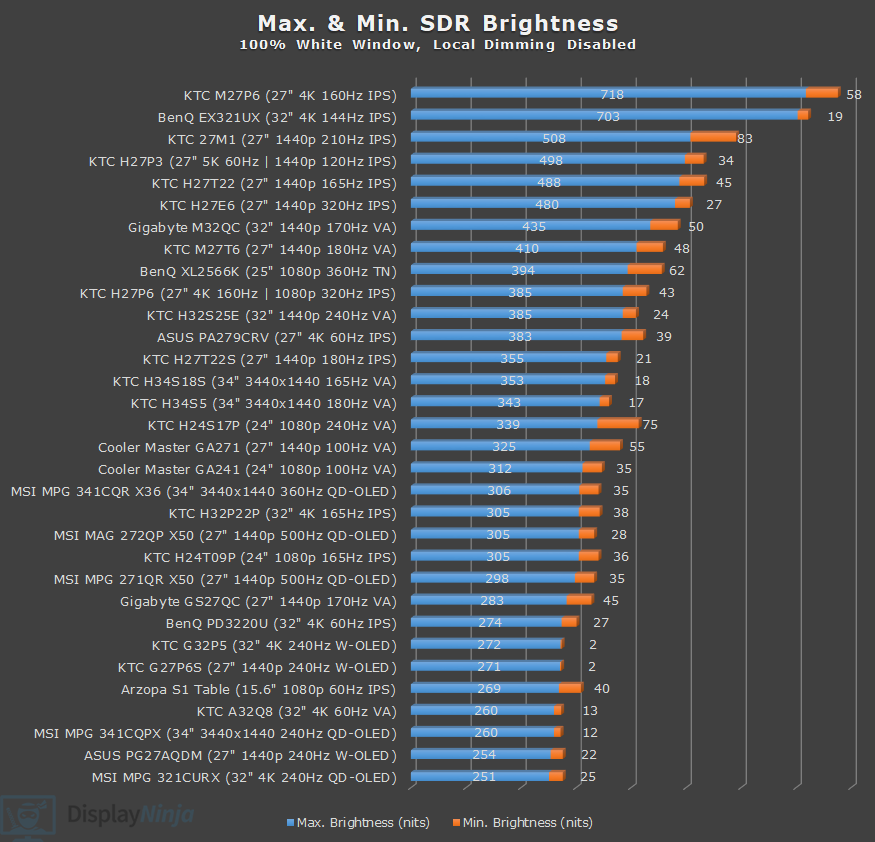
We measured a maximum brightness of 305-nits, and a minimum of 38-nits. The monitor is suitable for use in both moderately bright and very dark rooms.
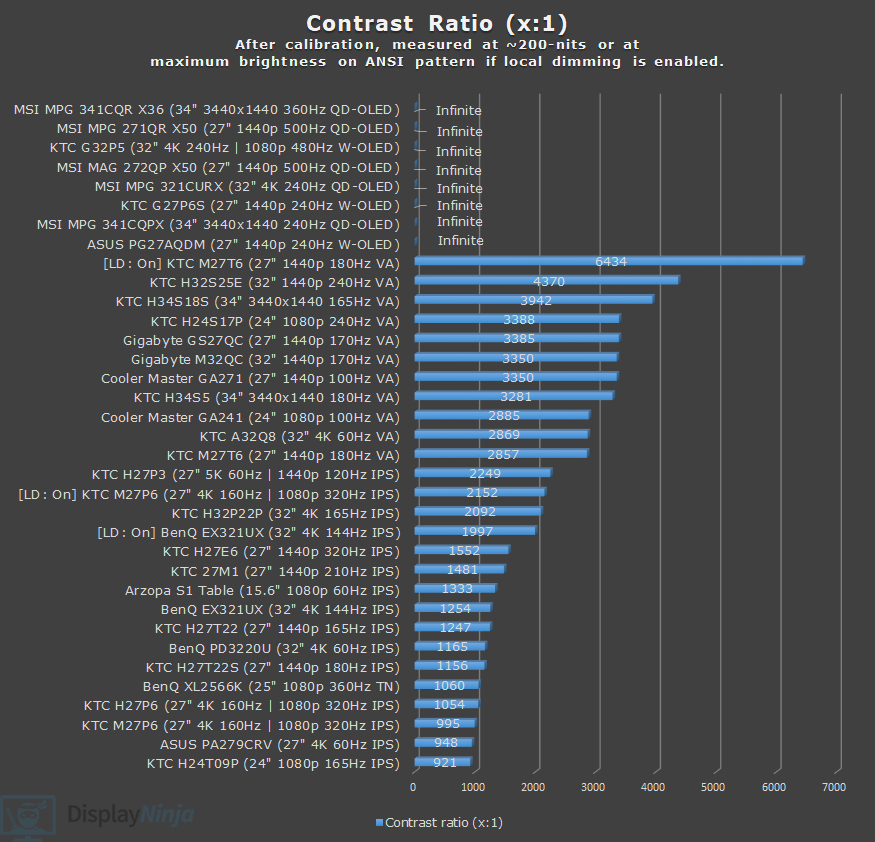
Using the recommended settings out of the box, we measured a contrast ratio of 2840:1 at around 200-nits, which results in deep blacks.
After calibration, that reduced to 2092:1, though. This is still a decent result, with notably darker blacks than that of typical IPS monitors with a contrast ratio of around 1,000:1
Of course, blacks won’t be as deep as that of monitors with self-emissive OLED panels or LED displays with full-array local dimming (FALD).
HDR
Since the monitor doesn’t have a FALD backlight or an OLED panel, it doesn’t deliver a proper HDR image quality, but it can still accept and display the HDR10 signal.
Some HDR content can take advantage of the display’s dithered 10-bit color support to reduce banding. However, shadow and highlight details won’t stand out or match the creator’s original intent.
In this price range, you can get a 32″ 4K 160Hz IPS gaming monitor with a 1152-zone mini LED FALD, such as the Acer XV325QK V3, or a monitor with an OLED panel. Check out our best HDR monitors guide for more information.
Subpixel Layout & Pixel Density
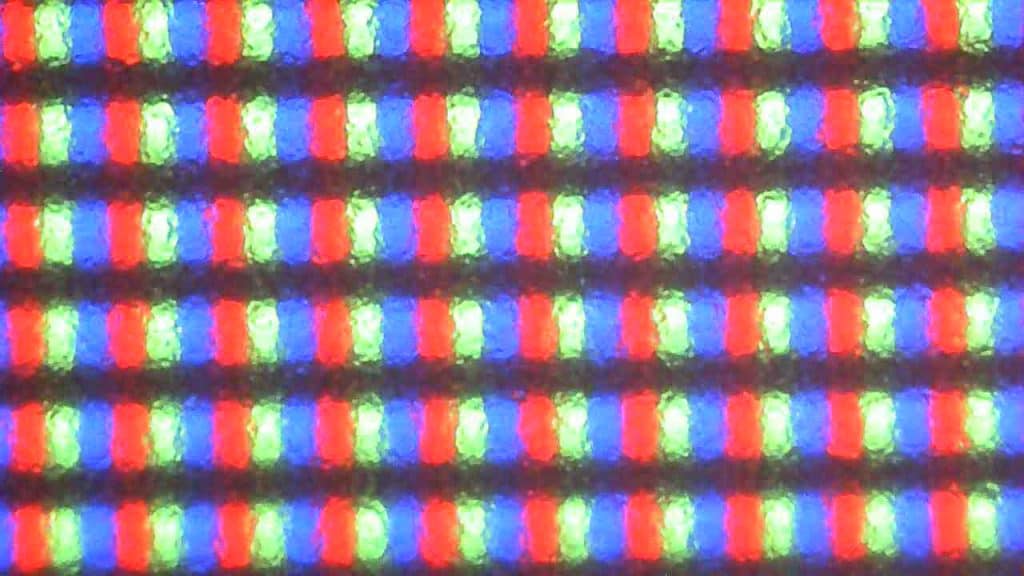
The KTC H32P22P has a standard RGB subpixel layout, so there’s no colored fringing on small text and fine details.
With a high pixel density of 140 PPI, the monitor delivers excellent detail clarity, crisp text, and plenty of usable screen real estate.

To make smaller elements like text more easily readable, you’ll need to apply some scaling (150% is recommended). This reduces the effective workspace a bit, but significantly improves clarity and overall readability.
Gaming at 4K UHD is fairly demanding, but it’s still manageable with a mid-range GPU thanks to upscaling technologies like DLSS and FSR.
Performance
The KTC H32P22P has a maximum refresh rate of 165Hz, which provides you with a huge boost in motion clarity in comparison to typical 60-75Hz displays. The higher refresh rate also lowers input latency and makes screen tearing less noticeable.
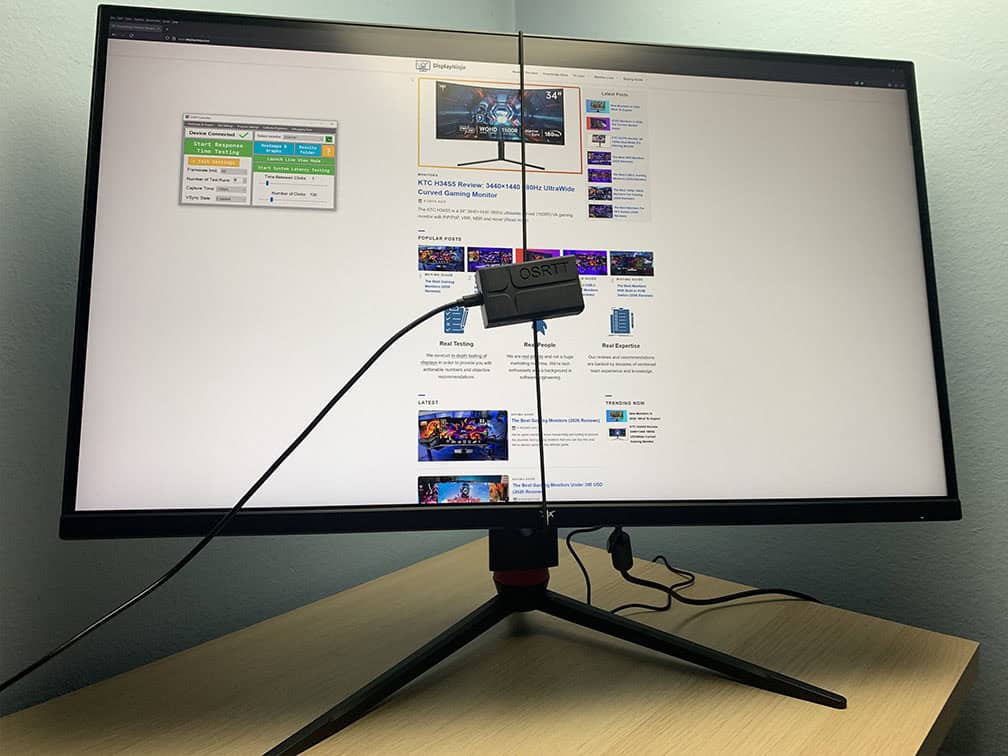
For latency and response time testing, we’re using OSRTT.
Response Time
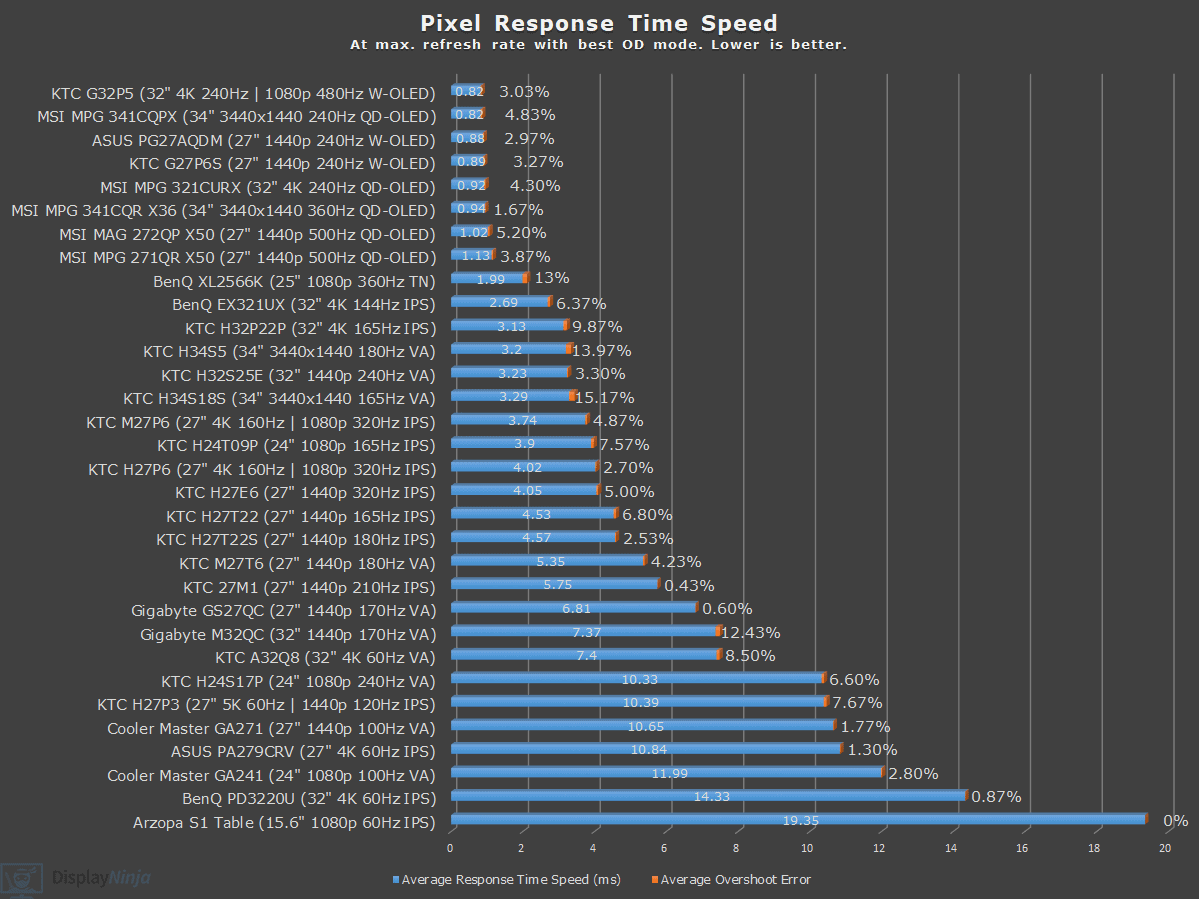
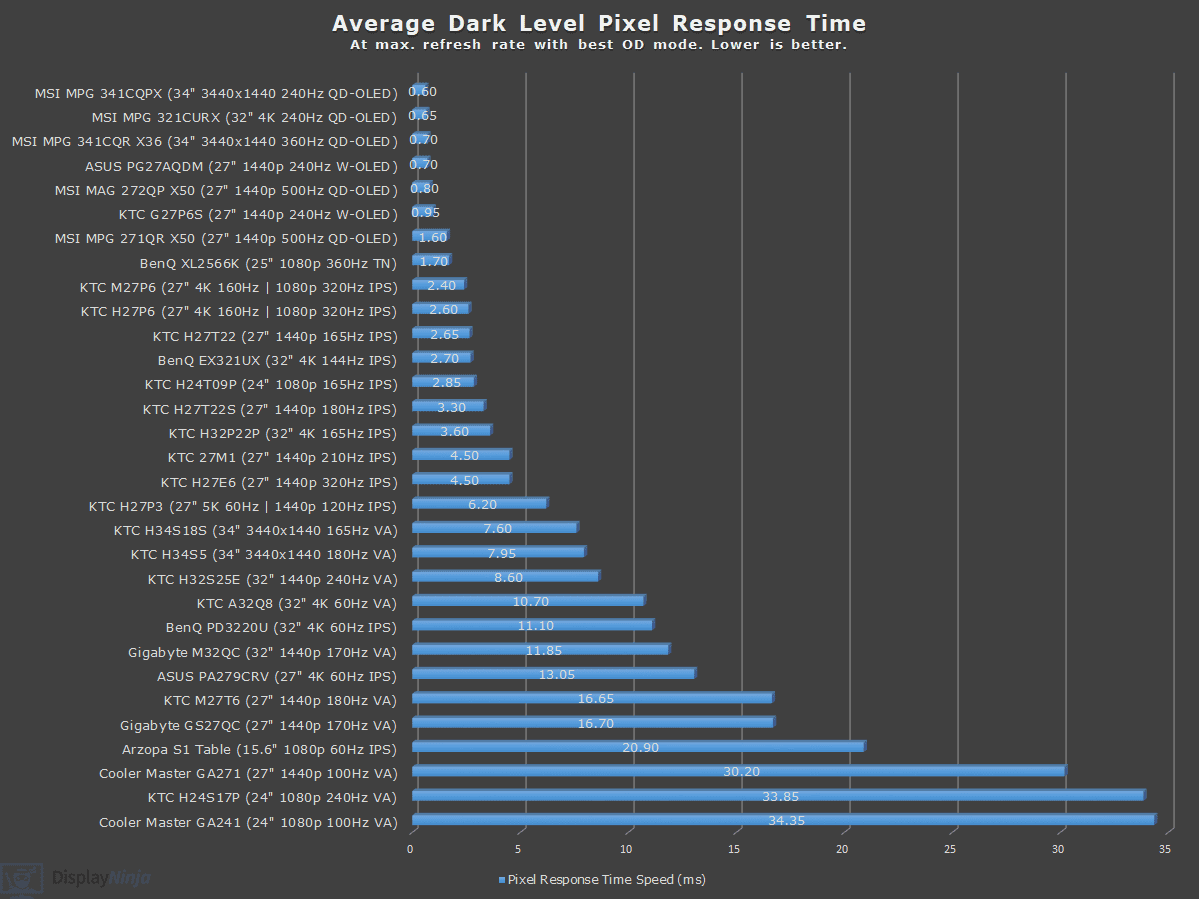
We were impressed by the monitor’s pixel response time speed performance. Usually, IPS Black panels (IPS monitors with a contrast ratio of 2,000:1 and higher) take a big hit to response time speed, but that’s not the case here.
The KTC H32P22P has six response time overdrive modes: Native, Fast, Faster, Rapid, Dynamic and User, which allows for custom fine-tuning of the overdrive from 0 to 100 in increments of 1 – another pleasant surprise!
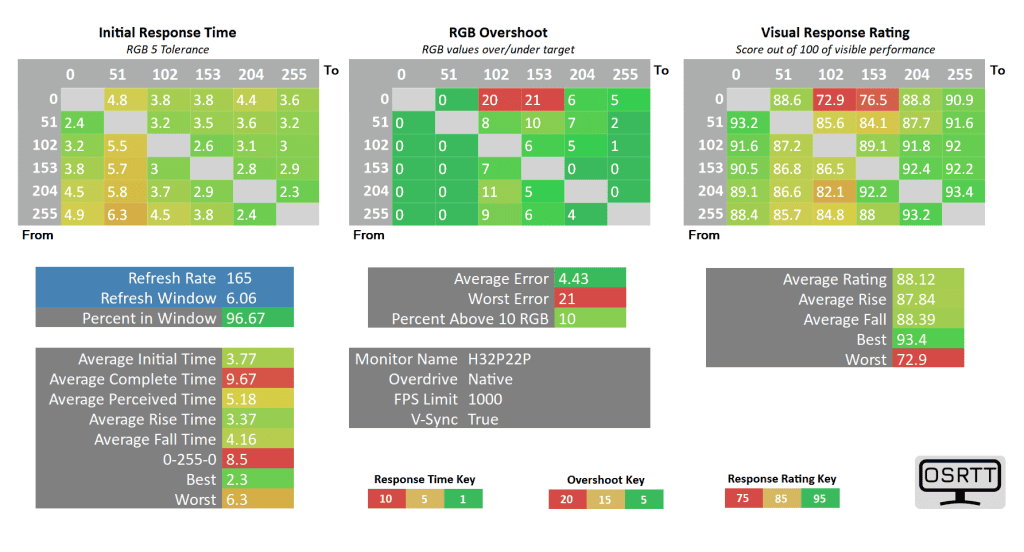
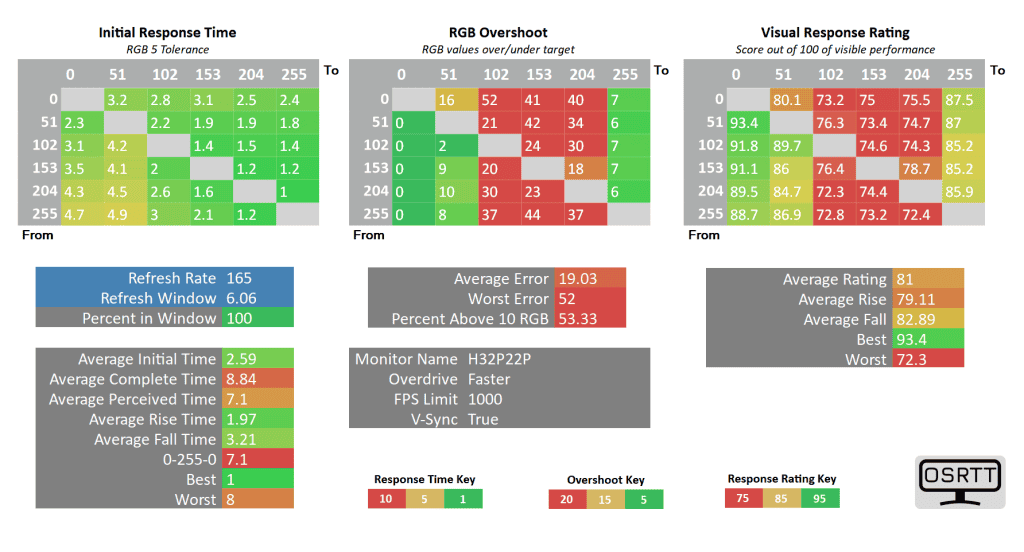
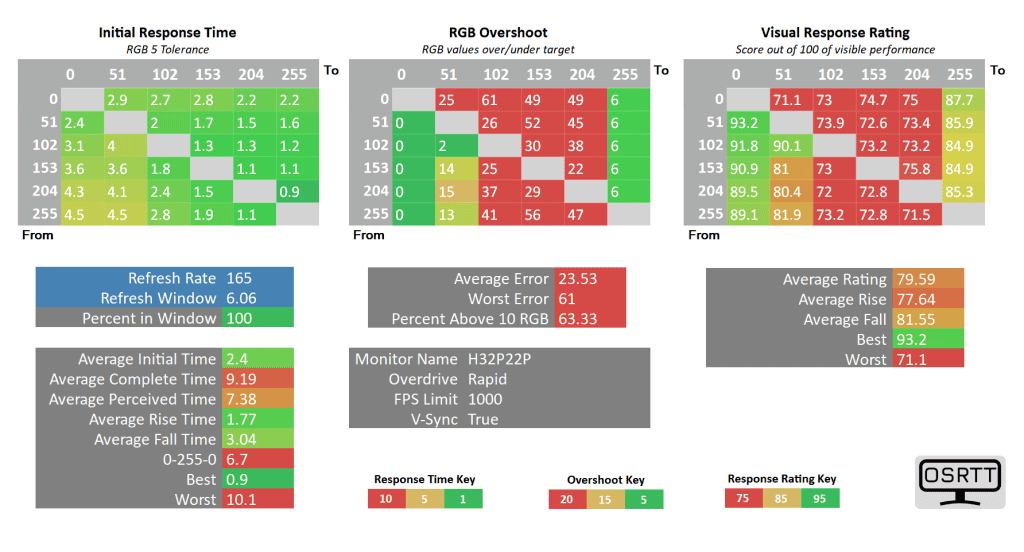
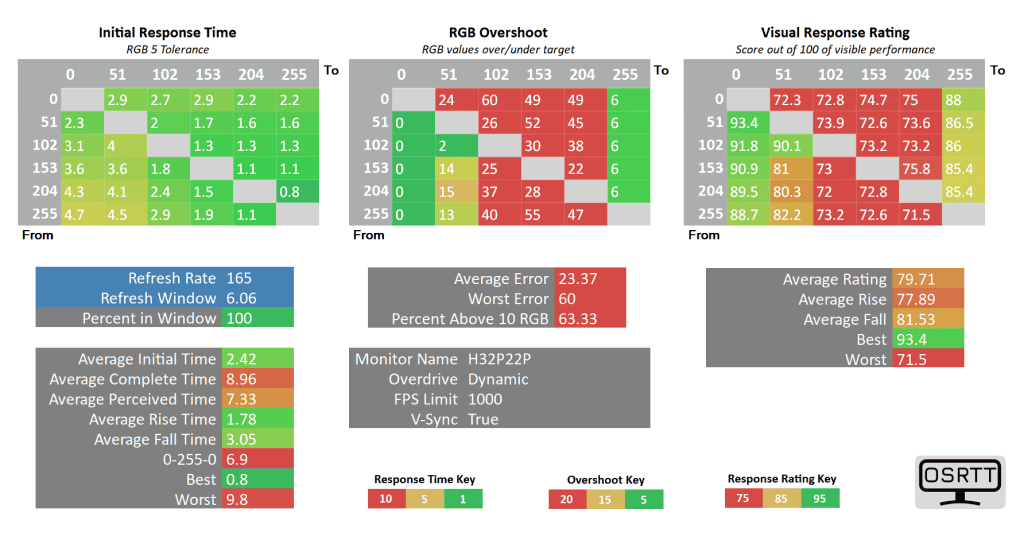
As you can see, even the slowest Native overdrive mode offers excellent performance with a 3.77ms average GtG response time with a low 4.43% average overshoot error and high 96.67% refresh rate compliance.
There’s even no dark-level smearing that’s usually associated with VA panels!
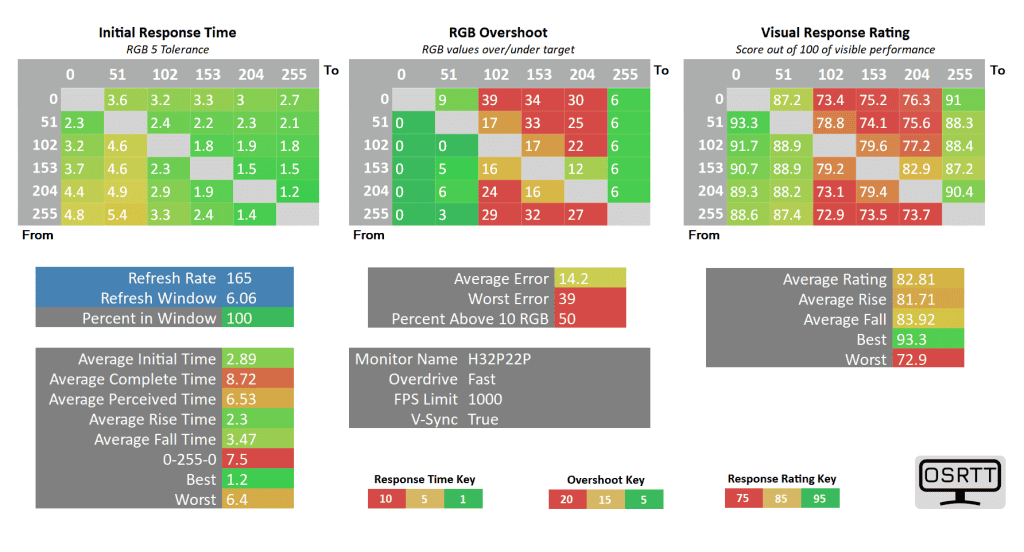
Bumping the overdrive up to ‘Fast’ pushes the response time to 2.89ms with 100% refresh rate compliance, though there’s now a bit more overshoot at 14.2%.
The Faster and Rapid modes add too much overshoot, and the Dynamic mode has the same performance as Rapid.
The User 50 setting has the same performance as Fast, while User 0 is the same as Native. This allows us to put the User mode to 25 and have an overdrive that’s in between that of Native and Fast.
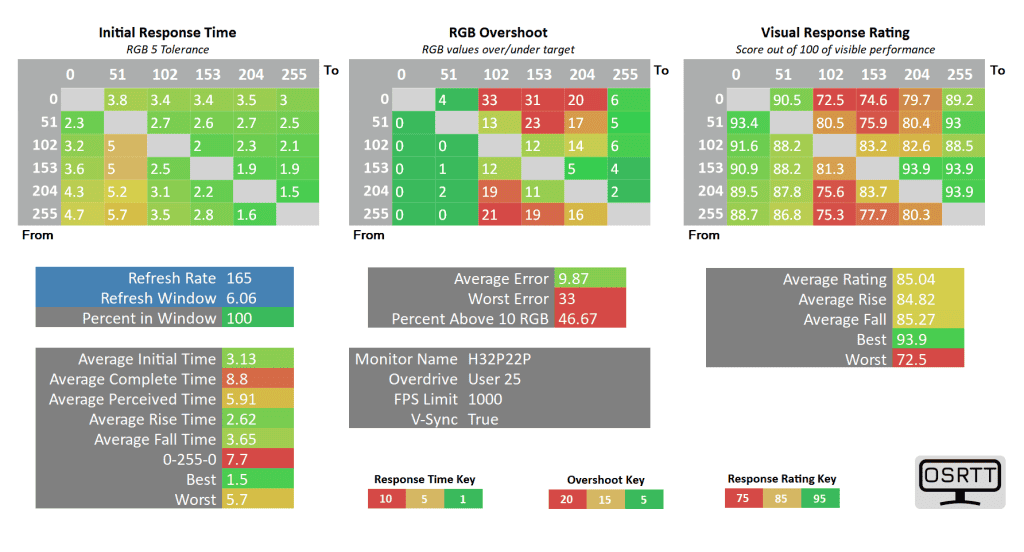
We now have a slightly faster response time at 3.13ms (from Native 3.77ms) with 100% refresh rate compliance, as well as lower overshoot error at 9.87% (from Fast 14.2%)!
Here are the pixel response time speed results at 120Hz/FPS.
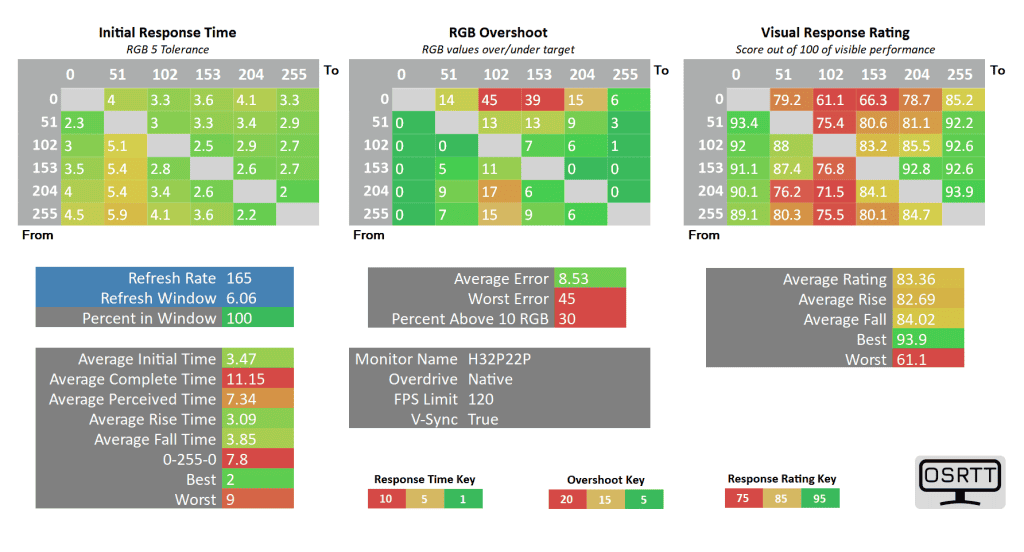
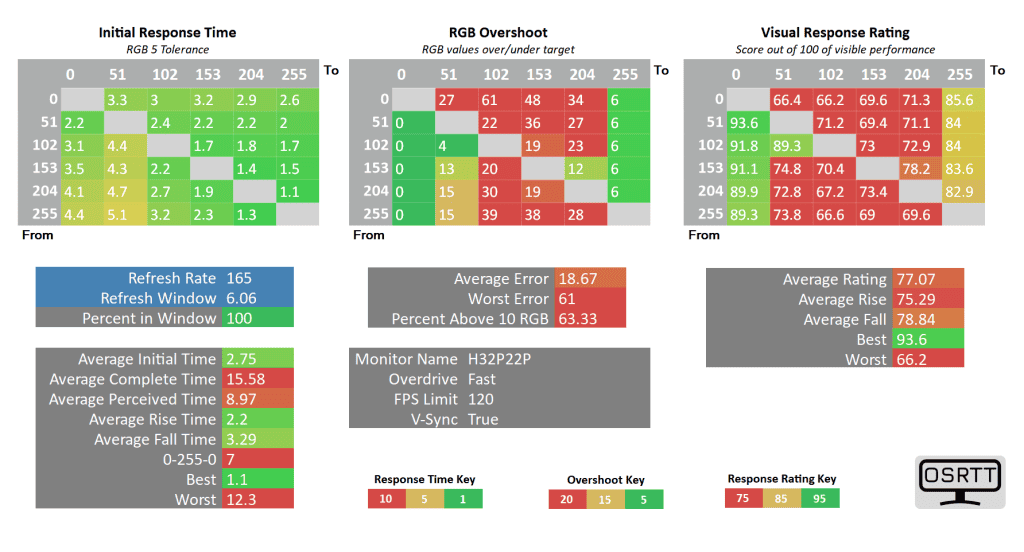
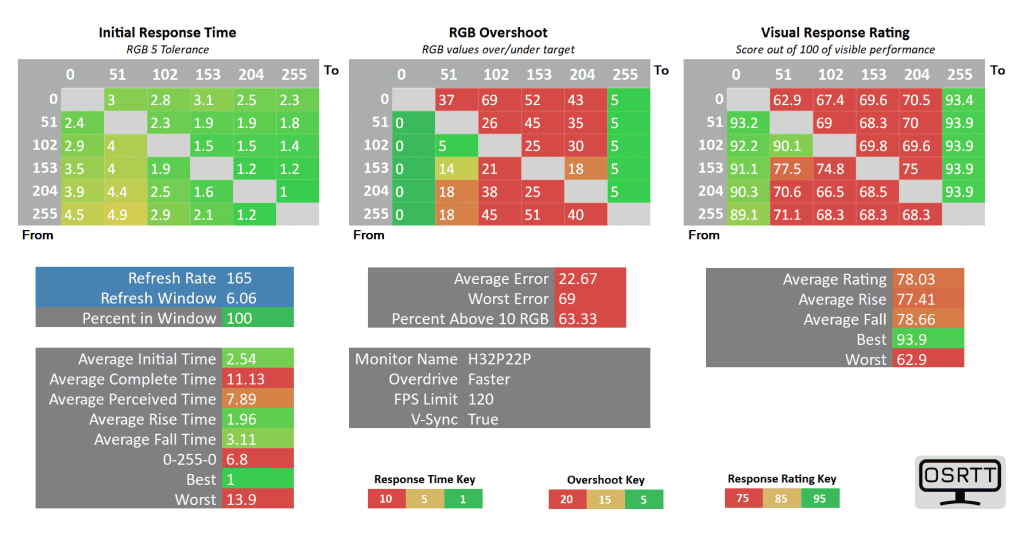
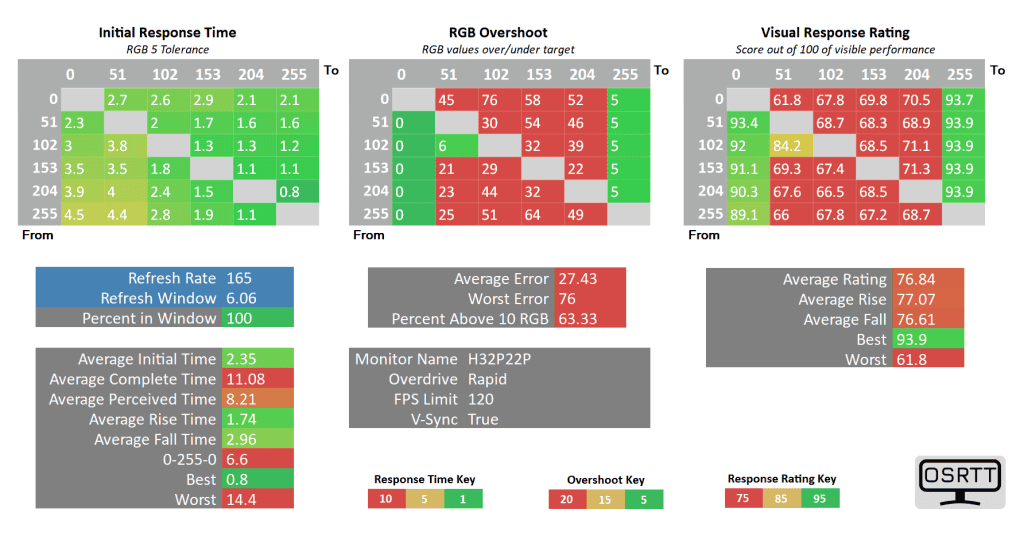
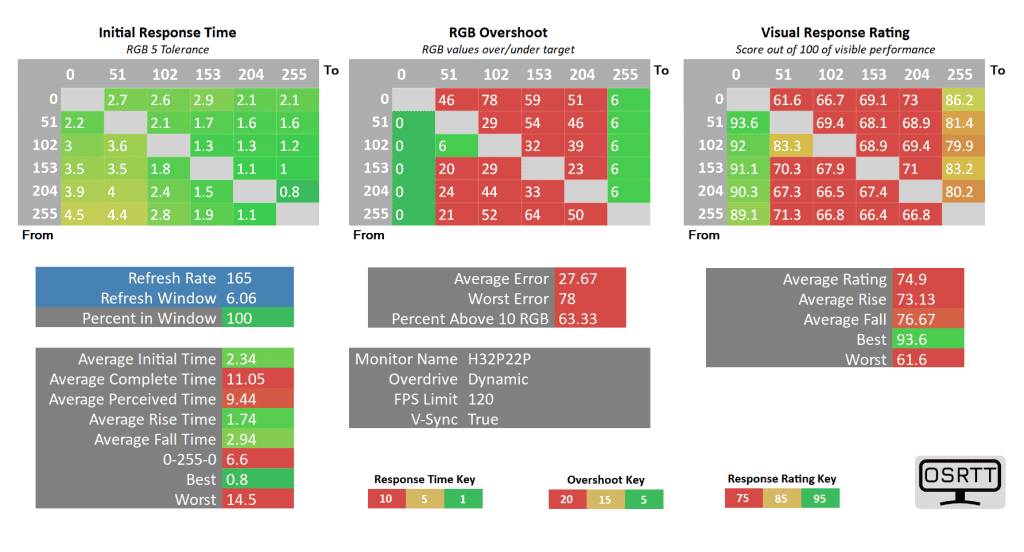
Note that for 120FPS, the ‘refresh rate window’ should be 8.33ms in the charts.
At 120FPS, the Fast and other modes are too aggressive, so you should stick with Native. Its response time is more than fast enough at 3.47ms GtG, while overshoot is acceptable at 8.53%.
Next, here are the results at 60Hz.
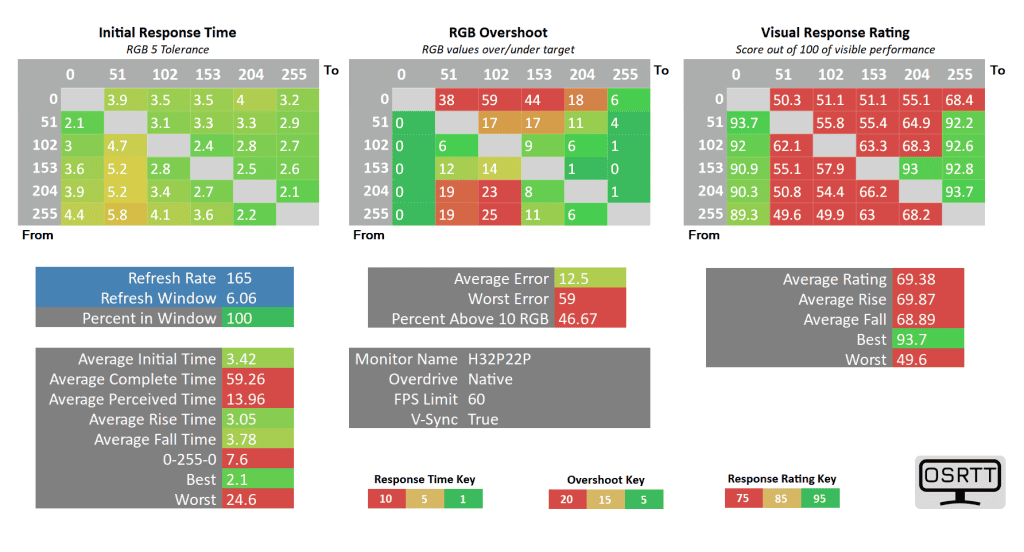
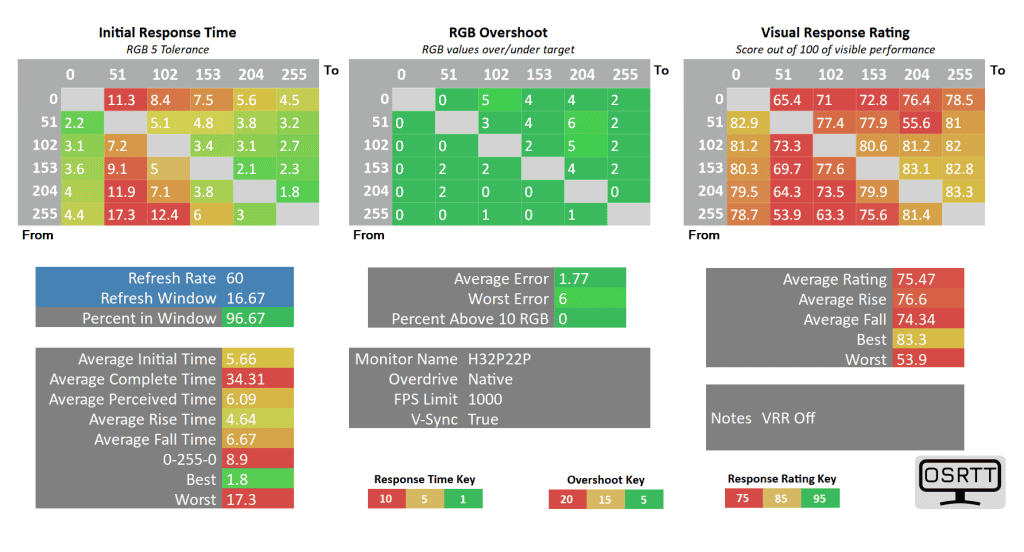
Note that for 60FPS with VRR on, the ‘refresh rate window’ should be 16.67ms in the charts
If you’re gaming at 165Hz, using VRR (Variable Refresh Rate) and your FPS is around 60FPS, even the lowest Native (or User: 0) overdrive mode will have noticeable overshoot at 12.5% average error with fast 3.42ms response time.
In case you want to get rid of that overshoot, you’ll have to disable VRR, in which case you’re looking at a 5.66ms average GtG, 96.67% refresh rate compliance and low 1.77% overshoot error.
For a single overdrive experience, you can set it to Native and enjoy gaming across the entire refresh rate range, though there will be some minor to moderate overshoot noticeable in certain scenes below ~90FPS.
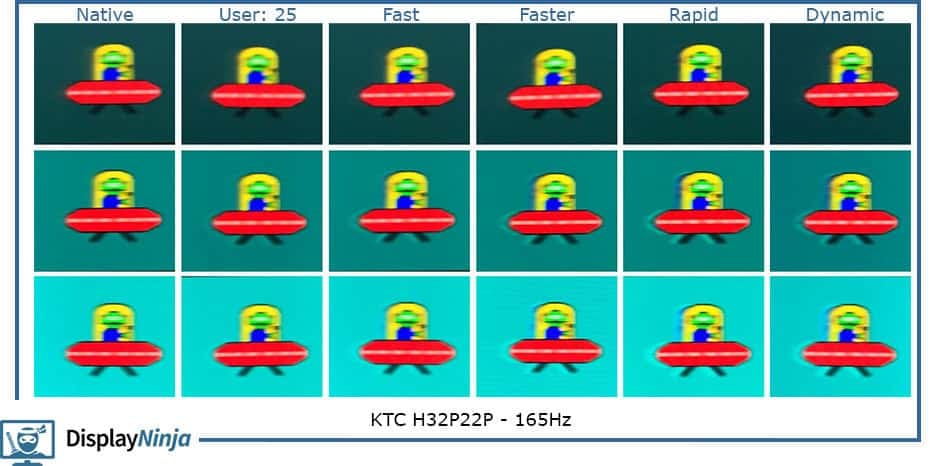
Here’s how these tests look in Blur Busters’ UFO ghosting test. We used 960 Pixels Per Sec, shutter speed set to 1/4 of the refresh rate with fixed focus, ISO and color temperature (6500K).
Here are the results at 60Hz and 120Hz. Because Blur Busters’ UFO ghosting test is in a browser, which doesn’t support variable refresh rate, we used the UFO Deluxe image in SmoothFrog to capture it at 60FPS.
With VRR disabled and at a fixed 60Hz refresh rate, there’s no overshoot.
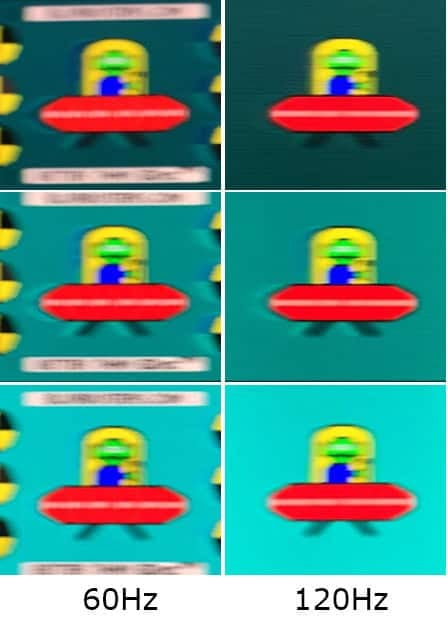
We only took photos with the Native overshoot mode, as other modes just add too much overshoot. As you can see, at 60FPS, there’s quite a lot of inverse ghosting.
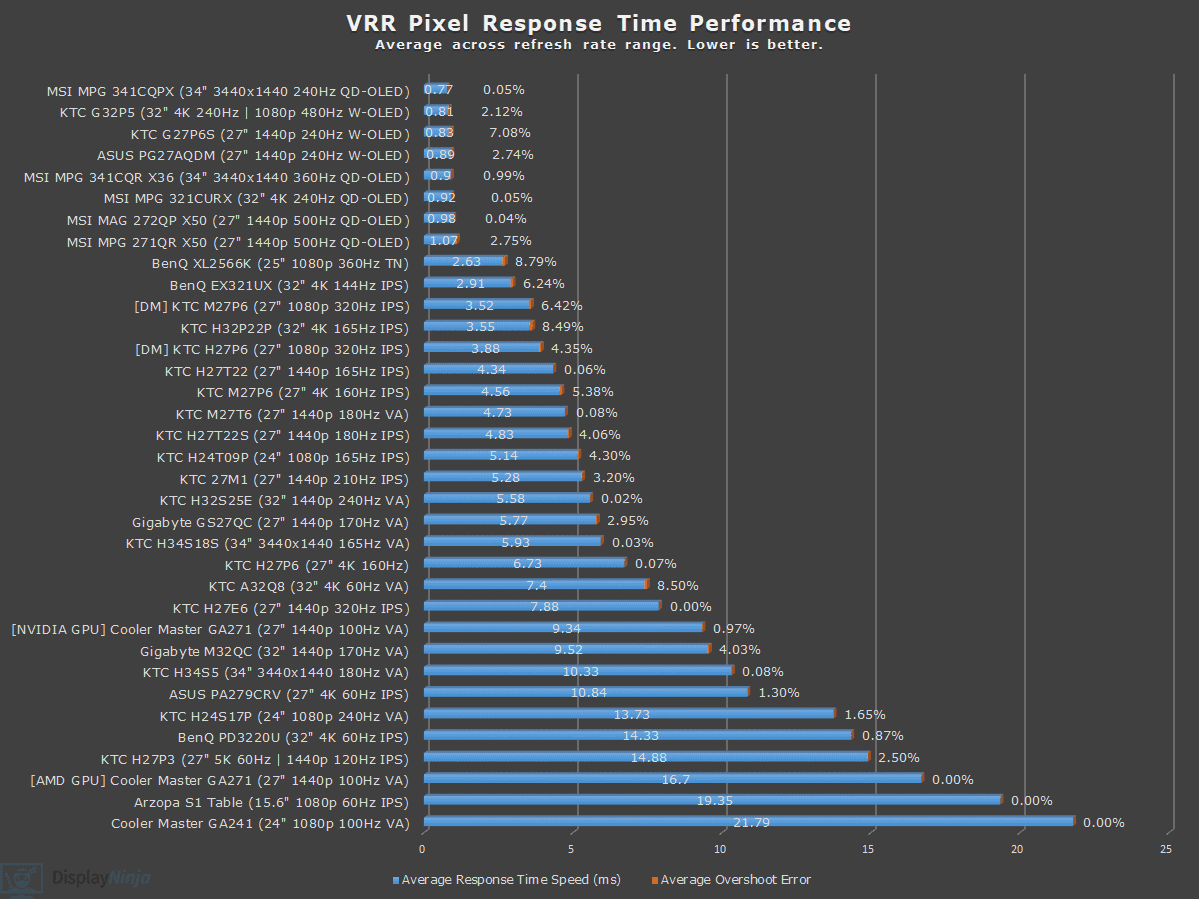
And here’s a comparison to several other monitors we tested.
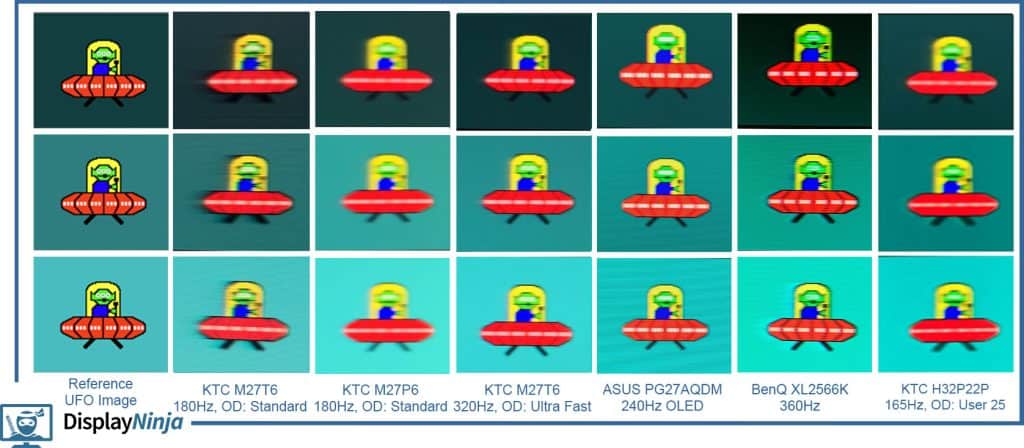
Motion Blur Reduction
The monitor also supports MBR (Motion Blur Reduction) via its MPRT feature, which uses backlight strobing to reduce perceived motion blur at the cost of image brightness.
It cannot be enabled at the same time as VRR and it introduces screen flickering that’s invisible to the human eye, but can cause headaches to sensitive users after prolonged use.
There are three MPRT modes: Low, High and 1ms. The ‘1ms’ mode makes the image the clearest but also has the highest toll on brightness.
At 165Hz, we measured a maximum brightness of 112-nits at Low, 75-nits at High and 38-nits at ‘1ms’. At 120Hz, brightness is even lower at 85-nits, 57-nits and 29-nits, respectively.
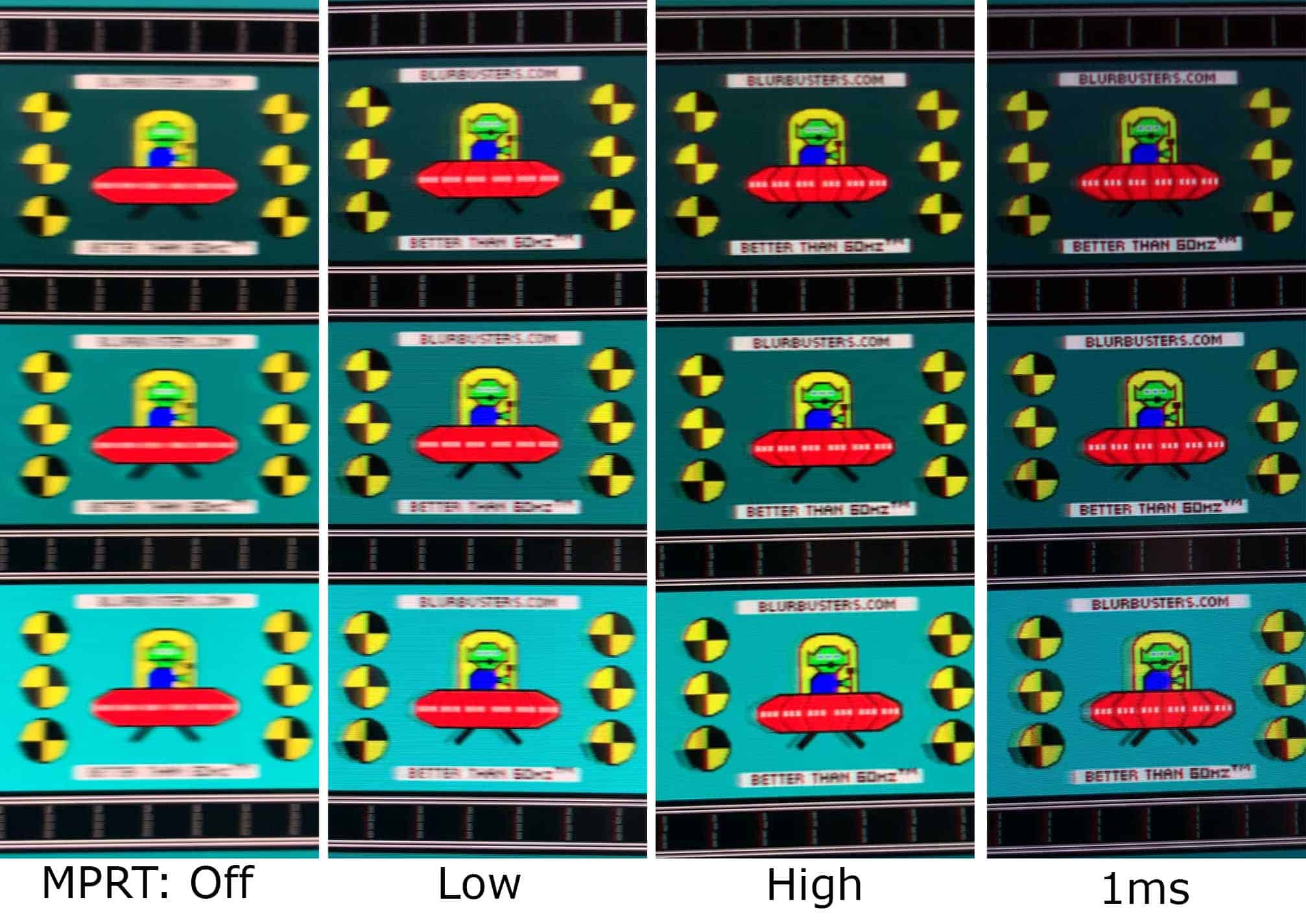
As you can see, motion clarity is significantly improved, though there’s some strobe crosstalk (image duplications). Luckily, the middle of the screen is the clearest.
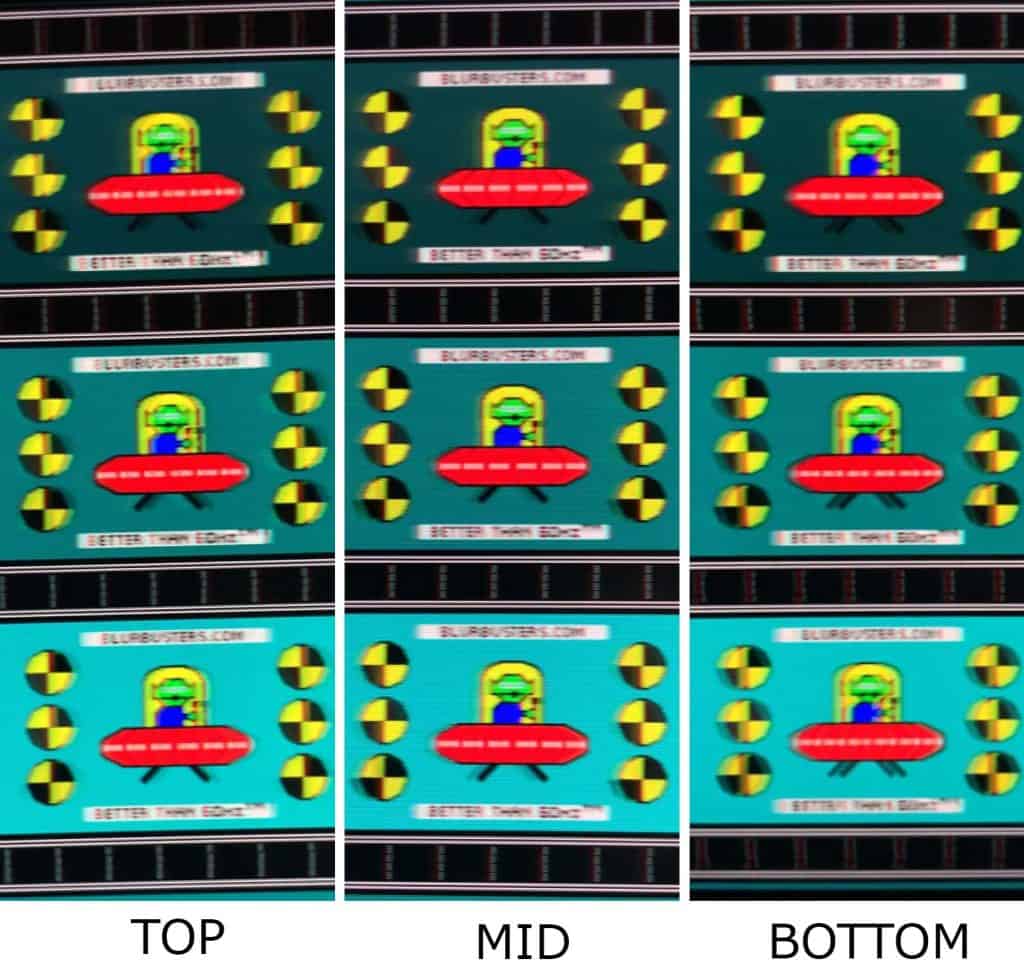
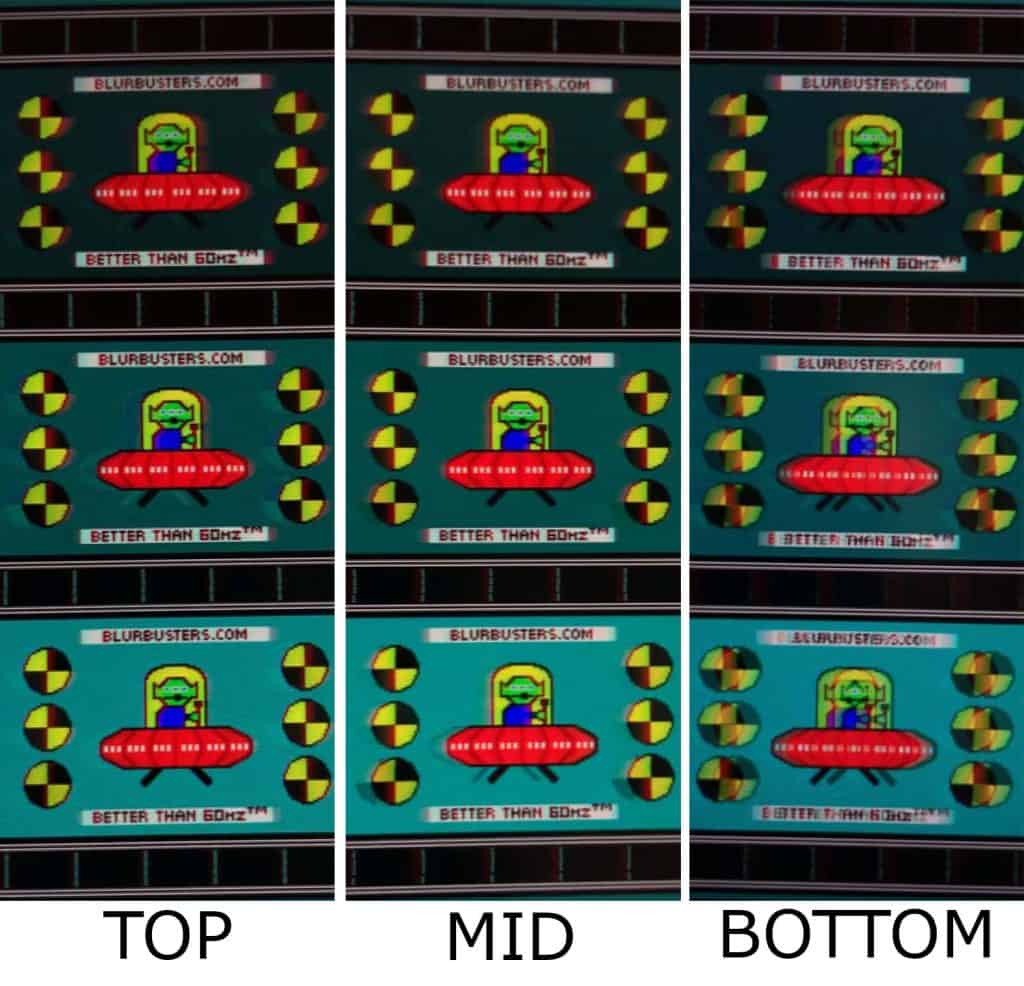
Keep in mind that for the best results, your frame rate should match the refresh rate. If you can’t maintain 165FPS, you should lower the refresh rate when using MPRT.
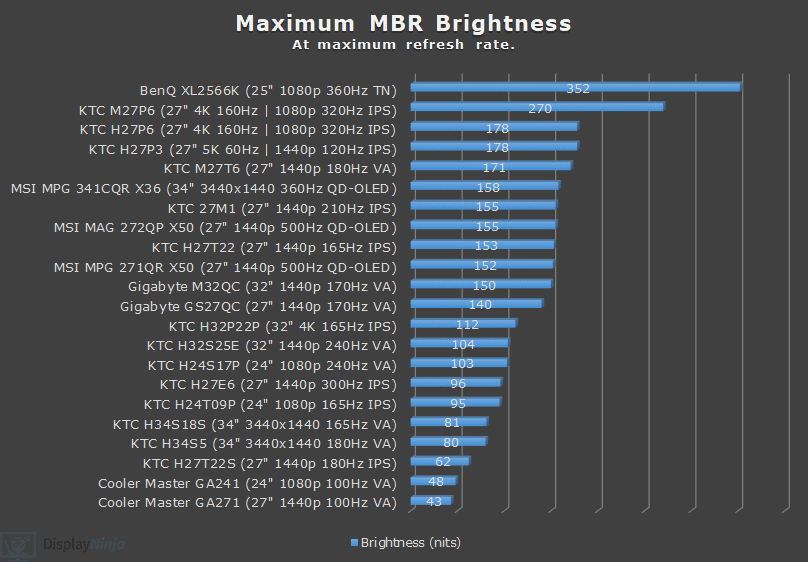
Overall, the backlight strobing implementation is decent, and if you’re a fan of CRT-like motion clarity, it’s worth playing around with.
Latency
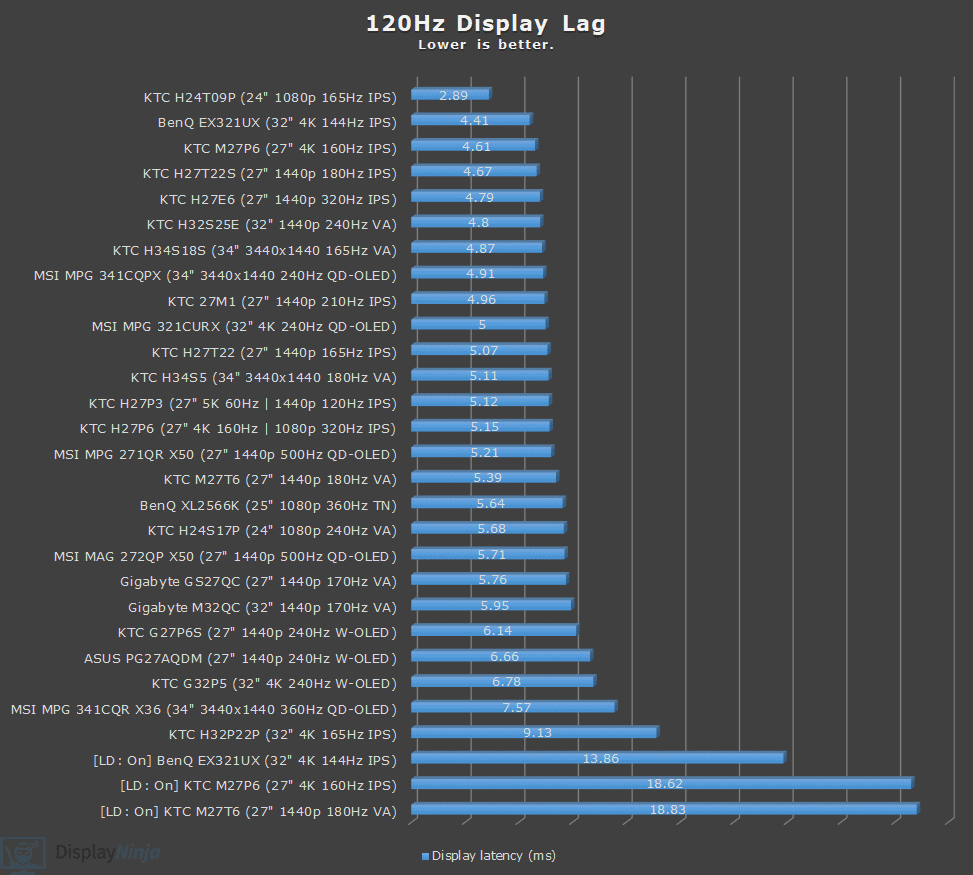
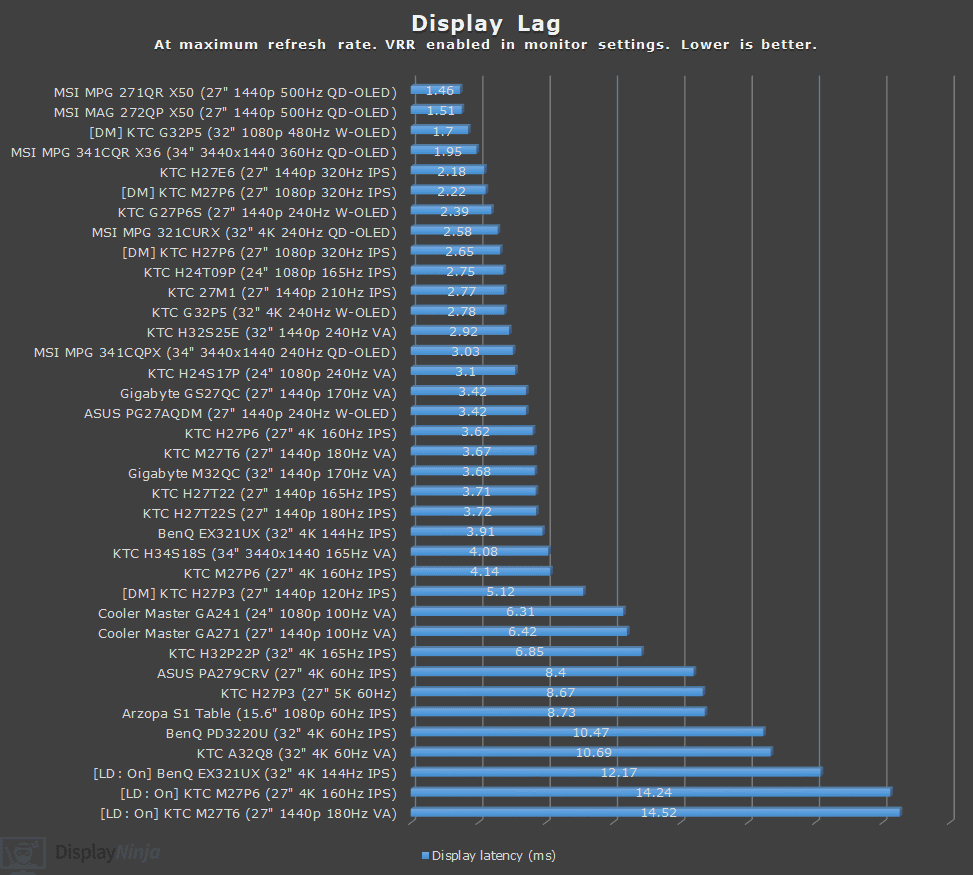
On some KTC monitors, the display latency changes depending on whether ‘Adaptive-Sync’ is enabled or disabled in the OSD menu, with the latency being lower when it’s enabled. On the KTC H32P22P, it’s the other way around.
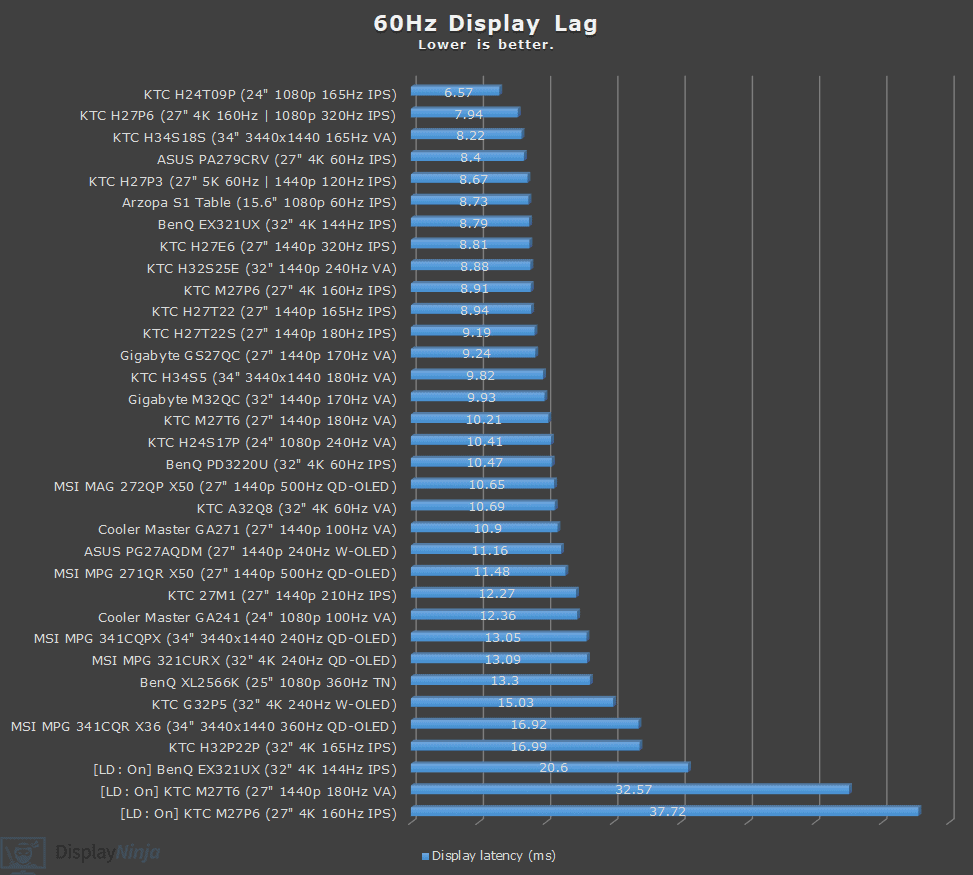
With Adaptive-Sync disabled, we measured 3.94ms of display latency at 165Hz, 4.98ms at 120Hz and 8.91ms at 60Hz, which are excellent results with no perceptible delay between your actions and the result on the screen.
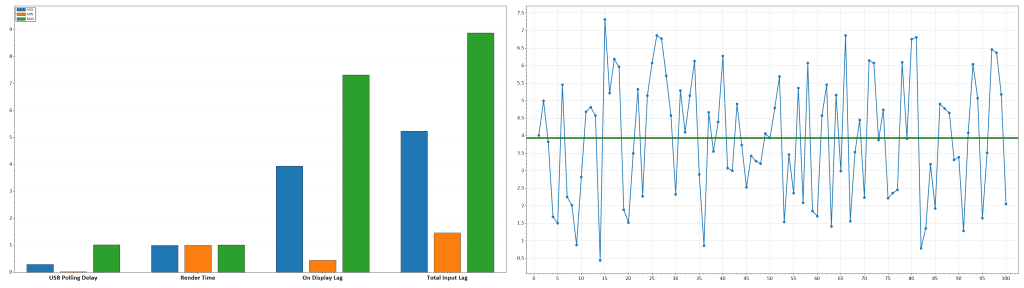
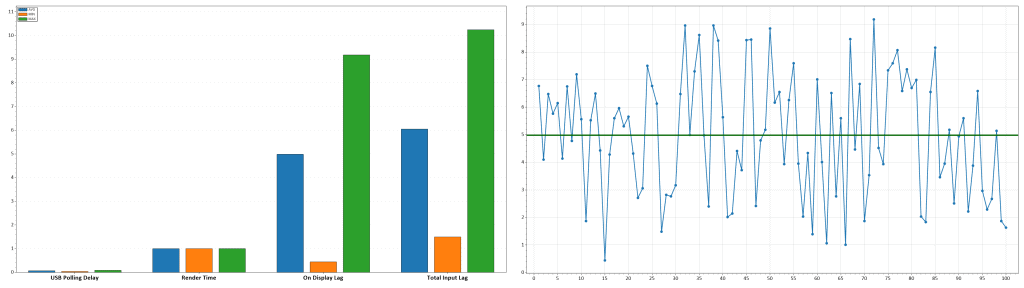
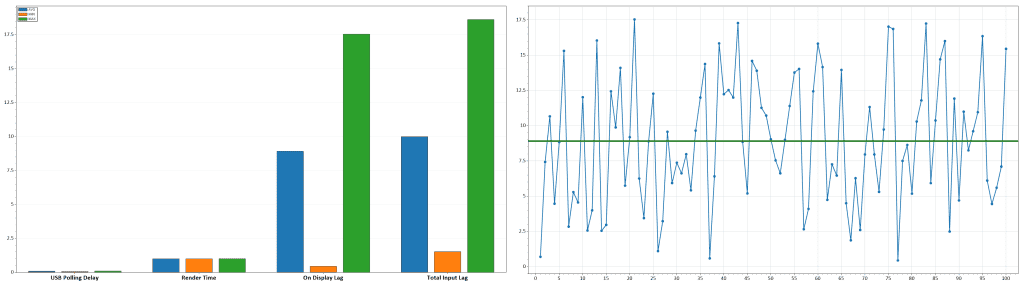
When you enable Adaptive-Sync, display latency increases to 6.85ms at 165Hz, 9.13ms at 120Hz and 16.99ms at 60Hz. This is less than 1ms higher than the refresh rate cycle, so while not ideal, most users won’t be able to notice any delay.
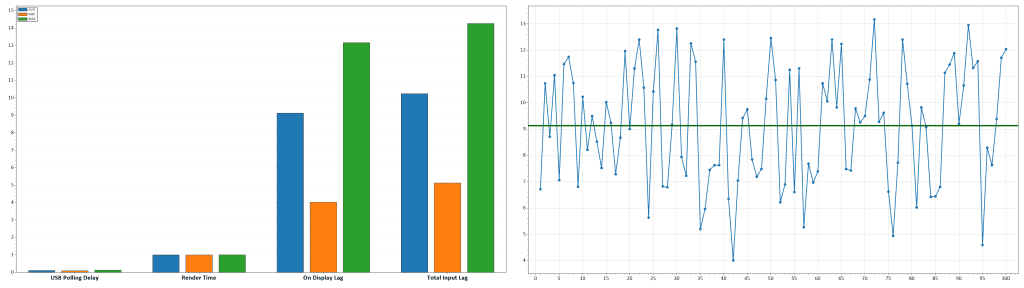
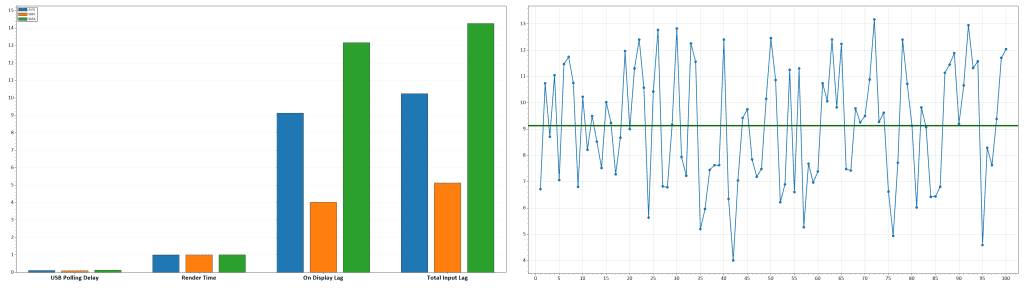
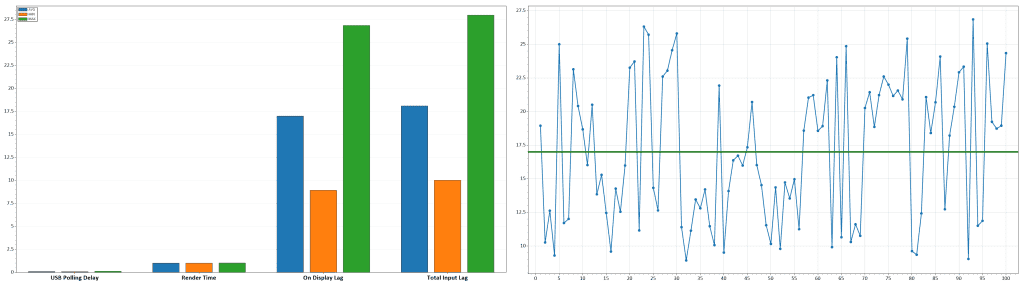
For competitive gaming, disabling VRR to basically half the display latency is the way to go. KTC let us know that they’re working on a new firmware to address VRR latency and flicker (most likely referring to VRR brightness flickering, which we’ll cover next). Sadly, since the monitor doesn’t have a USB port, we won’t be able to test this, but hopefully future batches will ship with the newer firmware.
Variable Refresh Rate
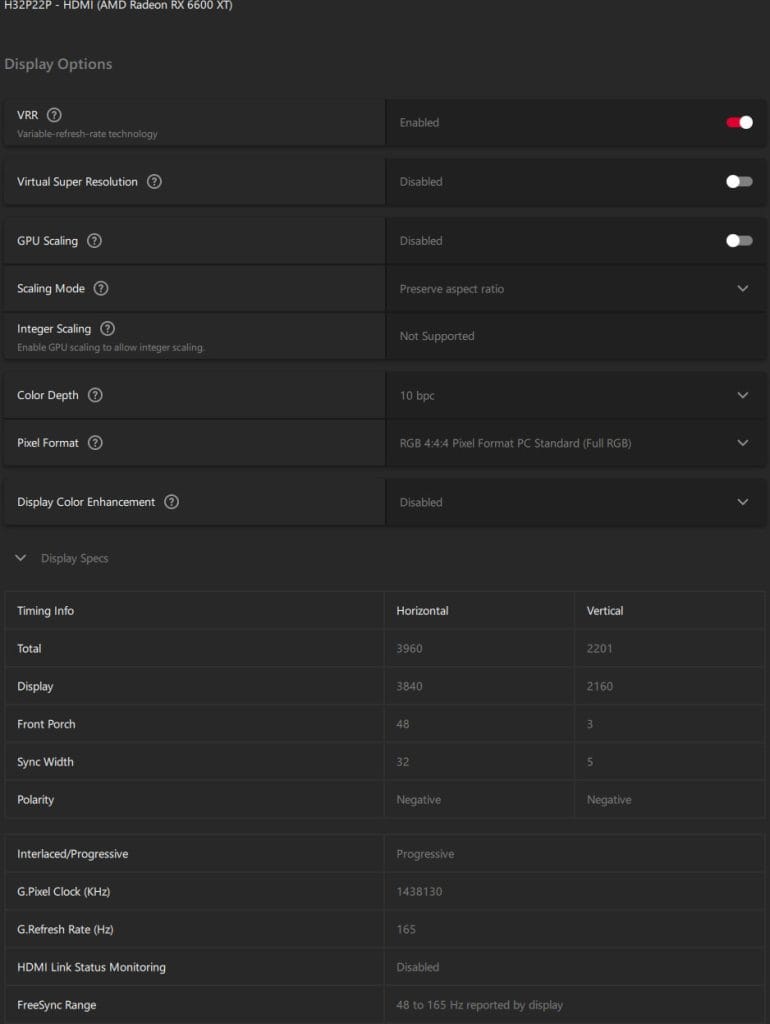
With ‘Adaptive-Sync’ set to ‘On’, you can enable variable refresh rate (VRR) in your GPU drivers, which allows the monitor’s refresh rate to change dynamically according to your frame rates in order to prevent screen tearing at no perceptible latency cost.
So, if you’re gaming at 165Hz, but you’re getting 120FPS, the monitor will run at 120Hz in order to provide you with 120 whole frames per second without the screen-tearing artifacts.
The supported VRR range is 48-165Hz, but even if your FPS dips below 48, the monitor uses LFC (Low Framerate Compensation) to refresh the screen at a multiple of your current frame rate. For example, 40FPS would be displayed at 80Hz or 120Hz to keep tearing at bay.
We noticed some brightness flickering with VRR. This is most common on VA and OLED panels, but IPS and TN panels can be affected as well. Essentially, when VRR is enabled and the frame rate fluctuates (often in poorly optimized games, loading screens, or in-game menus), the brightness can oscillate rapidly. The intensity can vary between individual monitor units due to panel variance.
On this monitor, the effect is quite subtle, even in demanding scenes, so in those cases, you can simply turn off VRR. Screen tearing isn’t very noticeable at 165 Hz, and if you’re particularly sensitive to it, you can always use V‑Sync instead.
KTC H32P22P Best Performance Settings
For gaming at a fixed 160Hz:
Overdrive: User 25
Adaptive-Sync: Disabled
For VRR gaming:
Overdrive: Native
Adaptive-Sync: Enabled
For gaming around 60 – 90FPS:
Overdrive: Native
Adaptive-Sync: Disabled
Uniformity & Quality Control
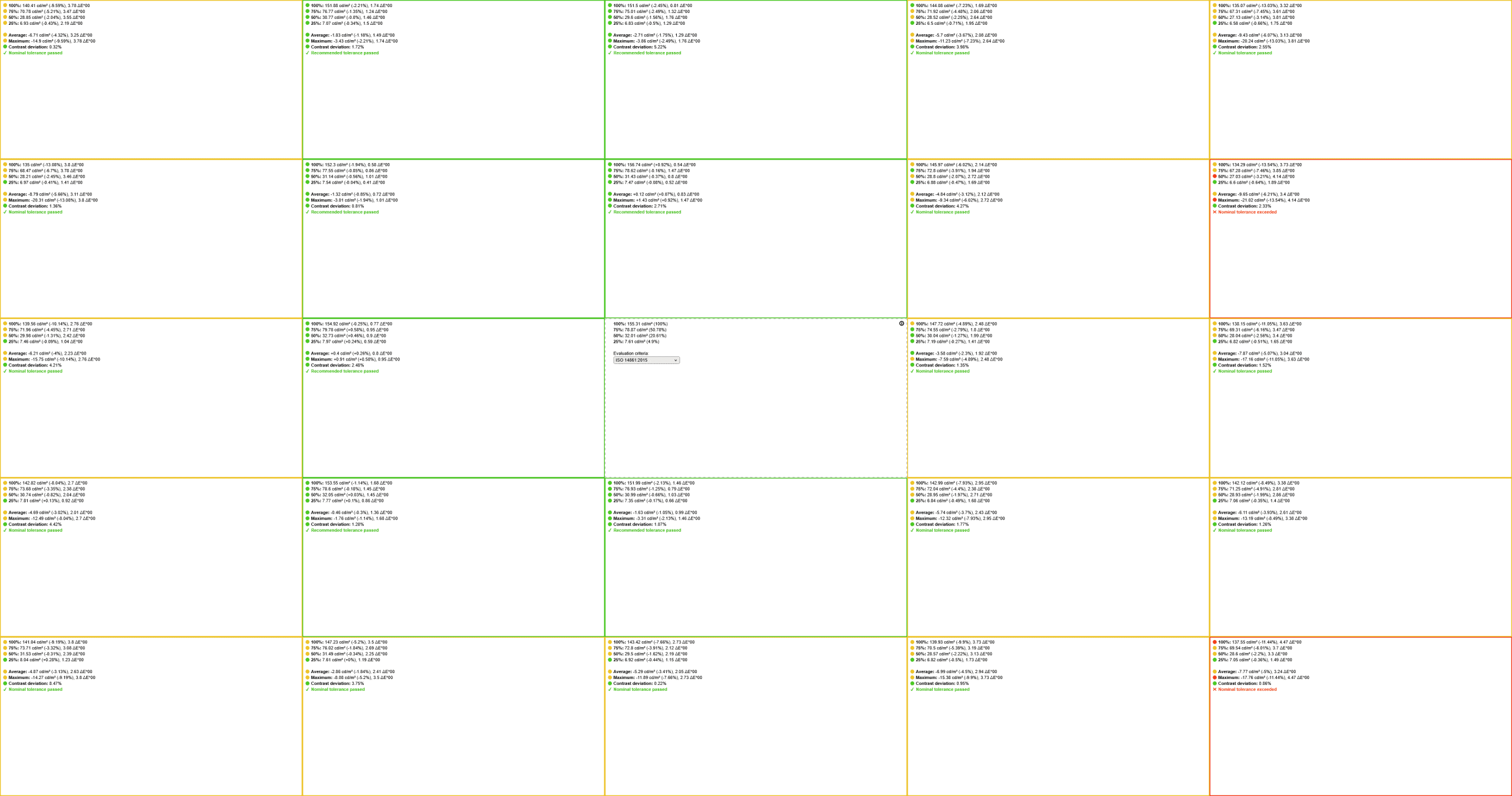
The image uniformity of the KTC H32P22P is decent. The screen is up to around 13% dimmer toward the left and right edges on a 100% white, but this wasn’t noticeable in everyday use.
We didn’t find any frame skipping, pixel inversion artifacts, excessive IPS glow or backlight bleeding.
However, our unit had multiple (13) dust particles stuck beneath the screen layer. Obviously, this would warrant an RMA.
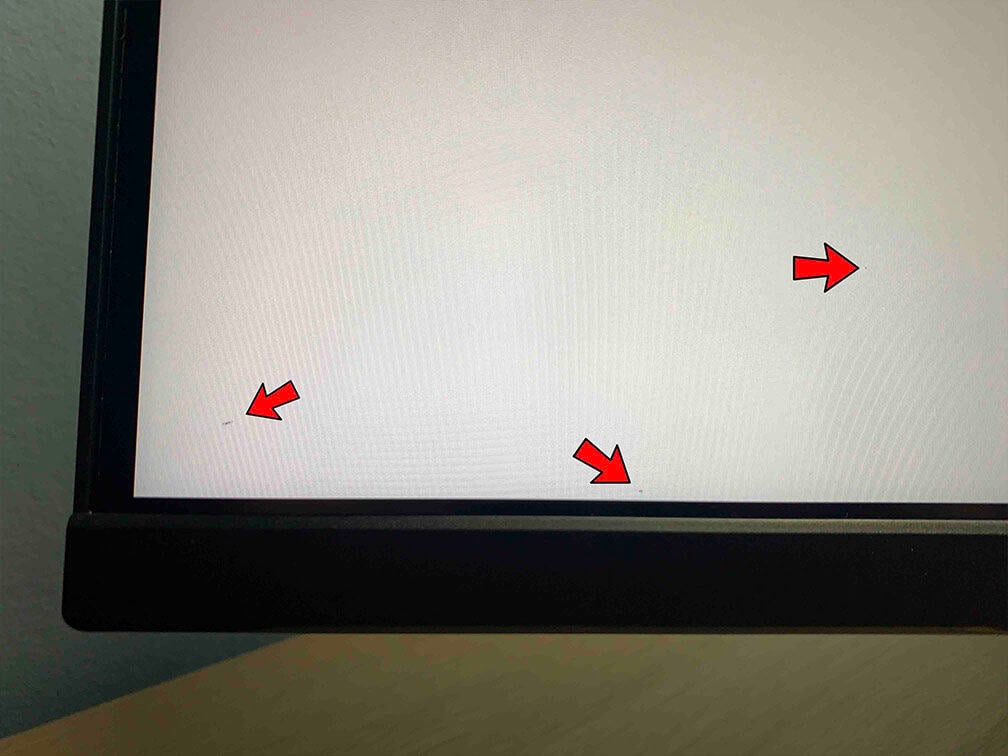
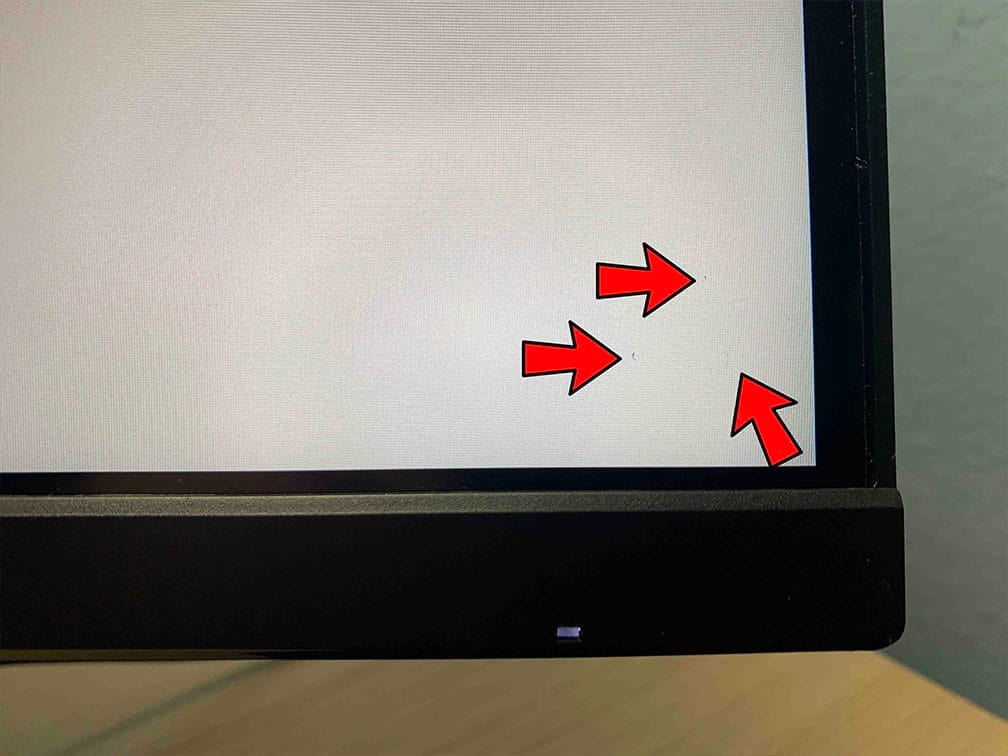
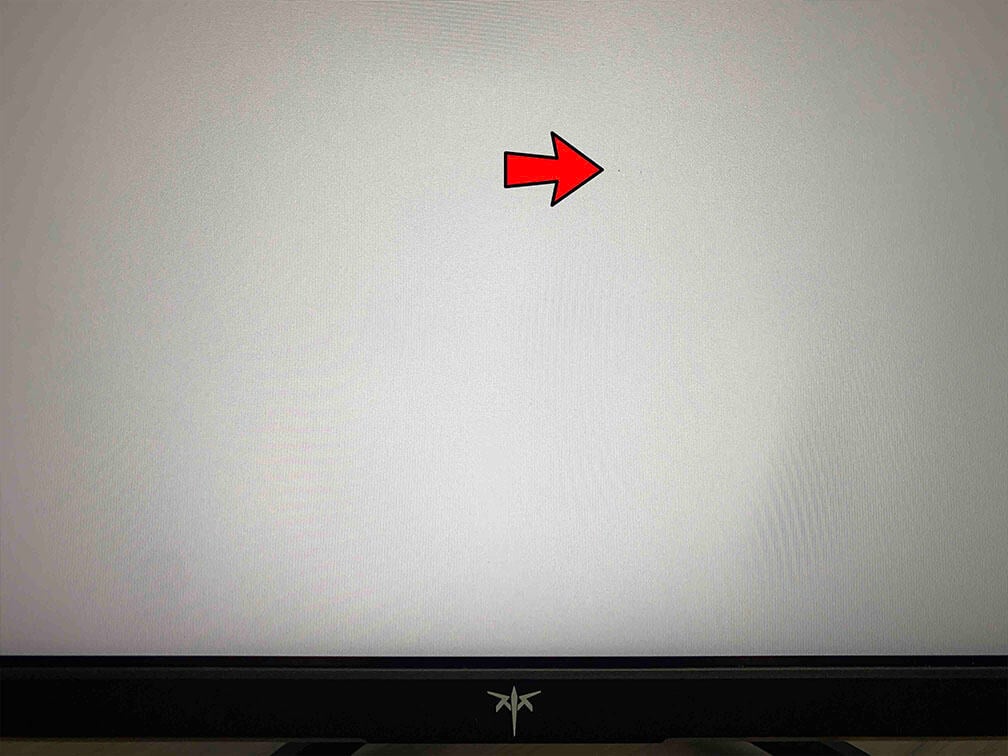
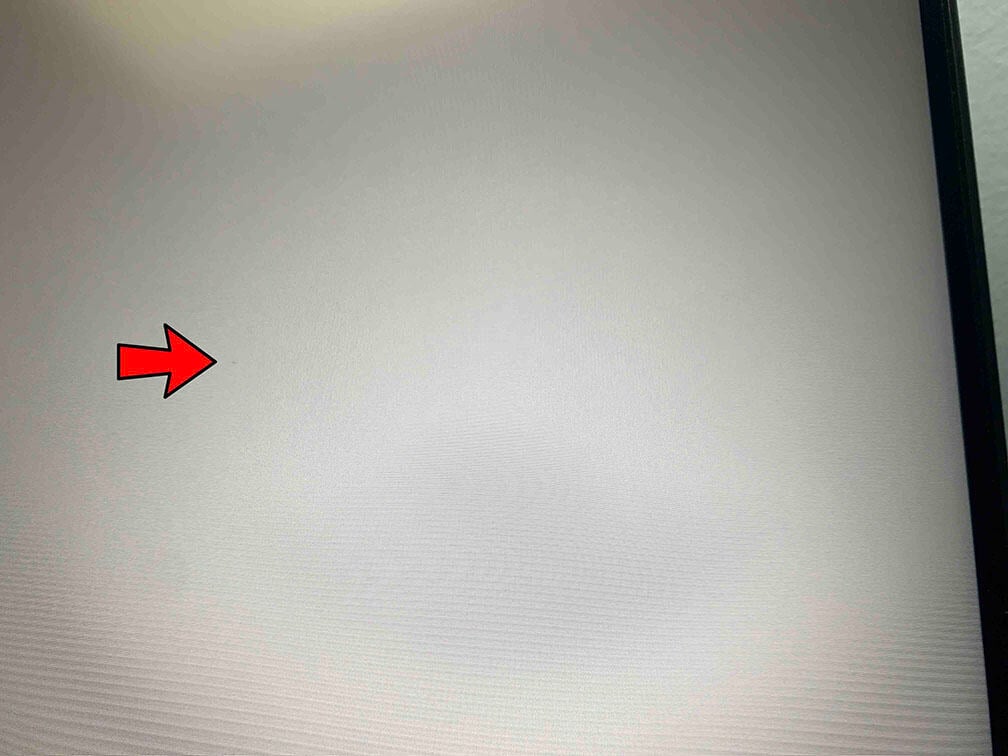
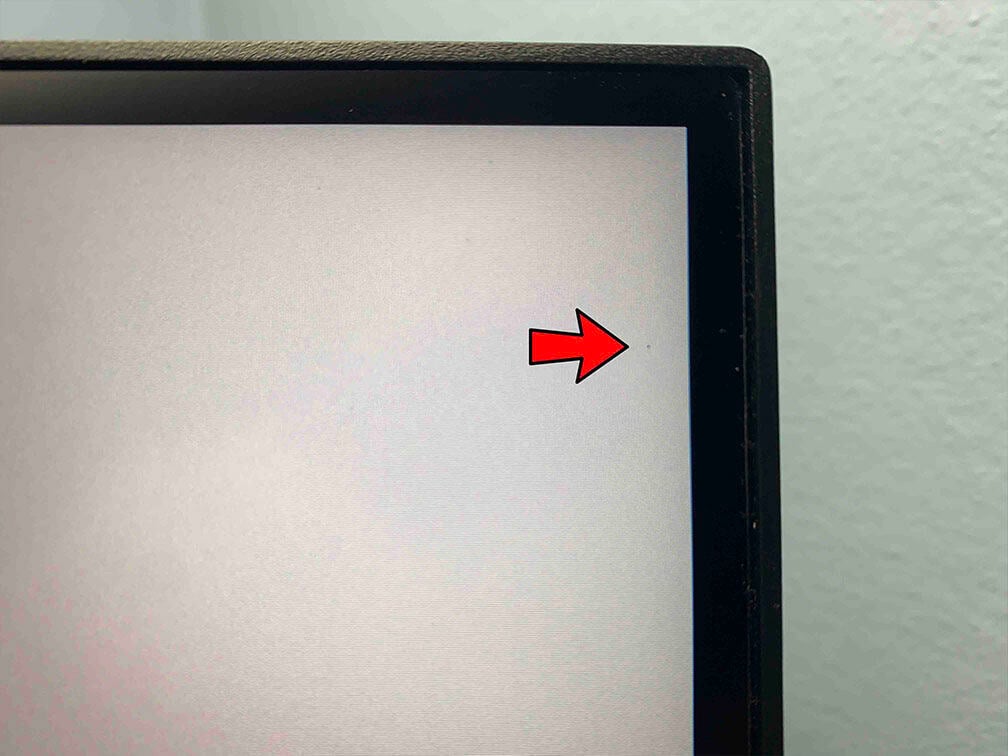
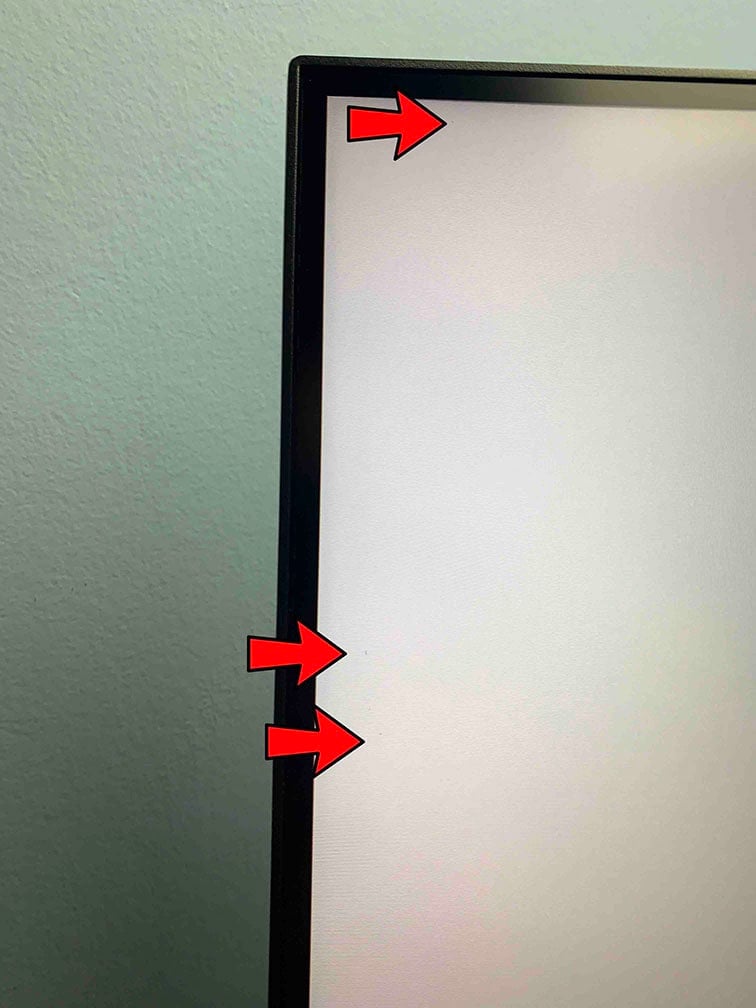
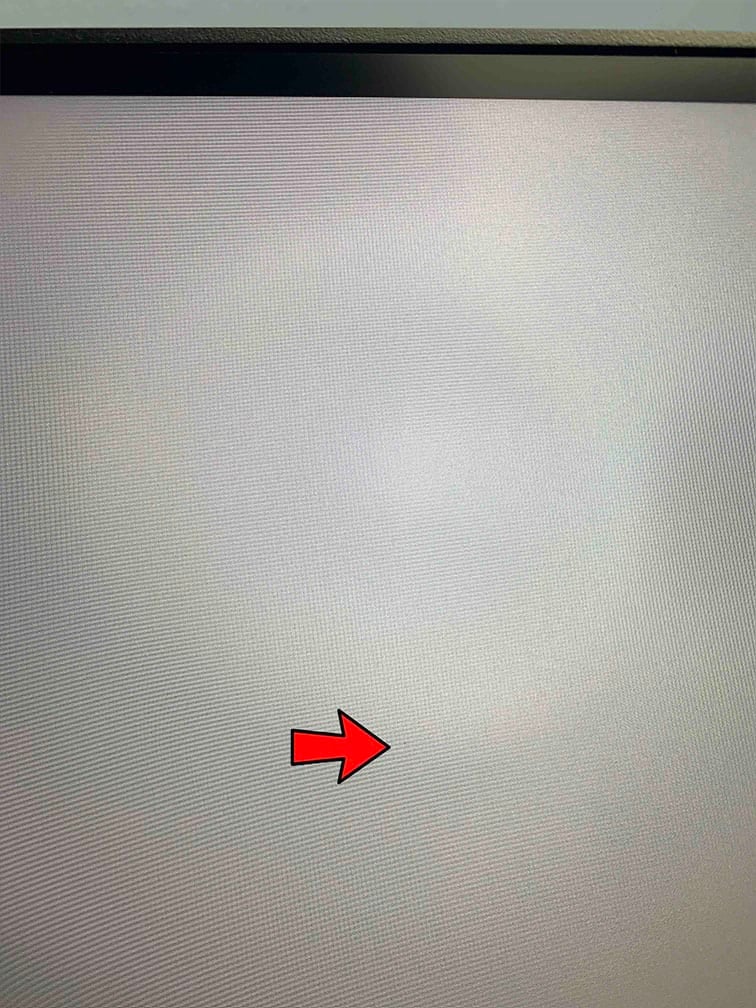
We reported this to KTC, and they’ve let us know that they’re reinforcing their cleanroom process.
The monitor uses a flicker-free backlight (unless MPRT is enabled), ensuring a comfortable viewing experience without the risk of eye strain or headaches for sensitive users during extended use.
There’s also a low blue light mode with four intensity levels (we measured color temperatures of 6875K, 6471K, 6034K, and 5633K, down to 4355K in the ‘Warm’ mode), which can be helpful if you have trouble falling asleep at night after prolonged screen time.
Features
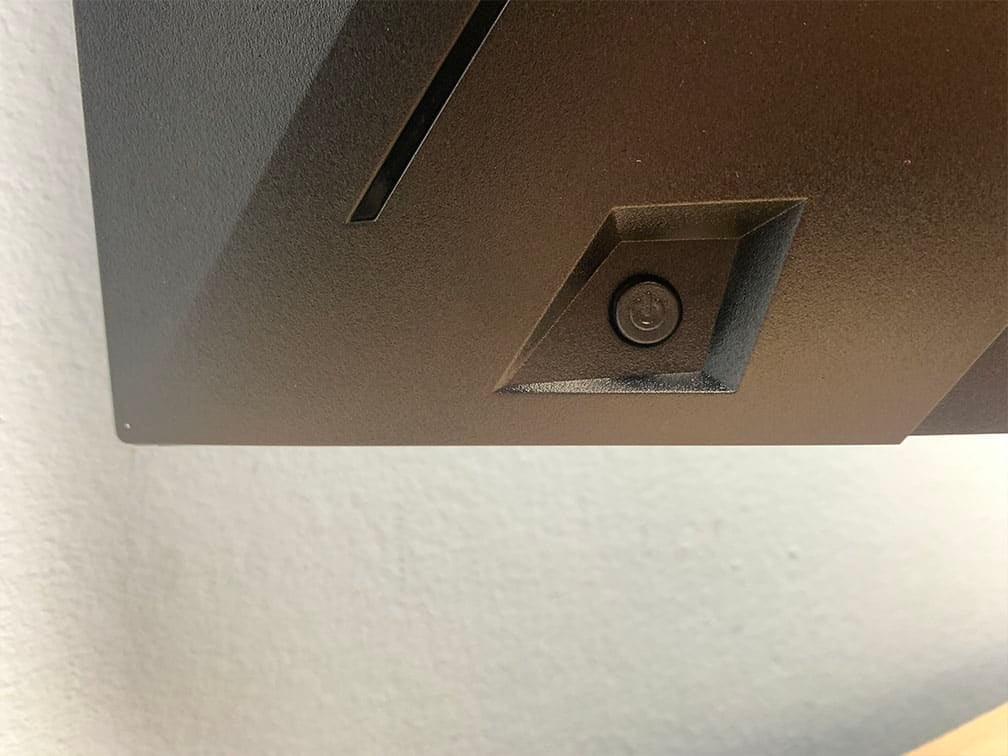
There’s a direction joystick on the rear of the monitor for quick and easy navigation through the OSD menu. You press the joystick to power on the display, and hold it for 3 seconds to power it off.
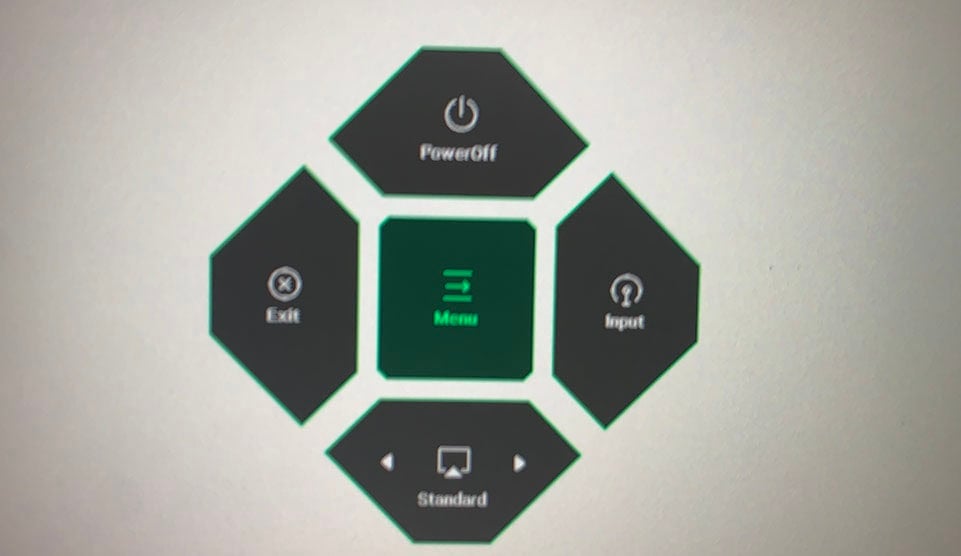
Pressing the joystick in any direction opens up a small sub-menu with power off, exit, main menu, input source selection and a quick picture mode toggle.
Besides typical image adjustment tools (brightness, contrast, color temperature), there are some advanced settings available too, including sharpness (default is 40), aspect ratio (native, 4:3 and full screen), gamma (native, and from 1.8 to 2.6), color range (auto, full, limited), color domain (RGB, YUV, auto), 6-axis hue/saturation and automatic input detection.
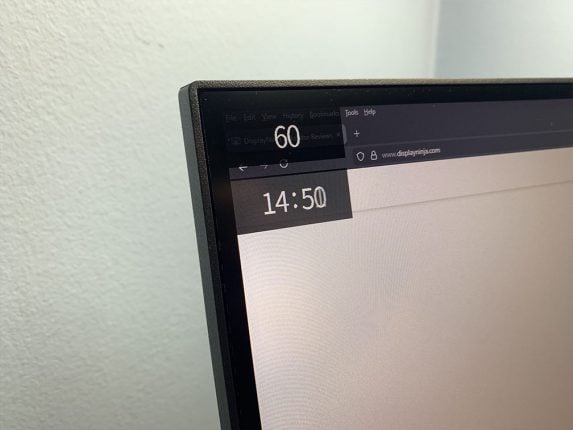
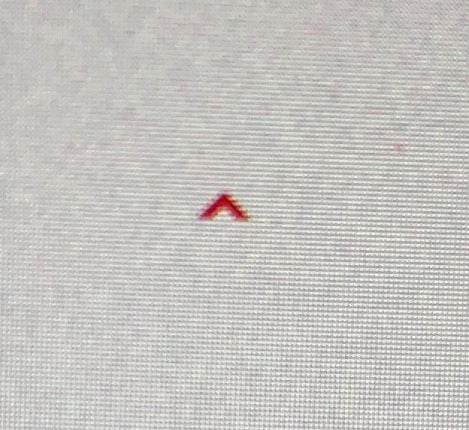
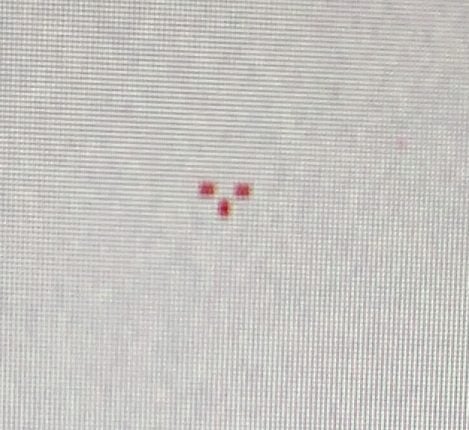
Useful gaming features include Black Equalizer (improves visibility in dark scenes by altering the gamma curvature), on-screen timer, a refresh rate tracker and crosshair overlays (with customizable color and position).
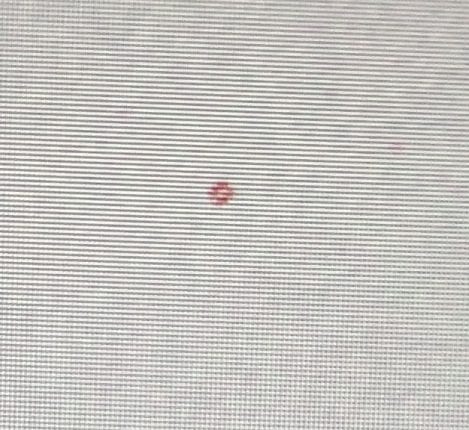
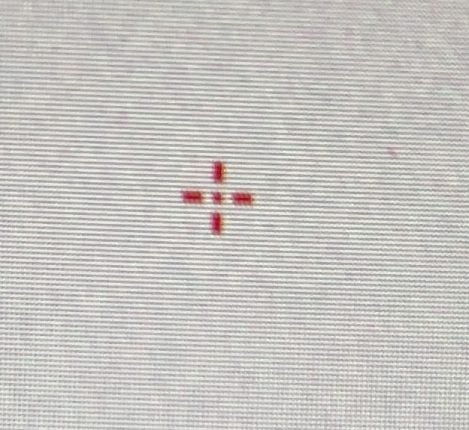
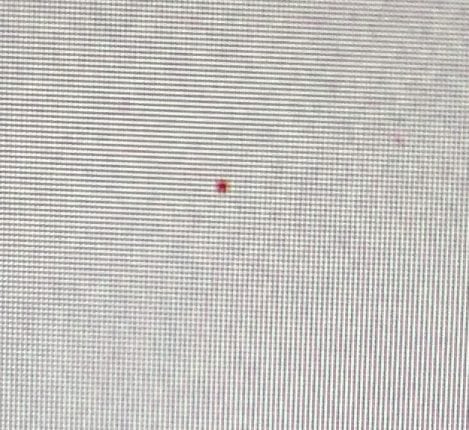
Other settings include DCR (Dynamic Contrast Ratio, leave it disabled for best image quality), Color Weakness mode, volume/mute, OSD language, setup (position, rotation, timeout and transparency), power LED indicator, DSC toggle, DDC/CI, resolution notice, information and factory reset.
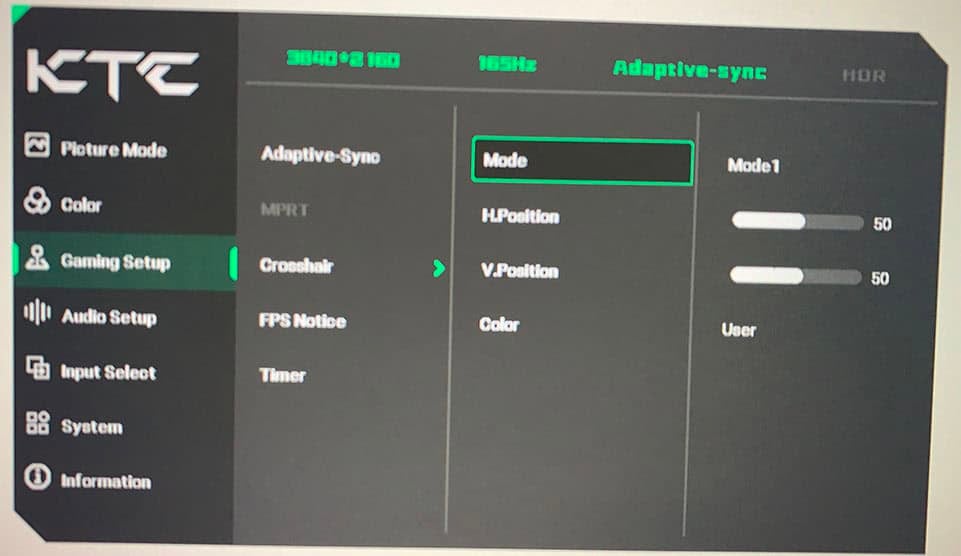
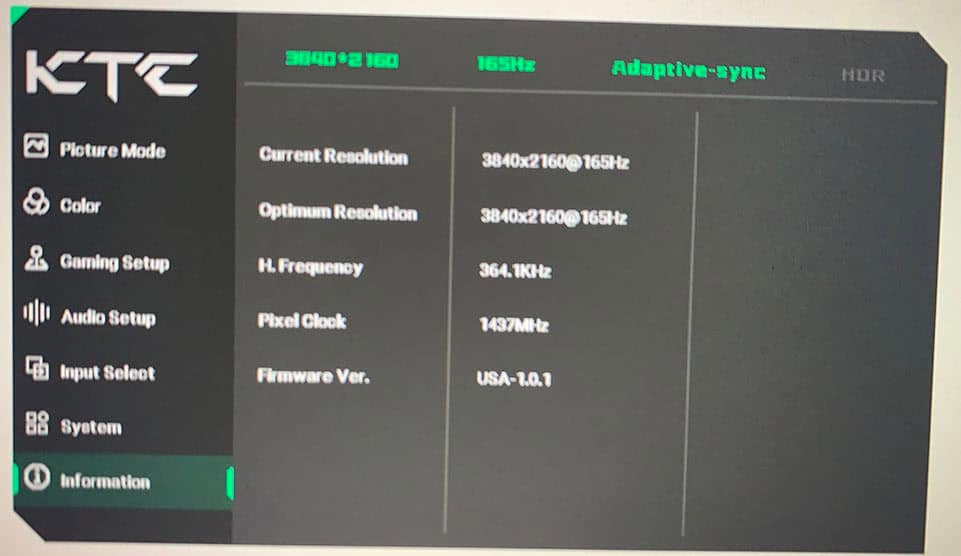
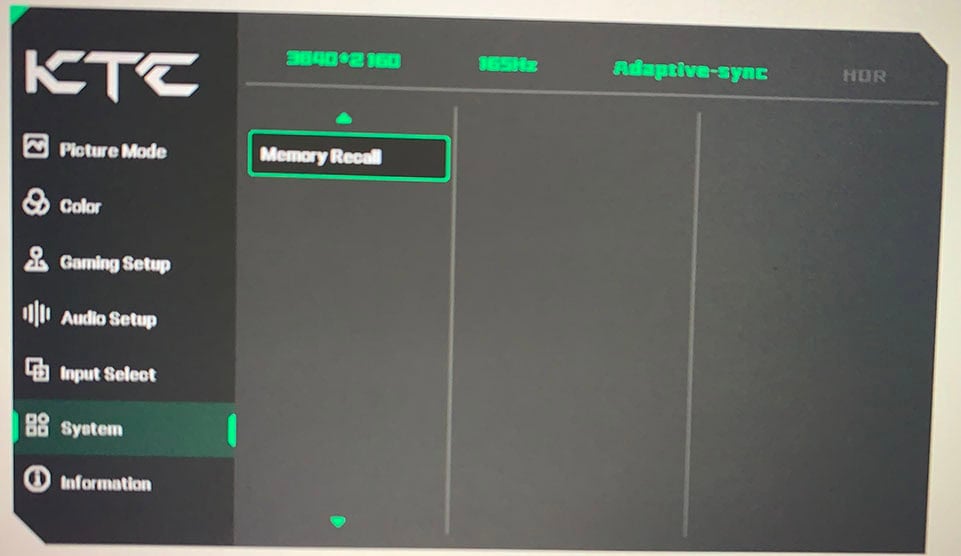
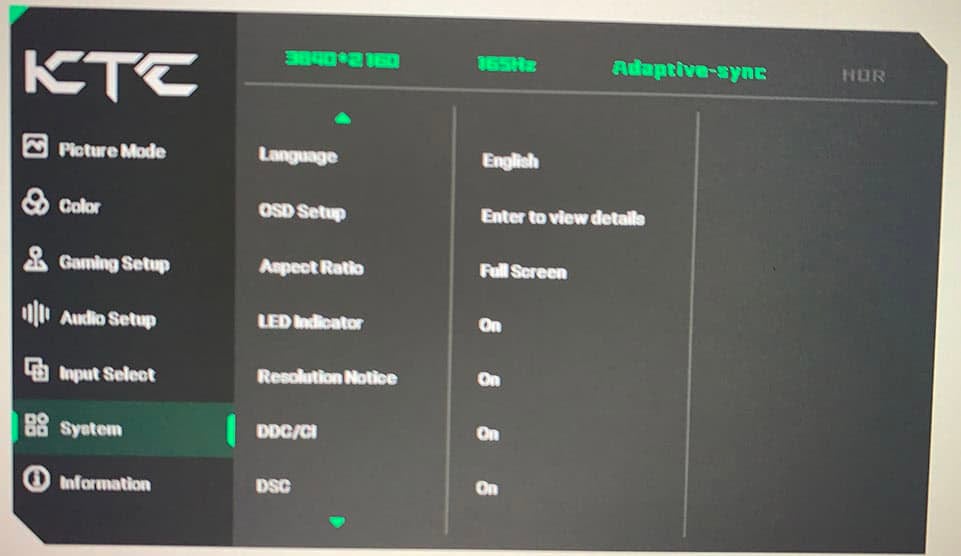
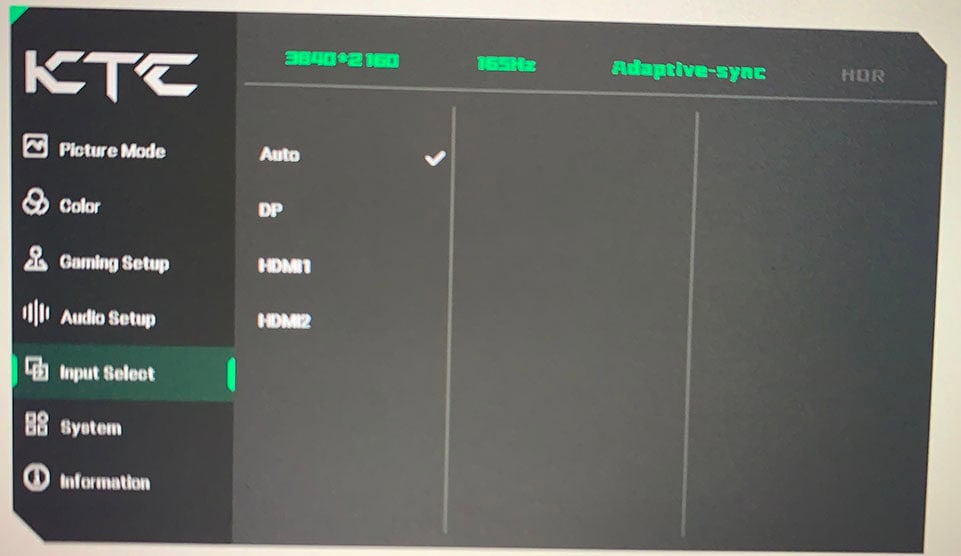
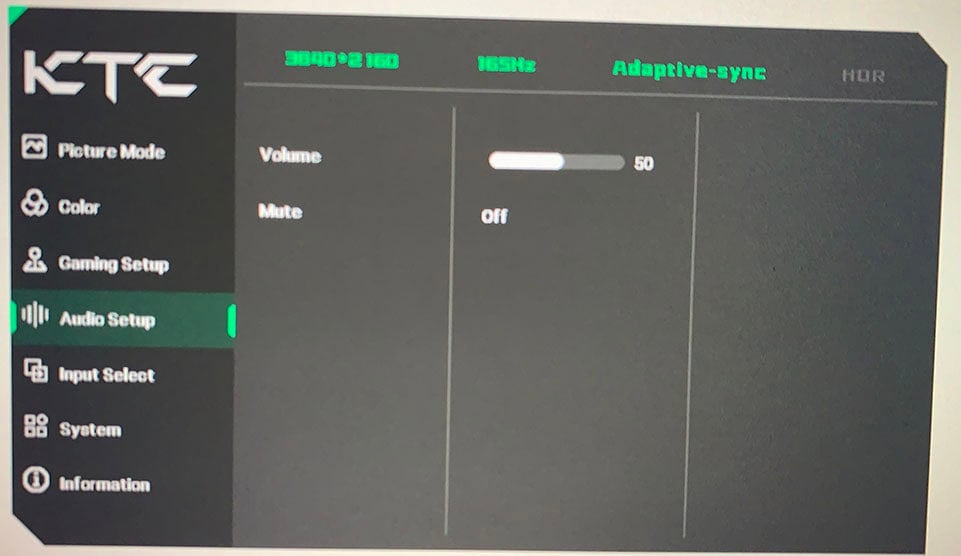
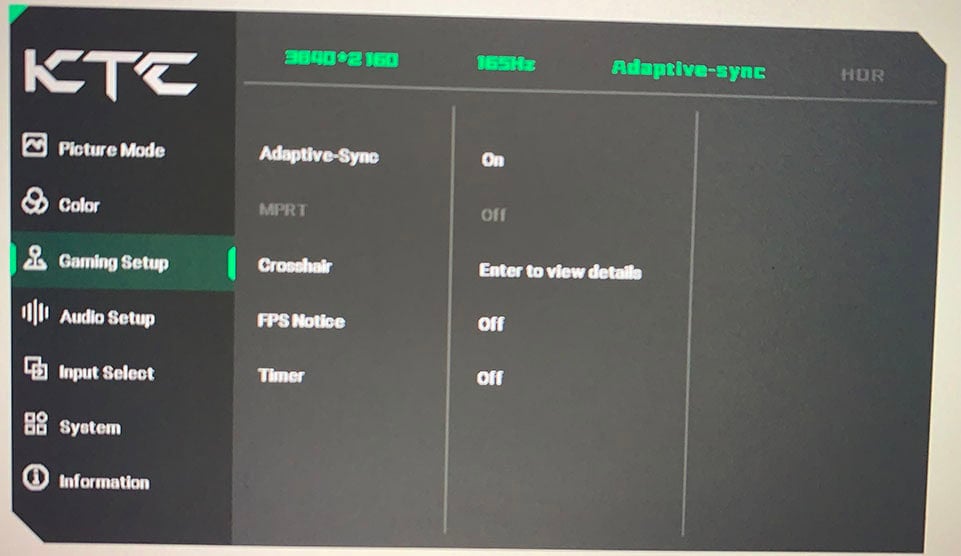
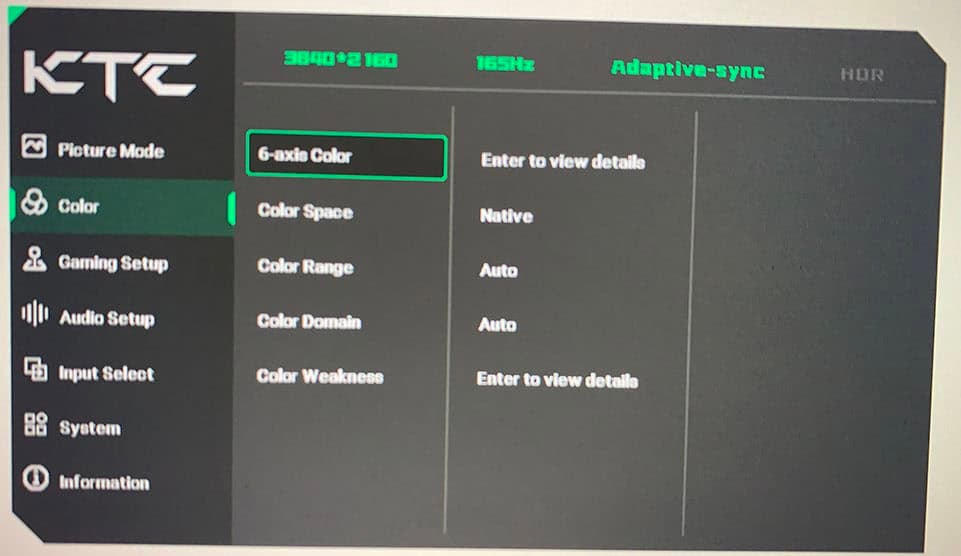
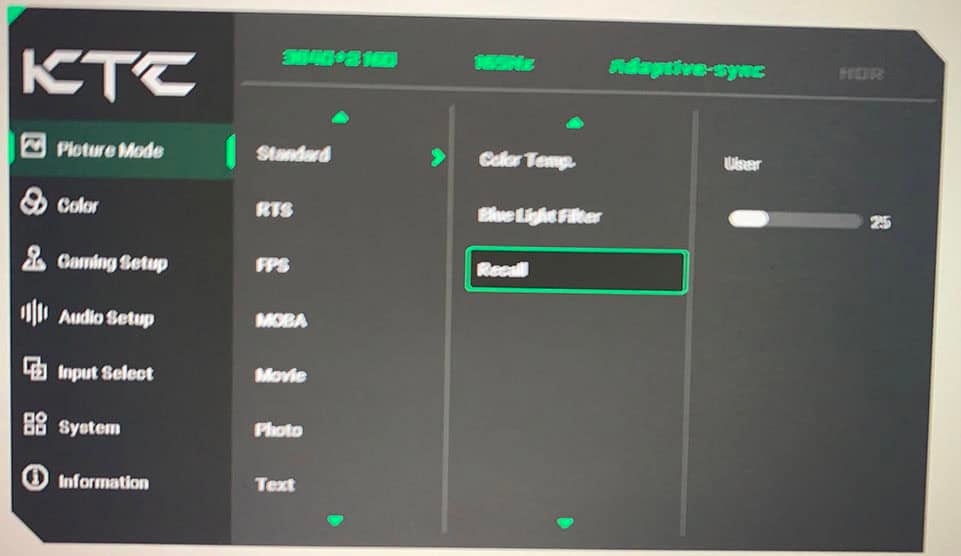
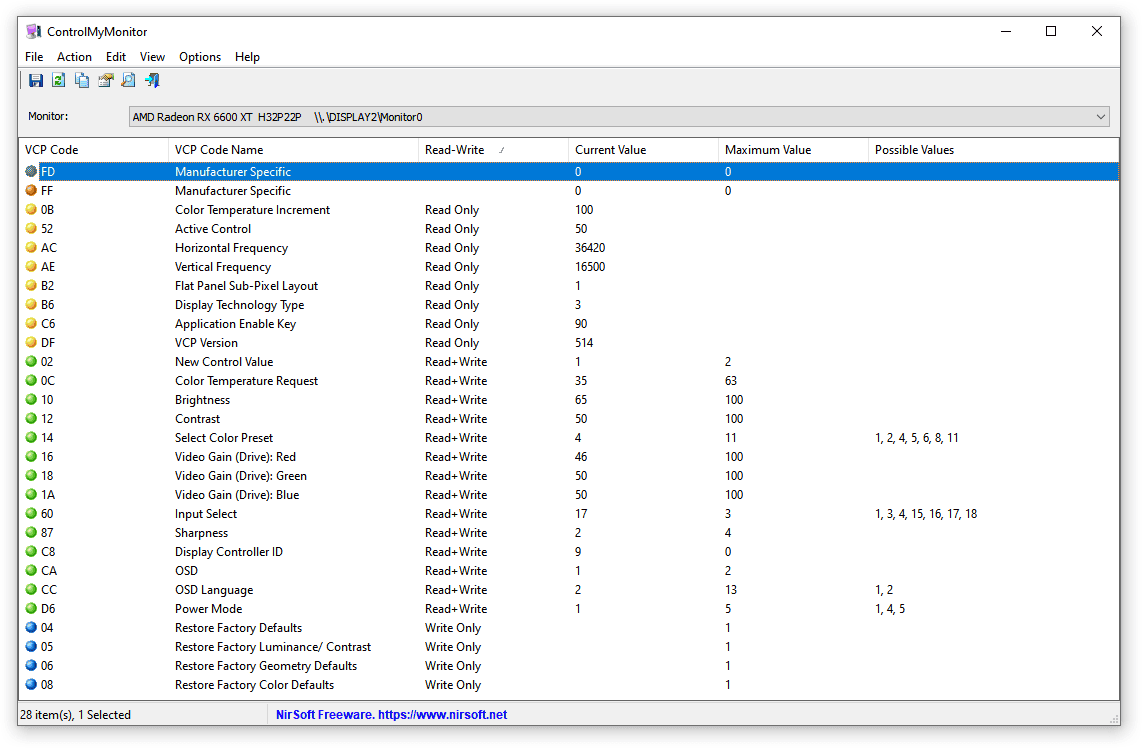
The monitor doesn’t support KTC’s MMC desktop application for OSD adjustment, but you can use third-party apps, such as ControlMyMonitor, to make the following adjustments.
Design & Connectivity
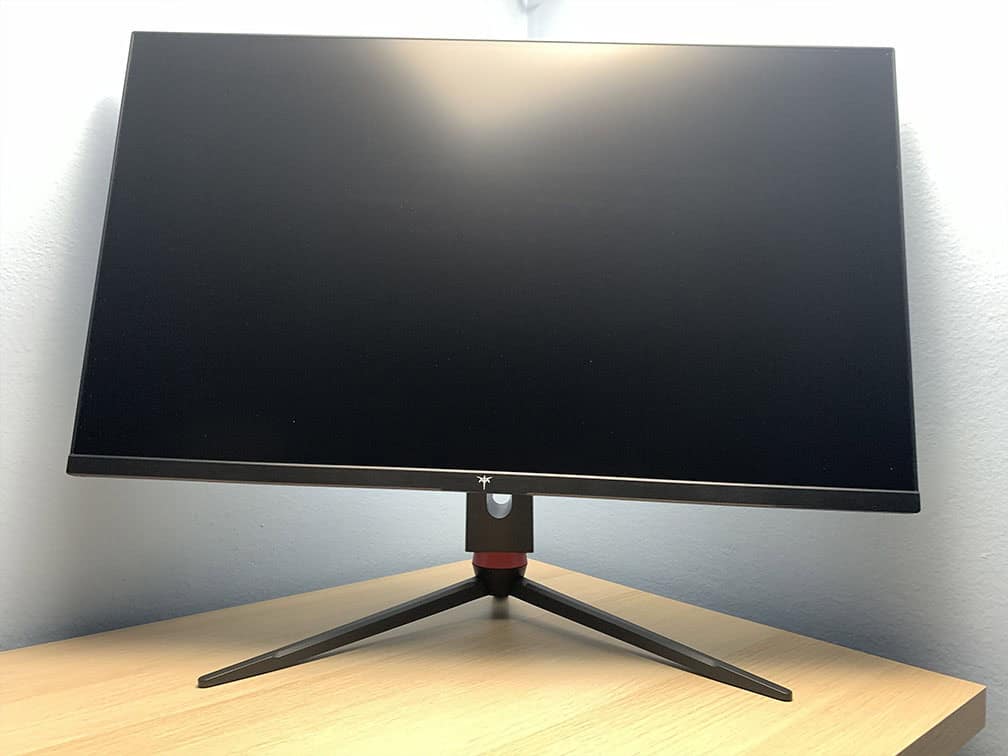
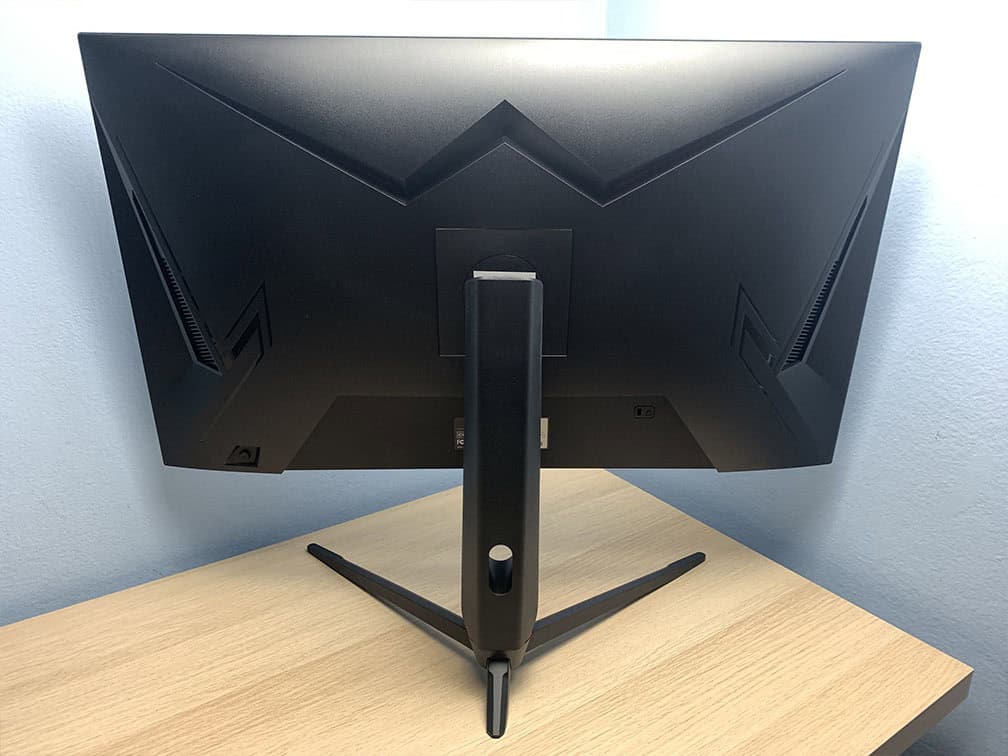
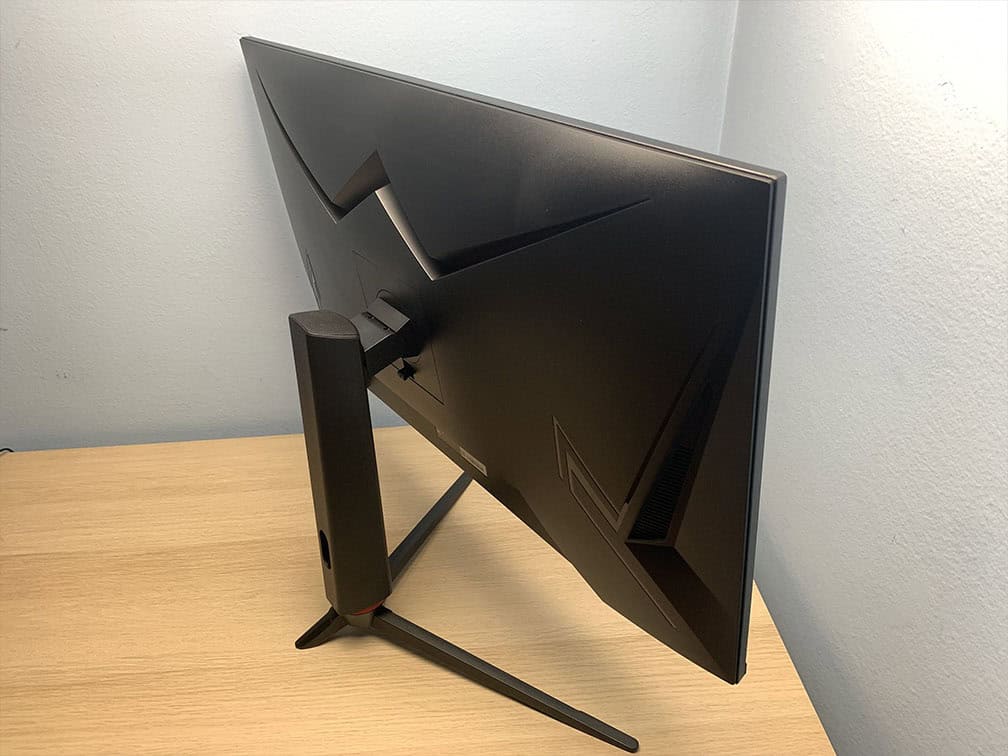
The stand of the monitor is robust and offers full ergonomic support, including up to 95mm height adjustment, -5°/15° tilt, 100x100mm VESA mount compatibility (recommended screw size M4*10mm) and, although not specified, swivel by +/- 30° and +/- 90° pivot. However, the stand doesn’t offer enough height adjustment for the screen to sit flush with the desk surface, as shown in the photo below.
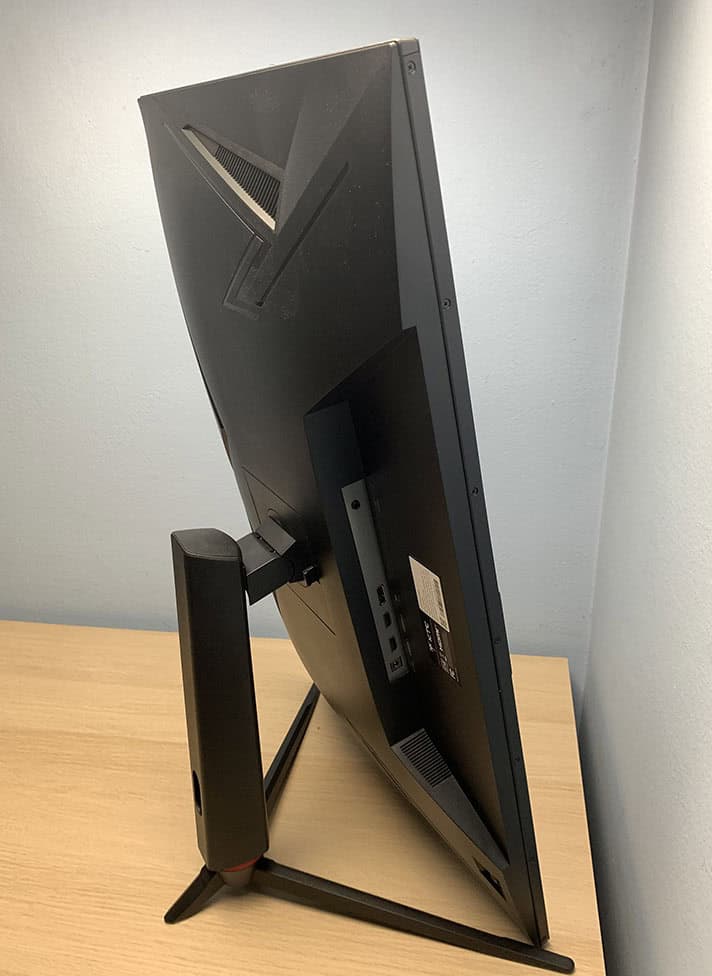
The screen has a bit heavier matte anti-glare coating that’s efficient at diffusing reflections, but adds a bit of noticeable graininess (mostly on solid color backgrounds).
Next, the bezels are ultra-thin (2mm) at the top and at the sides, while the bottom bezel is a bit thicker at 16mm. There’s also a 6mm black border (2mm at the bottom) around the screen before the image starts.
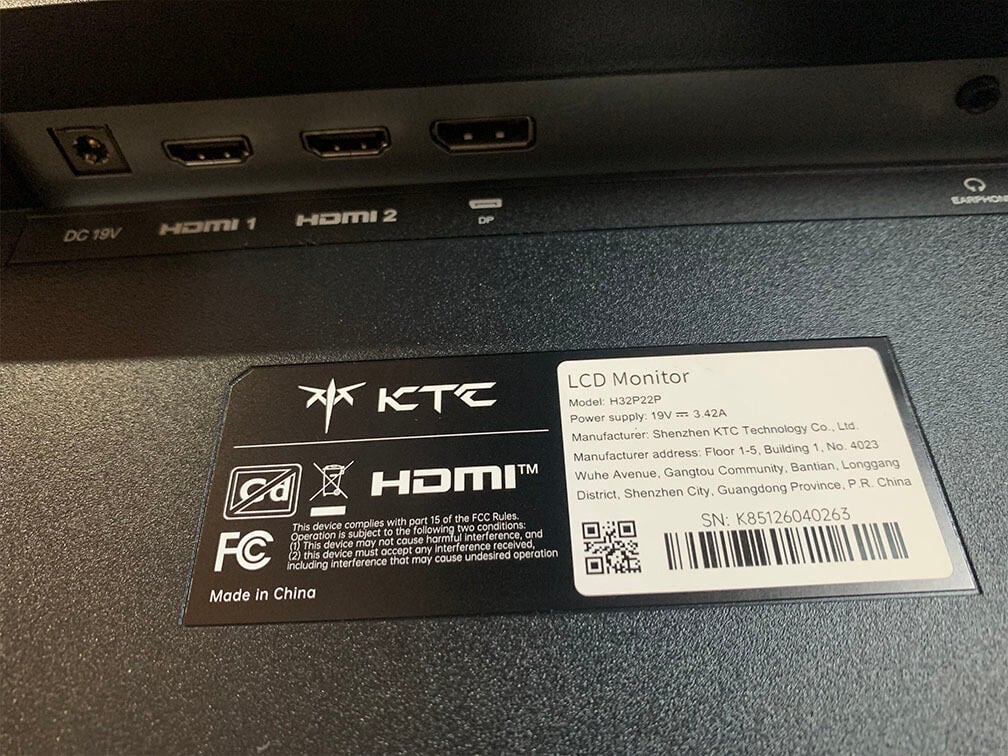
Connectivity options include two HDMI 2.1 ports, DisplayPort 1.4, a headphone jack and an external power supply.
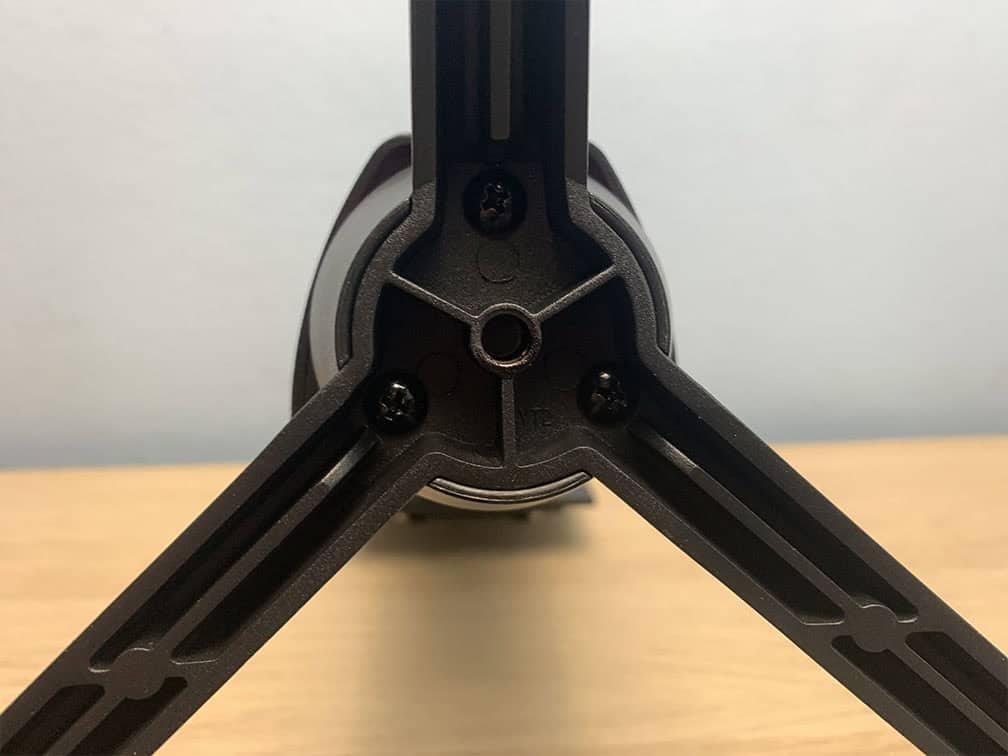
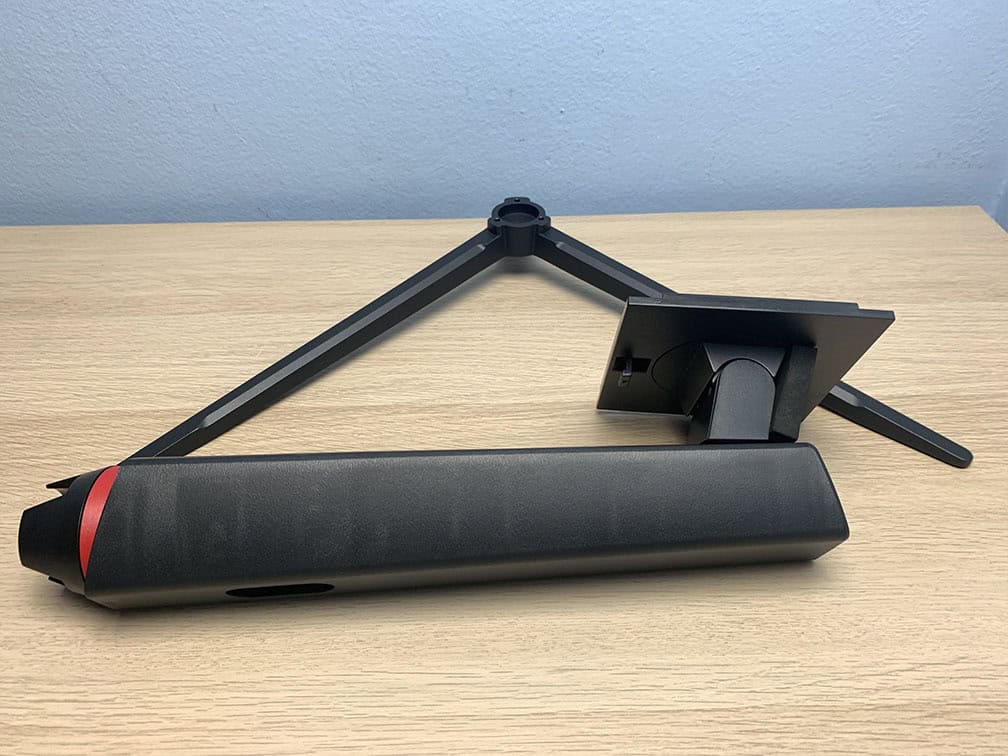
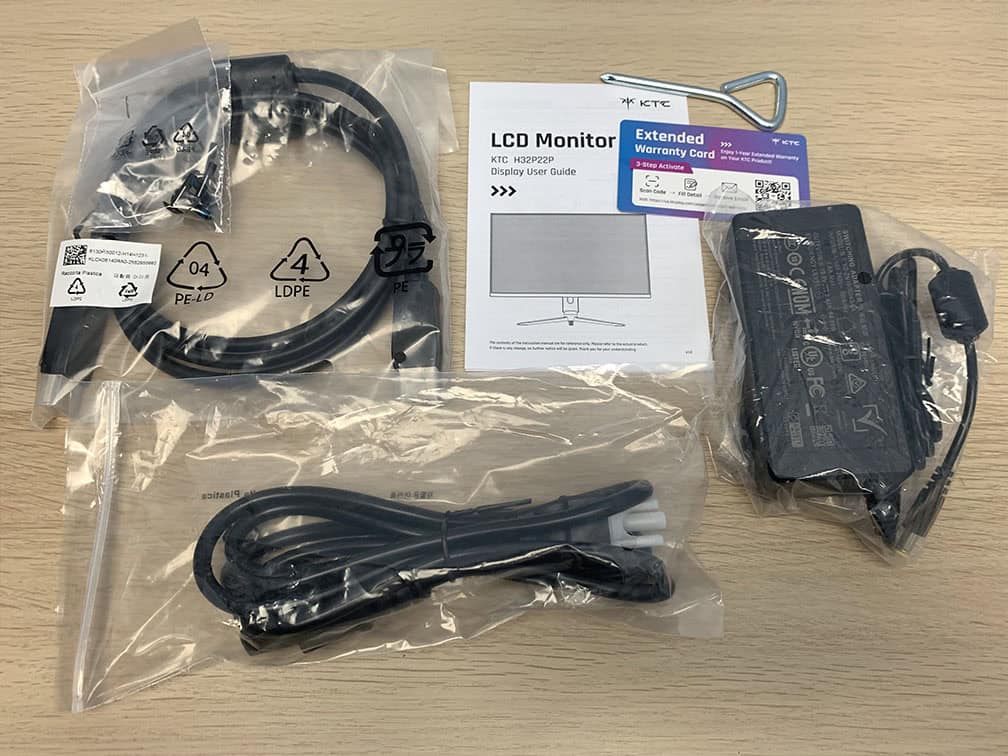
In the box, along with the monitor, you will get the external power supply, a DisplayPort cable, a user guide/warranty card, a power cord and two sets of three screws for assembling the stand. You’ll also get a small screwdriver.
Price & Similar Monitors
The KTC H32P22P price ranges from $450 to $600. At $600, it’s definitely too expensive and even at $450, there are other alternatives to consider.
The Acer XV325QK V3, for instance, is a 32″ 4K 160Hz IPS gaming monitor with a 1152-zone mini LED FALD backlight and 1080p 320Hz Dual Mode for $400 – $480.
At this price, we’d have also expected a USB hub with USB-C and built-in KVM, as well as tighter factory calibration and quality control.
The KTC H32P22P is currently on sale for $382.48, and with our 10HHHPPP 10% discount code (valid until May 31), the final price drops to $344. At that price, it’s worth considering if you don’t need HDR, USB or KVM.
Conclusion
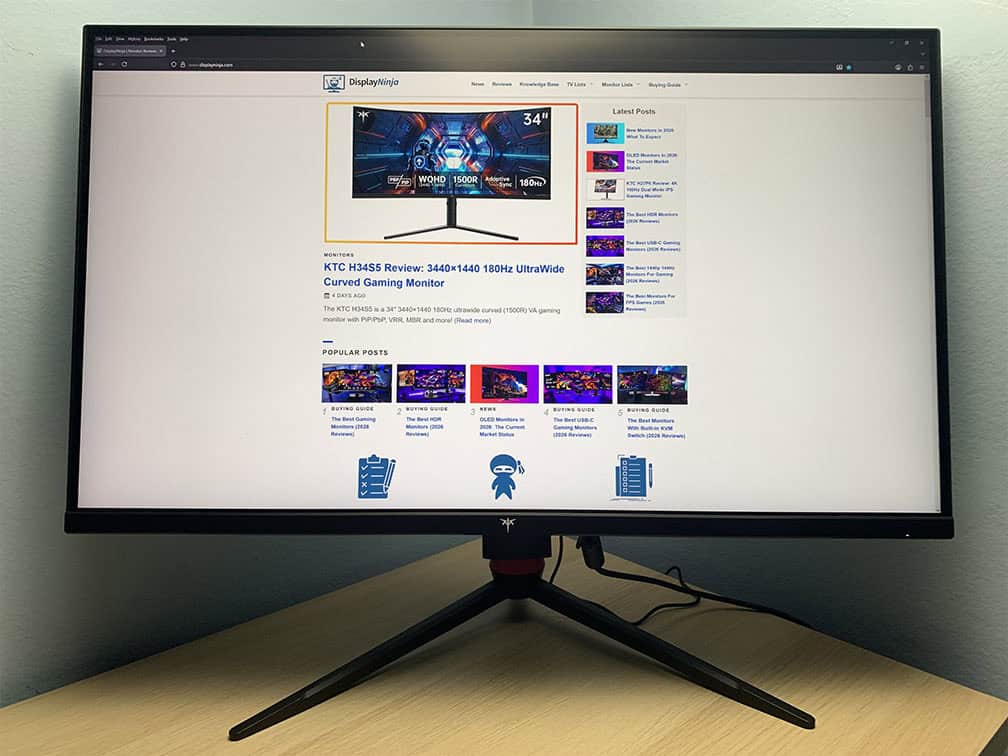
Overall, after testing the KTC H32P22P, we’re left with mixed feelings.
We were impressed with the high native contrast ratio for an IPS panel paired with a rapid pixel response time, something that’s rare to see. The IPS Black panels we’ve encountered so far have rather slow response times.
For a monitor of this price, however, we’d have expected better quality control, tighter factory calibration and inclusion of a full-array local dimming solution with a mini LED backlight, or at least a Dual Mode, a USB hub with USB-C and KVM.
Therefore, we can only recommend the H32P22P if it drops below $350 and you want an IPS monitor with high contrast and fast response times, without needing HDR or USB/KVM.
Specifications
| Screen Size | 31.5-inch |
| Resolution | 3840×2160 (Ultra HD) |
| Panel Type | IPS |
| Aspect Ratio | 16:9 (Widescreen) |
| Refresh Rate | 165Hz |
| Response Time (GtG) | Not specified |
| Motion Blur Reduction | MPRT |
| Adaptive-Sync | FreeSync Premium (48-165Hz), HDMI 2.1 VRR |
| Ports | DisplayPort 1.4, 2x HDMI 2.1 |
| Other Ports | Headphone Jack |
| Brightness | 300 cd/m² |
| Contrast Ratio | 3000:1 |
| Colors | 1.07 billion (8-bit + FRC) 121% sRGB |
| HDR | HDR10 |
| VESA | Yes (100x100mm) |
The Pros:
- High native contrast ratio for an IPS panel
- Fast response time speed, low latency with VRR disabled
- Plenty of features, including VRR and MBR up to 165FPS
- Fully ergonomic stand
The Cons:
- IPS glow (as expected from this panel technology)
- Subpar quality control and factory calibration
- Latency with VRR enabled could be better
- No USB/KVM, Dual Mode or FALD at this price