
iOS 26.4 launched last week with new features for Apple Music, Podcasts, and a lot more. There’s also a new iOS 26.4 feature that makes iCloud on the web more useful than before thanks to the addition of search. Here’s how to enable it.
Apple’s web services usually lag behind native apps, but iOS 26.4 helps close the gap
Most major tech companies prioritize web access for their services. For example, Google’s services are all optimized for the web, with app versions typically secondary priorities.
With Apple, the reverse has always been true. Apple prioritizes apps on its platforms, and while it sometimes offers web versions too, those interfaces tend to lag behind the native apps.
This makes sense, since the average person using an Apple service is highly likely to do so on an Apple device. And on Apple devices, native apps offer the best user experience.
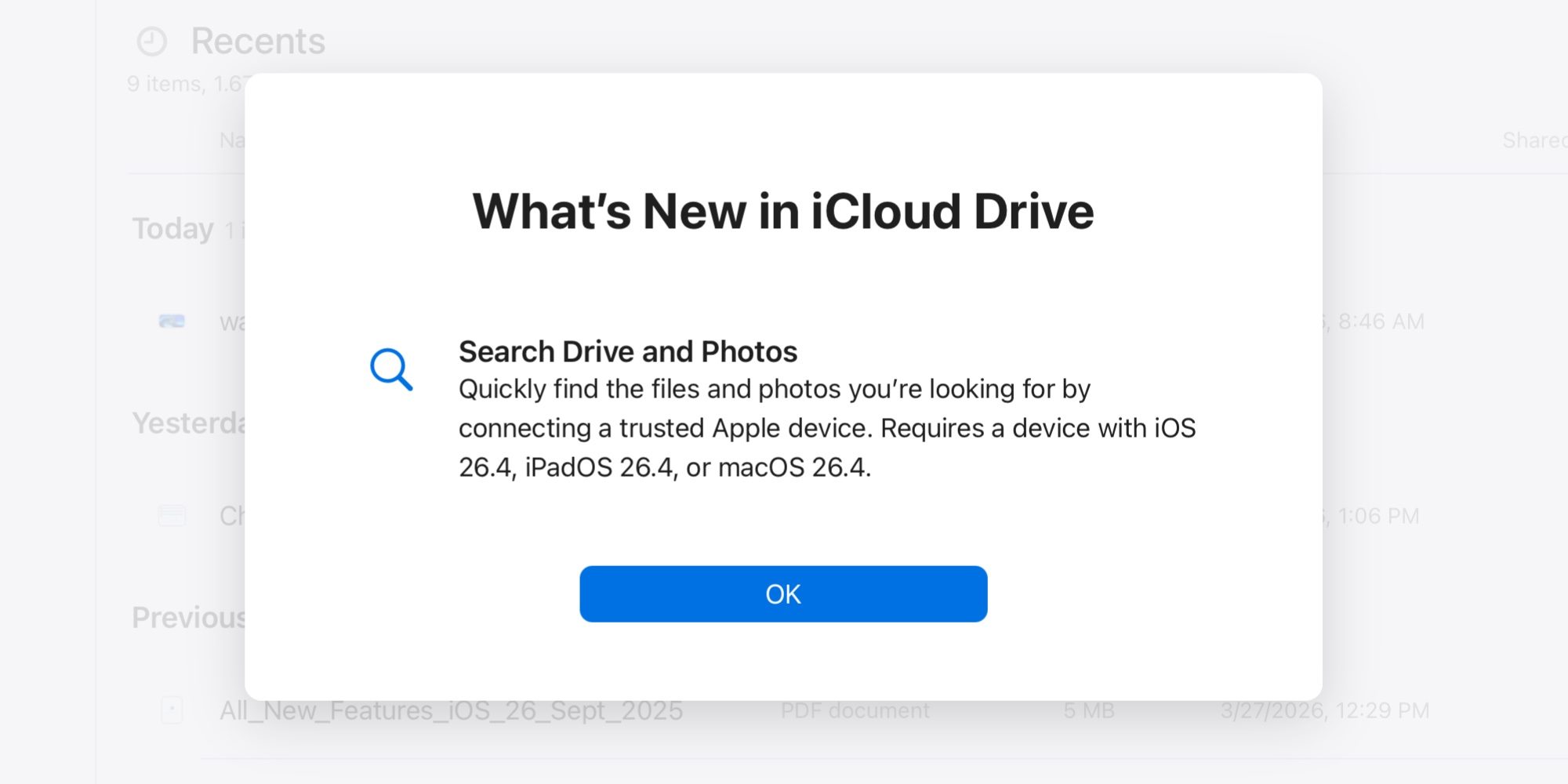
But in iOS 26.4, Apple has a key upgrade for iCloud.com that makes the web version of iCloud more useful than before: search is now available for files and photos.
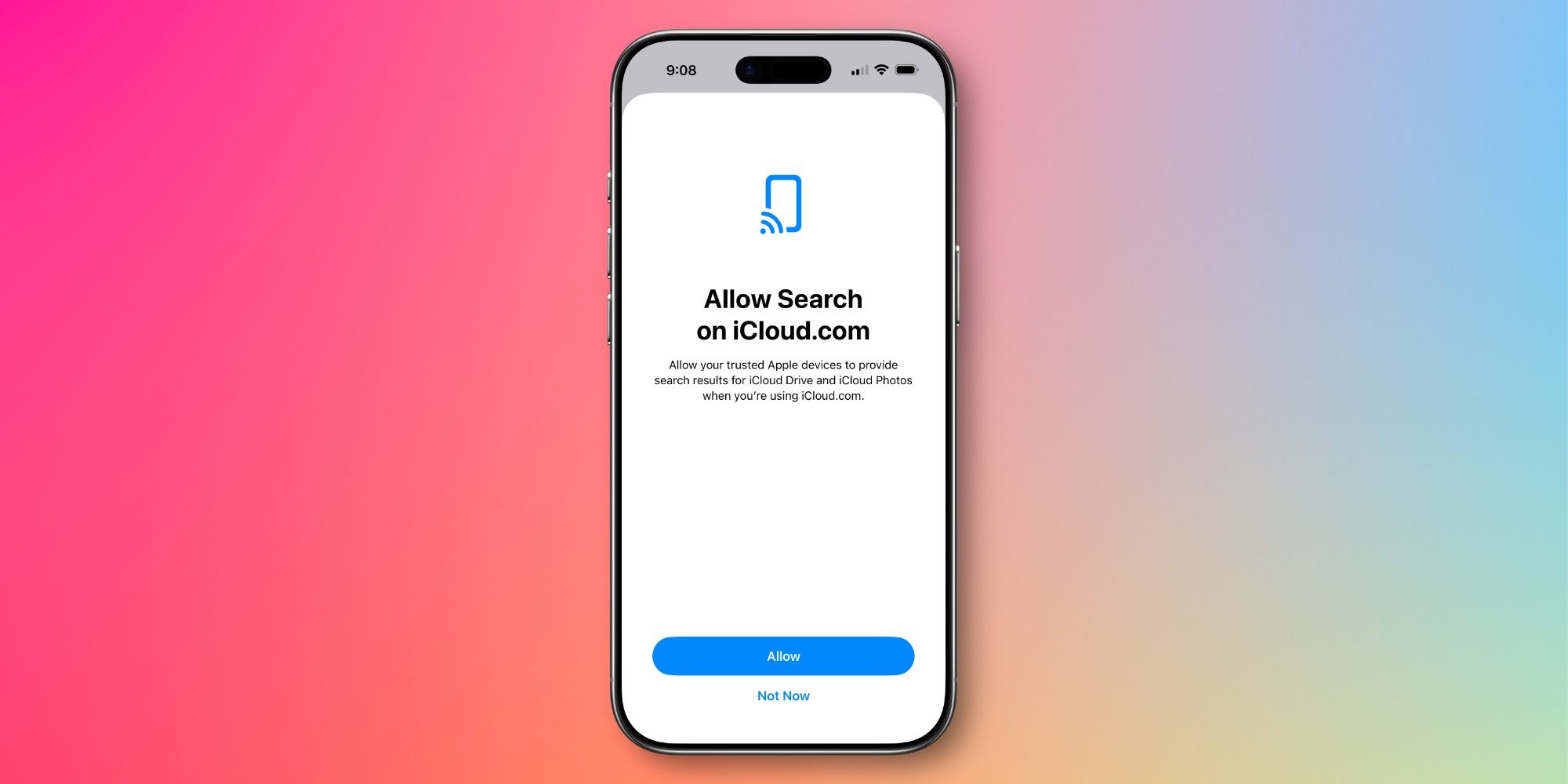
iOS 26.4 adds a new ‘Allow Search’ toggle, off by default, that when enabled will let you search for files in iCloud Drive or photos in iCloud Photos via the web.
From Apple’s support document:
Starting in iOS 26.4, if you turn on data access for iCloud․com, you can also turn on Allow Search. This lets you search your files in iCloud Drive or your photos in iCloud Photos on iCloud․com. To help you find what you’re looking for, when you type in the search field you can see suggestions for:
- filenames, folder names, and document types, for iCloud Drive.
- dates, people, and locations, for iCloud Photos.
When you search Photos and Drive, your searches are encrypted and use on-device processing, so no search history is kept on Apple servers.
For web-first services like Google Drive and Google Photos, search is an absolute essential. But for Apple, the company previously only offered search in the native Files and Photos iOS apps.
Now though, you can get a full search experience on iCloud․com for files and photos, very much like the native apps offer.
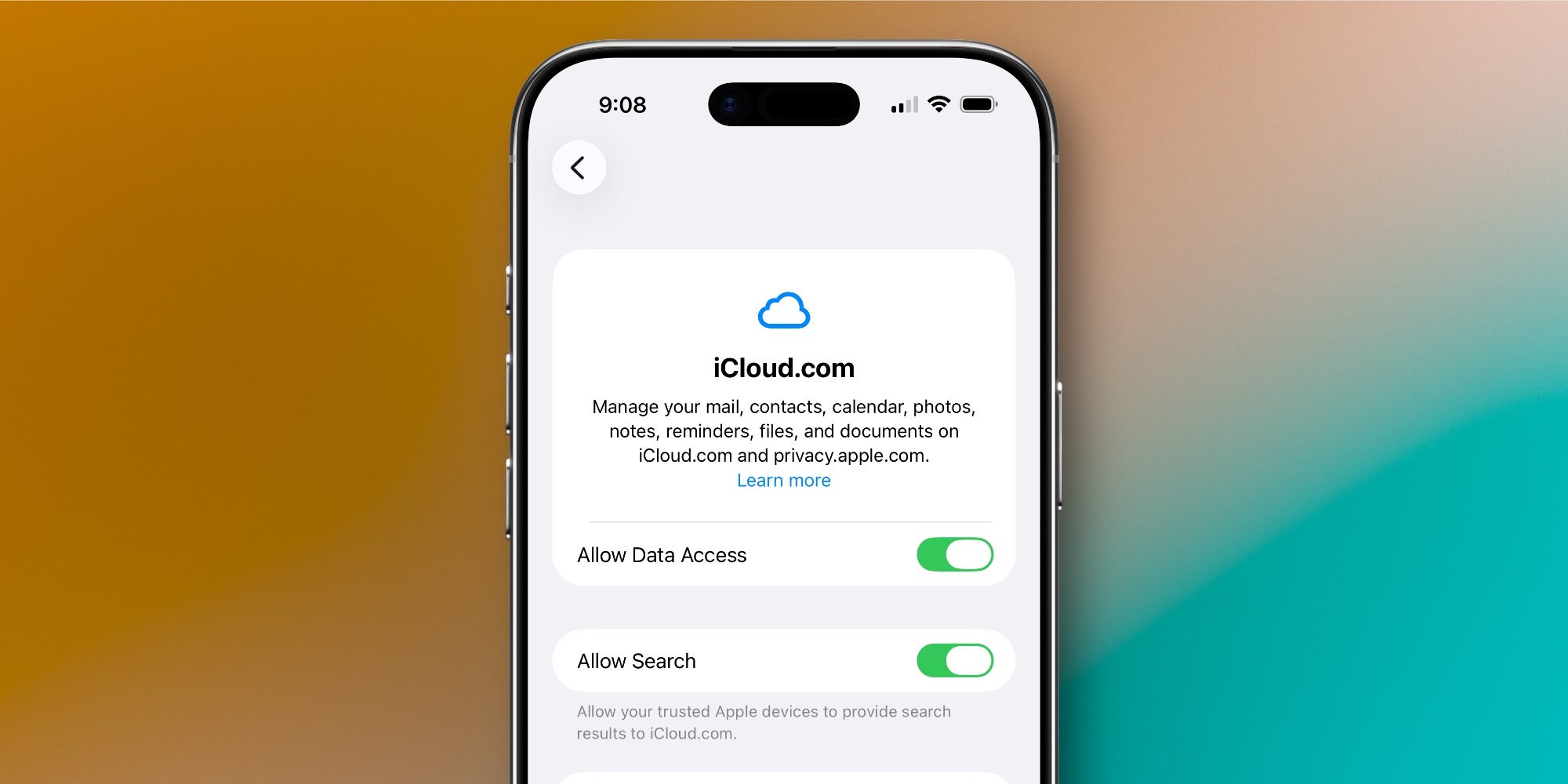
You can enable iCloud․com file and photos search by following these steps:
- Open Settings on your iPhone
- Tap your name at the top
- Tap ‘iCloud’
- Scroll down and hit ‘iCloud․com’
- Toggle ‘Allow Search’ on
- Confirm ‘Allow’ on the popup
This toggle needs to be manually enabled on each device that you want providing search results to iCloud․com. Though if you’re like me and your devices all sync the exact same files and photos, just enabling the toggle once on your iPhone will suffice.
Anyone with an all-Apple setup probably still won’t need to use iCloud․com very often. But if you work on Windows or Android devices regularly, this new feature is a welcome addition.
How often do you use iCloud on the web, and will iOS 26.4 change that at all? Let us know in the comments.
Best iPhone accessories


FTC: We use income earning auto affiliate links. More.