
iOS 26.4 is launching soon and bringing a lot of new features, including three new ways to customize your iPhone. Here’s what’s new.
#1: ‘Reduce Bright Effects’ dials down flashy design element
If you’re not a fan of iOS 26’s Liquid Glass design, the best option for dialing it back is the ‘Tinted’ option that already exists under Settings ⇾ Display & Brightness ⇾ Liquid Glass.
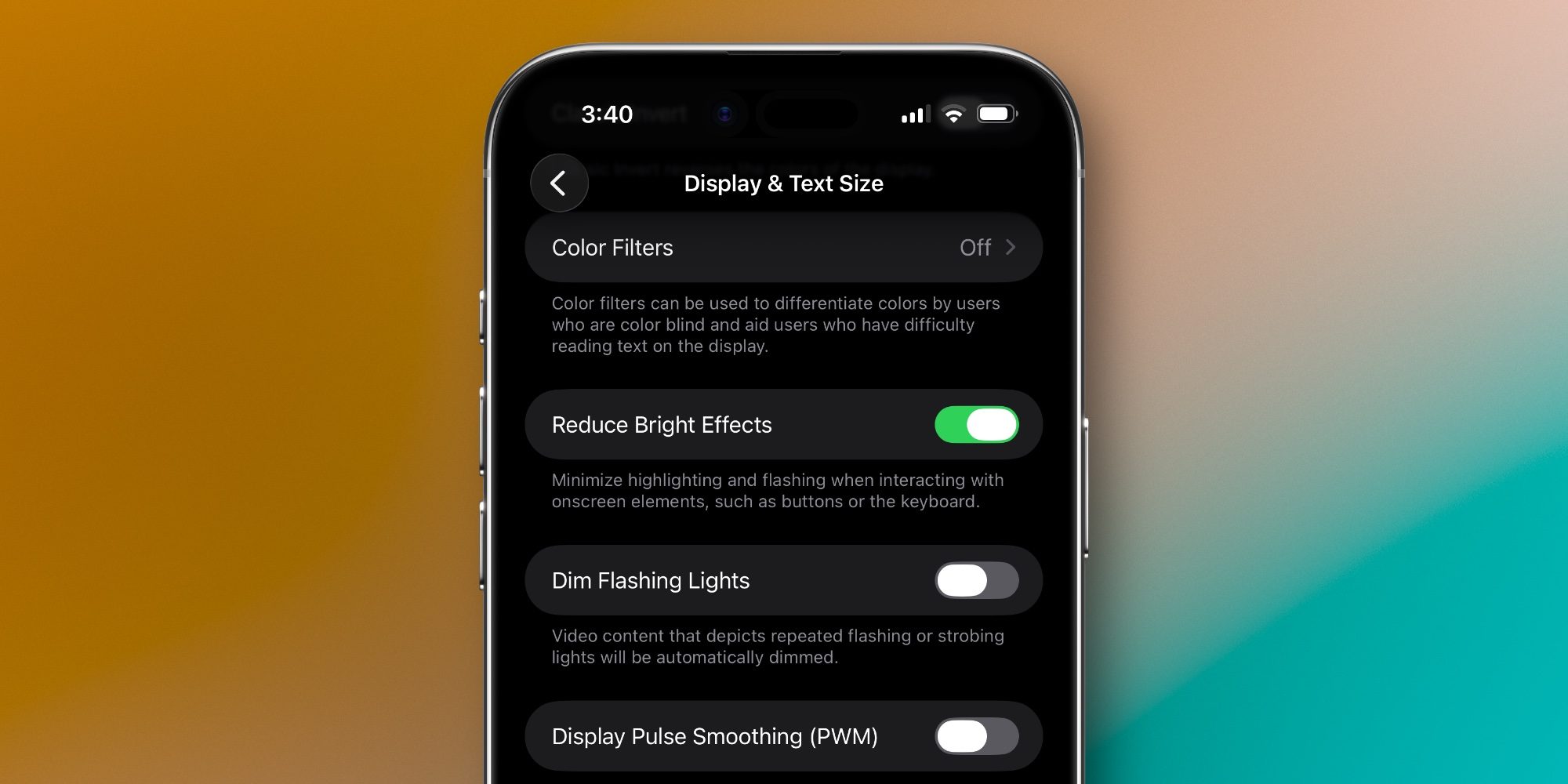
But if you want to take things even further, there’s a new ‘Reduce Bright Effects’ setting in iOS 26.4.
The toggle can be found under Settings ⇾ Accessibility ⇾ Display & Text Size. Turning it on will, per Apple:
Minimize highlighting and flashing when interacting with onscreen elements, such as buttons or the keyboard.
You can see examples of the difference it makes here. Whether you like Liquid Glass or you’re not a fan, you might prefer the ‘Reduce Bright Effects’ setting.
#2: Automate different iPhone battery charge limits
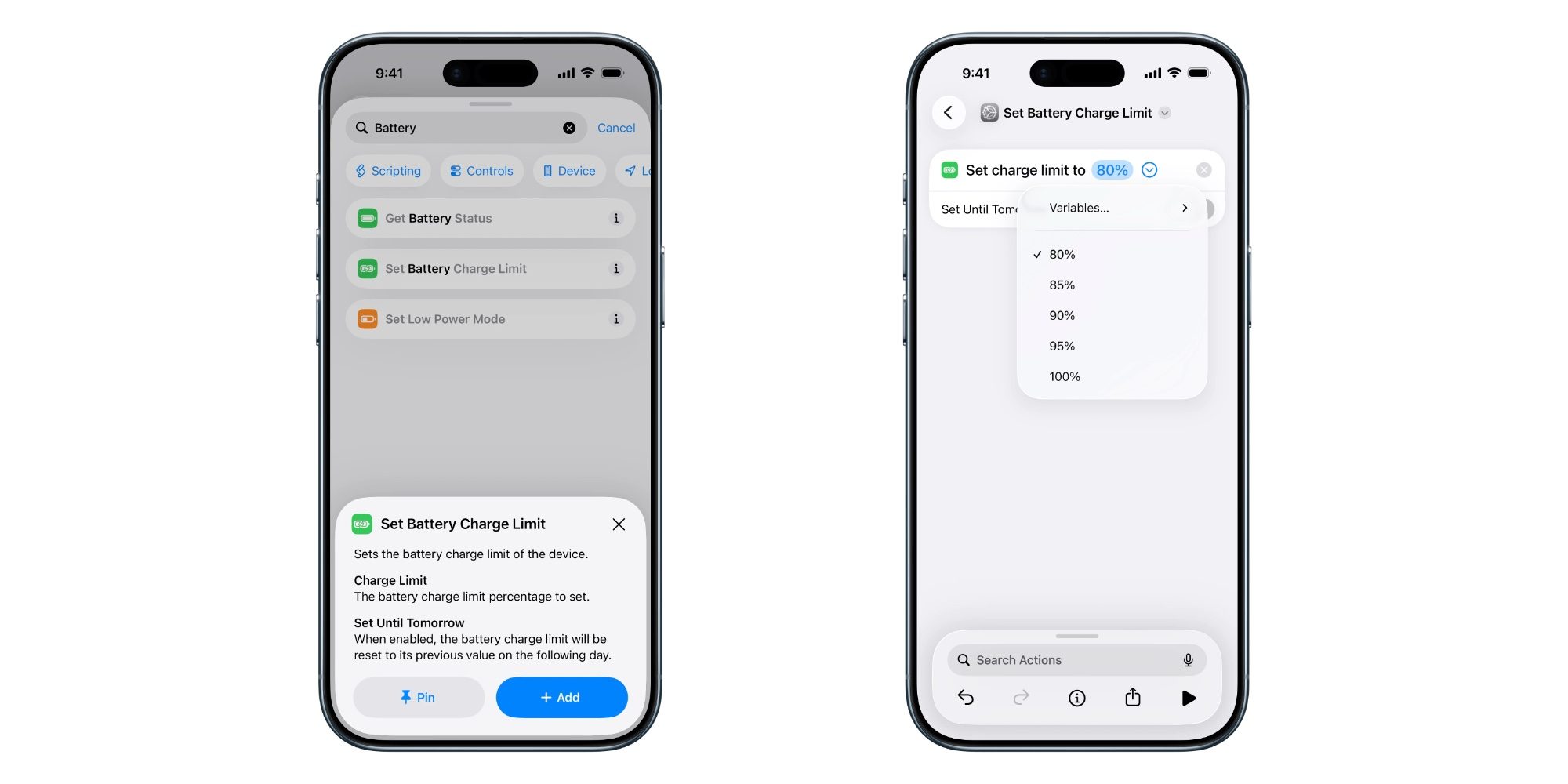
Your iPhone includes a battery feature called ‘Charge Limit.’ It lets you set a maximum charge limit that’s anywhere from 80-100% of max battery capacity.
The idea behind the feature is that using a lower charge limit can extend your battery’s lifespan.
In iOS 26.4, Apple has added a new ability to customize your iPhone charge limit via automation.
Apple’s Shortcuts app now has a ‘Set Battery Charge Limit’ action. This can be used in all kinds of simple or complex shortcuts.
But one of its most powerful use cases is via Shortcuts’ Automation feature. Once you create a shortcut with the new charge limit action, you can have your battery automatically charge to different levels based on factors like whether you’re home or away, on Wi-Fi or using 5G, and a lot more.
#3: Customize video subtitle styles
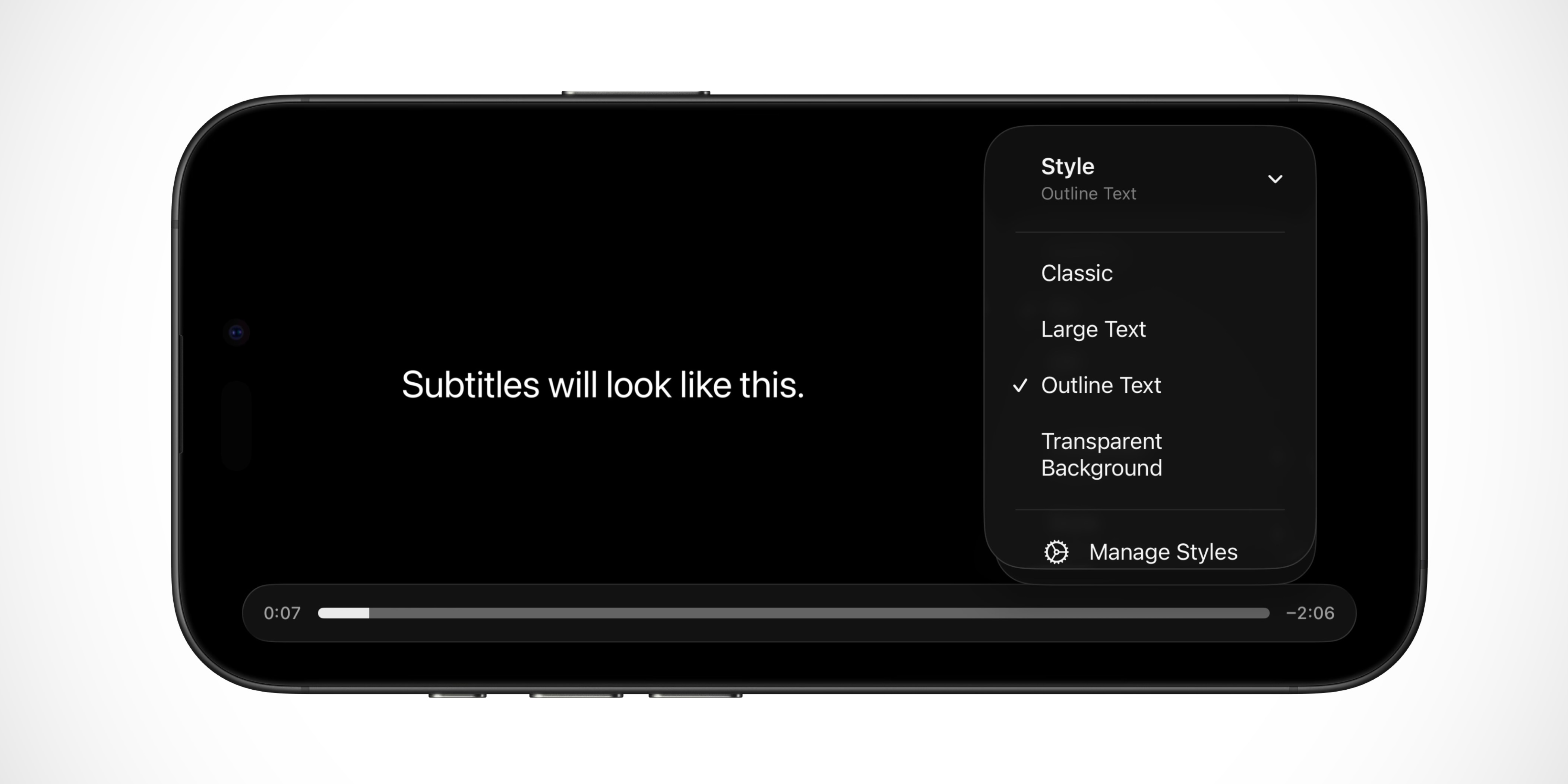
The default video player in iOS 26.4 gains a new option: the ability to customize subtitle style.
Whether you’re watching video in Safari, the Apple TV app, or any other app that supports the default player, you’ll now see a Style option in the Subtitles menu.
Available styles include:
- Classic
- Large Text
- Outline Text
- Transparent Background
There’s also a ‘Manage Styles’ button that lets you customize the look of subtitles even further. It takes you into Settings’ Accessibility menu, where subtitle style options were once hidden away.
Do you plan to use any of iOS 26.4’s new customization settings for iPhone? Let us know in the comments.
Best iPhone accessories


FTC: We use income earning auto affiliate links. More.