
Most of today’s desktop web browsers come with a ton of built-in AI features, but the good news is that, in most cases, no one is forcing you to use them, and you can at least hide them from view. Removing the most egregious AI tools from Chrome is pretty simple, but it requires a few steps.
Make the Gemini button go away
By default, a large Gemini button appears in the top-right area of the browser window, constantly trying to lure you into using Google’s chatbot. To hide it, right click on the button and select Unpin. Unfortunately, this doesn’t kill the keyboard shortcut (Alt + G on some platforms), which invokes Gemini, but there’s another way to make that happen.

Unpin Gemini – Click to enlarge
If you want to do more than just hide Gemini, navigate to chrome://settings/ai/gemini. If you unpinned Gemini, you’ll see that “Show Gemini at the top of the browser” has been set to off. If not, toggle it off. Now, turn all the other switches off, including “Show Gemini in system tray and turn on keyboard shortcut” and “Page content sharing,” which sends content from your tabs to Gemini.
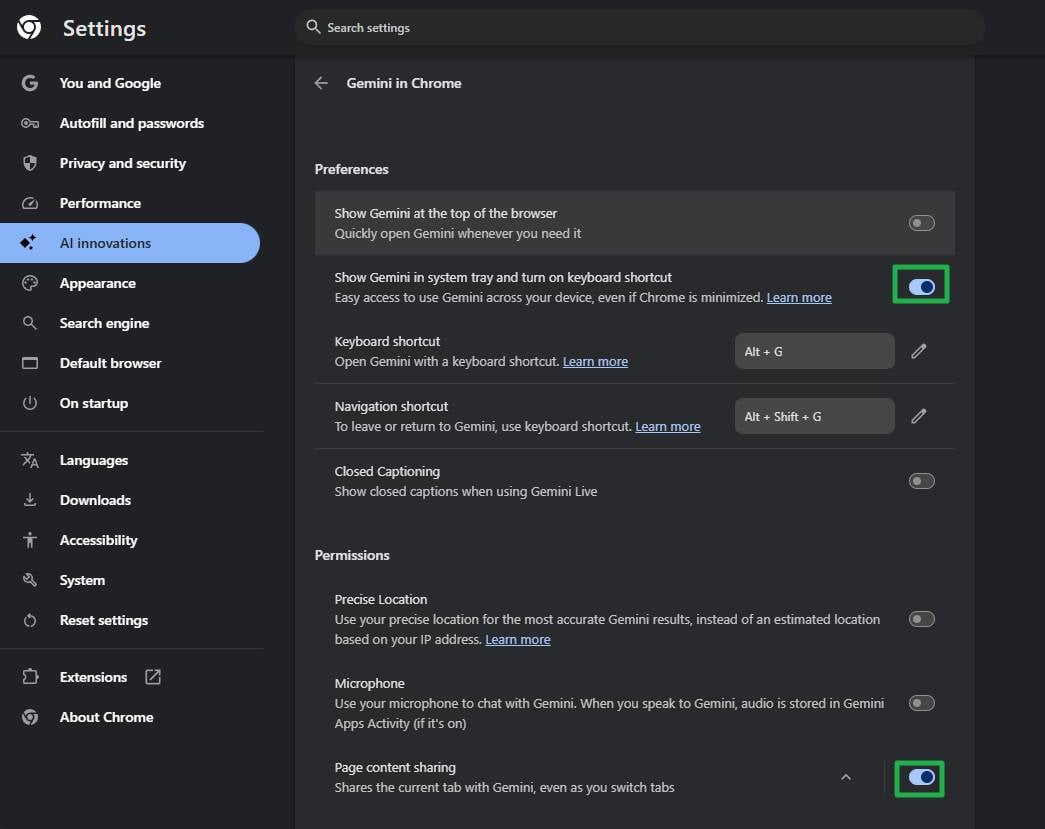
Disable Gemini toggles in Settings – Click to enlarge
Kill the AI mode button
Google would really, really like you to use AI mode instead of its regular search. This type of search is a chatbot that returns direct answers instead of giving you a list of web resources. Perhaps it’s the future of all search, but if so, it’s a bleak future where publishers and content creators have their work hoovered up and plagiarized by a bot that may or may not give correct information and only occasionally cites sources.
To encourage you to use AI mode, Google has put an “AI mode” button on the right side of the Omnibox (what Chrome calls its address bar). So, when you enter a search query in the box, you can click this button to forgo regular search and send your question directly to AI mode. You can also use it by hitting Tab + Enter after entering your query.

AI Mode button – Click to enlarge
It’s easy enough to just not click the AI Mode button, but perhaps for some folks, its very presence and the possibility of accidentally activating it is offensive. To disable the AI Mode button, first navigate to chrome://flags in your browser.
Then search for “ai mode.”
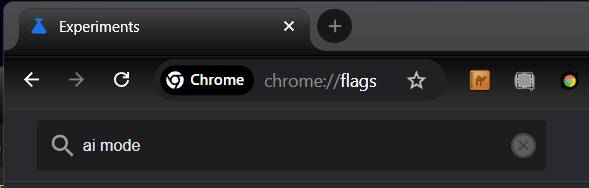
Search for ai mode in Chrome flags – Click to enlarge
You should get at least three results. Most importantly, set “AI Mode Omnibox entrypoint” to “Disabled” so the button disappears. I also recommend enabling “AI Entrypoint Disabled on User Input” and disabling “Omnibox Allow AI Mode Matches” so you make sure the AI mode is hidden in other ways.
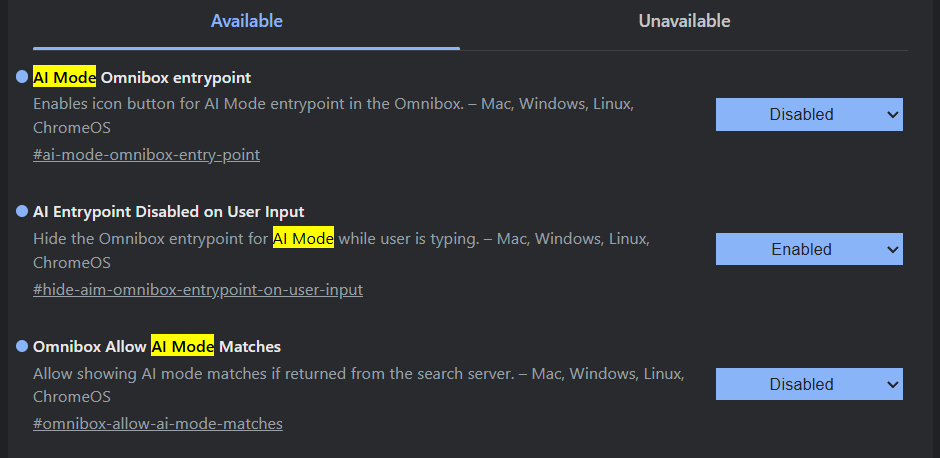
Disable AI Mode entrypoint, enable AI entrypoint disabled on user input, and disable allow AI Mode matches – Click to enlarge
Now, relaunch your browser.
Disable Help me write
It’s not enough that Google Docs and Gmail both have built-in AI writing features. The Chocolate Factory also wants to help you write content that might go into text-based forms on the web. The Help me write feature activates when you right click on a text field and click “Help me write,” after which it pops up a menu to have you either start writing or make a request for it to compose a message for you.
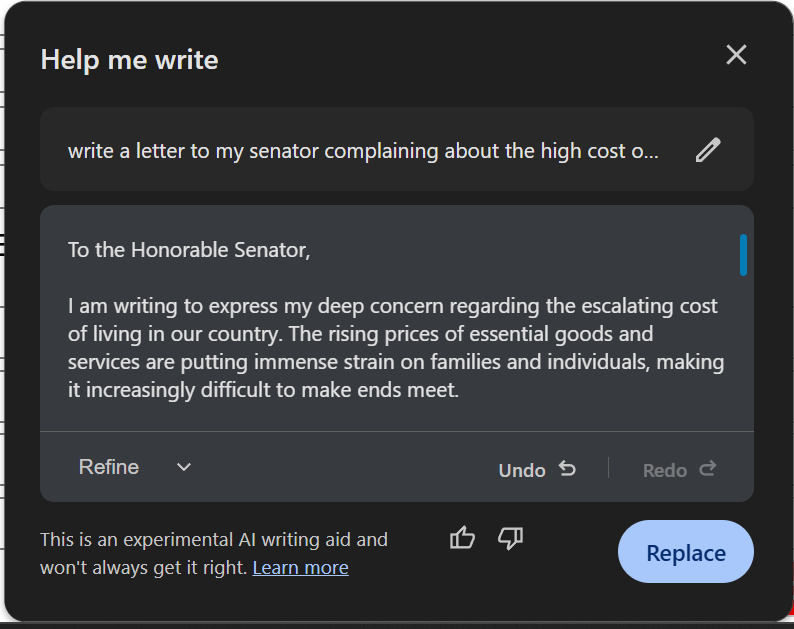
Help me write dialog box – Click to enlarge
However, sometimes I have also had the browser pop up a message trying to encourage me to use “Help me write” while I was typing into a text field, though I have not seen that behavior recently. You can make sure that it does not nag you to use “Help me write” by navigating to chrome://settings/ai/helpMeWrite and toggling “Offer writing help” to off.
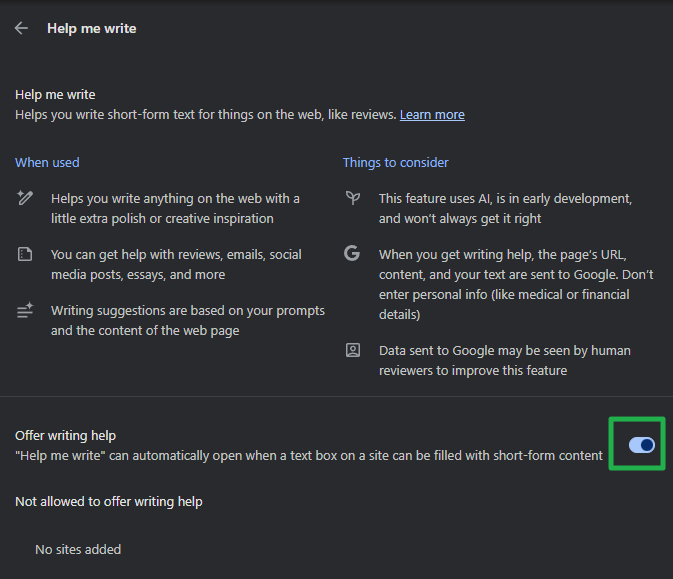
Disable Help me write suggestions – Click to enlarge
Disable AI History Search
On my browser, it was disabled by default, but Google also offers “History search, powered by AI,” which allows you to search your browser history, not just by the names of the pages you visited but also by their content. When this feature is enabled, it sends information about your browsing habits and the pages you query to Google.
To make sure that History Search is disabled, navigate to chrome://settings/ai/historySearch and toggle the single option to off.
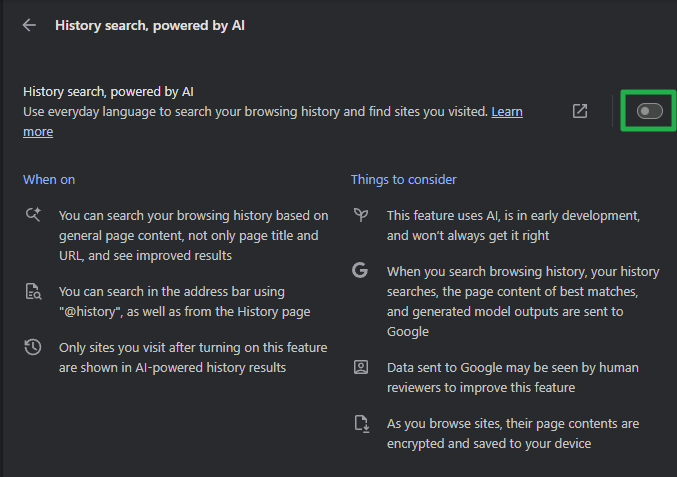
Disable History search, powered by AI – Click to enlarge
Set your default search engine to show web results
By default, the Chrome Omnibox searches Google and returns results from its main search tab (aka the “All” tab). The main search tab on Google gives you web results as you would expect, but on many queries, an AI Overview appears on top of the page, forcing you to scroll down just to see actual listings from the Internet.
To purge AI Overviews from your Google search, you have a couple of options. First, you can install an extension called Bye Bye, Google AI, which I have personally written and can vouch for. It uses CSS to hide AI Overviews and, if you choose, can also hide Google-sponsored links, images, videos, and “people also ask” boxes.
If you don’t want to install an extension, you can configure your Chrome browser to search Google’s “Web” tab, which only shows results from the web, skipping AI Overviews as well as images, videos, and answer boxes. To set Chrome to search the web tab from the Omnibox, start by navigating to chrome://settings/searchEngines.
Click the Add button next to Site search.
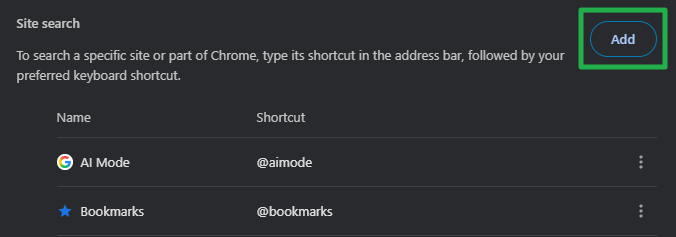
Click the add button next to Site search – Click to enlarge
A dialog box appears. Fill in the fields as follows and then click the Add button.
- Name: Google (Web Only)
- Shortcut: google.com
- URL: {google:baseURL}/search?udm=14&q=%s
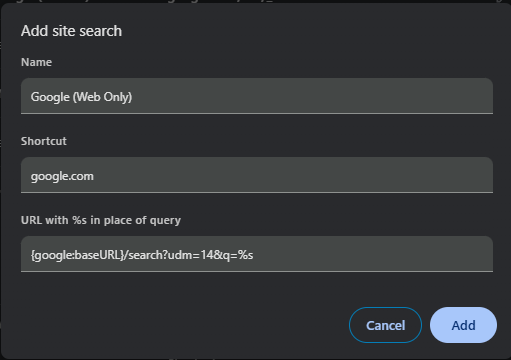
Add Google (Web Only) site search – Click to enlarge
Click the … menu next to Google (Web Only) and select Make default.
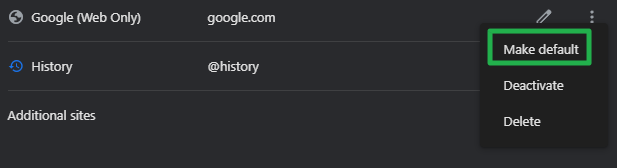
Make Google (Web Only) the default search engine – Click to enlarge
From now on, when you search from the Omnibox, Chrome will send your query straight to the Web tab on Google, ensuring that you only get web pages without an AI Overview on top of them. ®