
Microsoft is improving Windows 11’s initial setup experience with a highly-requested customization feature.

When you set up a new Windows 11 installation, the operating system automatically creates a user folder depending on your Microsoft account email address or profile name. That does not sit well with a lot of users, as many have odd email addresses or long names that get cut in the process. While having an awkward profile folder name does not sound like the end of the world, it is actually inconvenient, especially when you often work in command-line apps. To address the problem, Microsoft is finally adding the long-requested feature to set a custom user folder name.
It is worth noting that the feature is not really new. Windows 11 received user folder name customization a few months ago, but the initial implementation was not the best one, as it required renaming the folder via Command Prompt (not everyone even knows how to invoke it during the initial setup). Now, Microsoft is giving customers a much more user-friendly way to set a user profile name.
When giving your PC a name during the initial setup, you can click “Show user folder name” and enter anything you want, assuming it meets Windows Naming Requirements. That means your profile folder can only contain letters, numbers, dashes, or underscores. Here is what the new UI looks like:
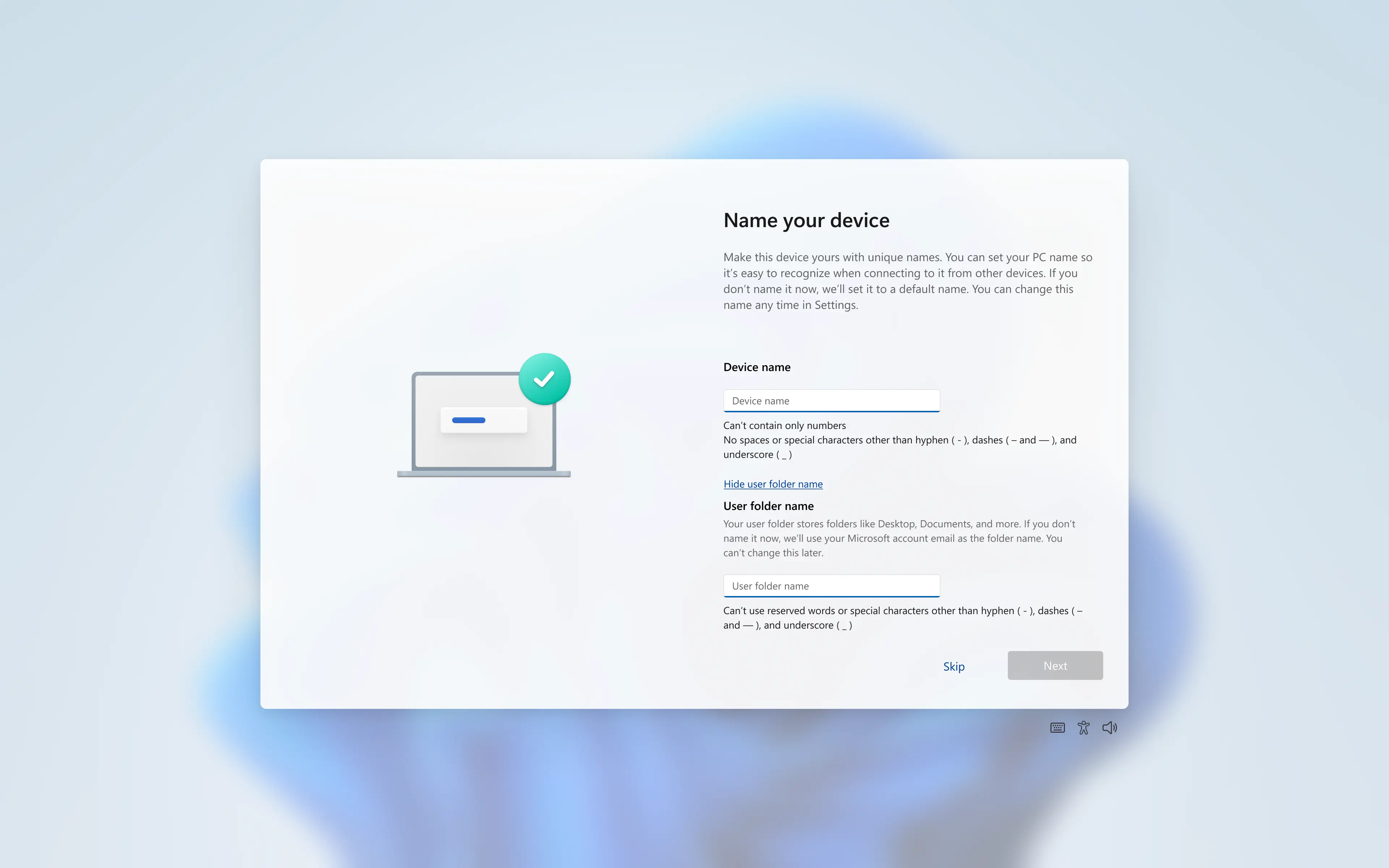
Here is what Microsoft said in the announcement post:
Expanding on our work which started rolling to Insiders last fall, you can now choose a custom name for your user folder on the Device Name page when going through Windows setup. This most recent update now makes it easier to choose a custom name. The naming option is available during setup only. If you skip this step, Windows will use the default folder name and continue setup as usual.
Microsoft is currently testing the new user-friendly way to rename the user folder in the latest Windows 11 preview builds from the Dev and Beta Channels. You can learn more about changes in those builds here.